
To add DataFeedWatch to your BigCommerce store, follow the steps below:
- In your BigCommerce admin panel, head to side navigation and go to Apps.
- Once it drops down, select Marketplace.
- Click BIGCOMMERCE.COM/APPS to go to the BigCommerce App Store.
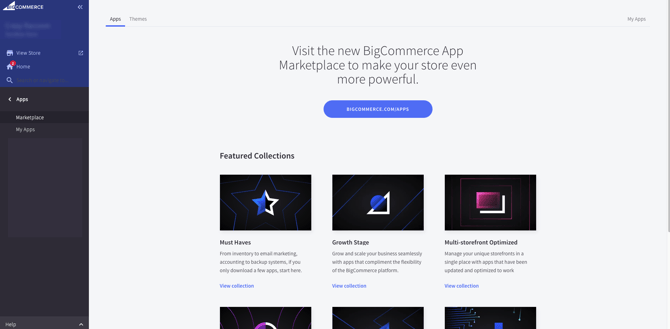
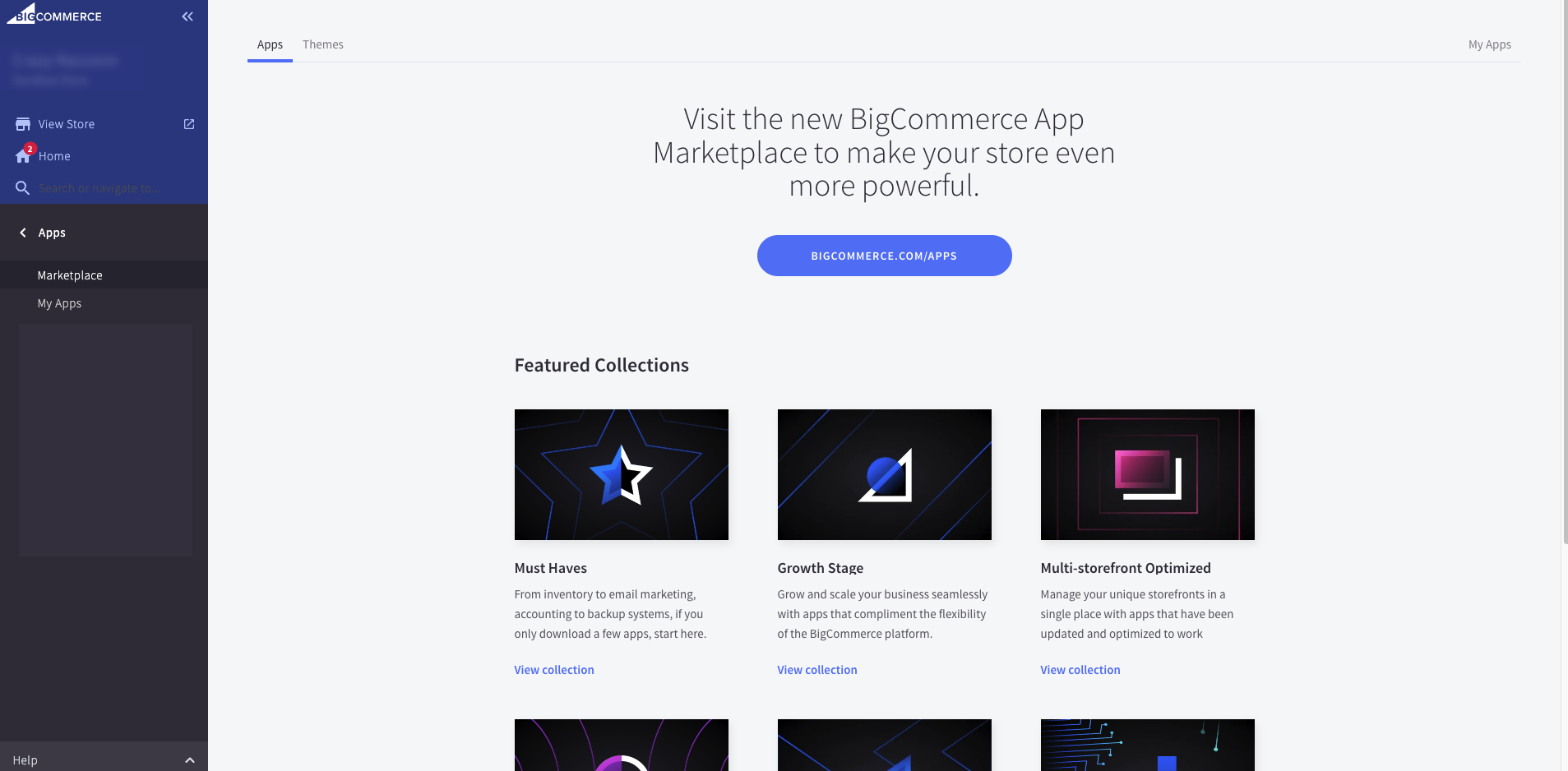
4. Enter the app's name in the search bar: Data Feed Watch.
5. Once the results appear, click the Data Feed Watch tile.
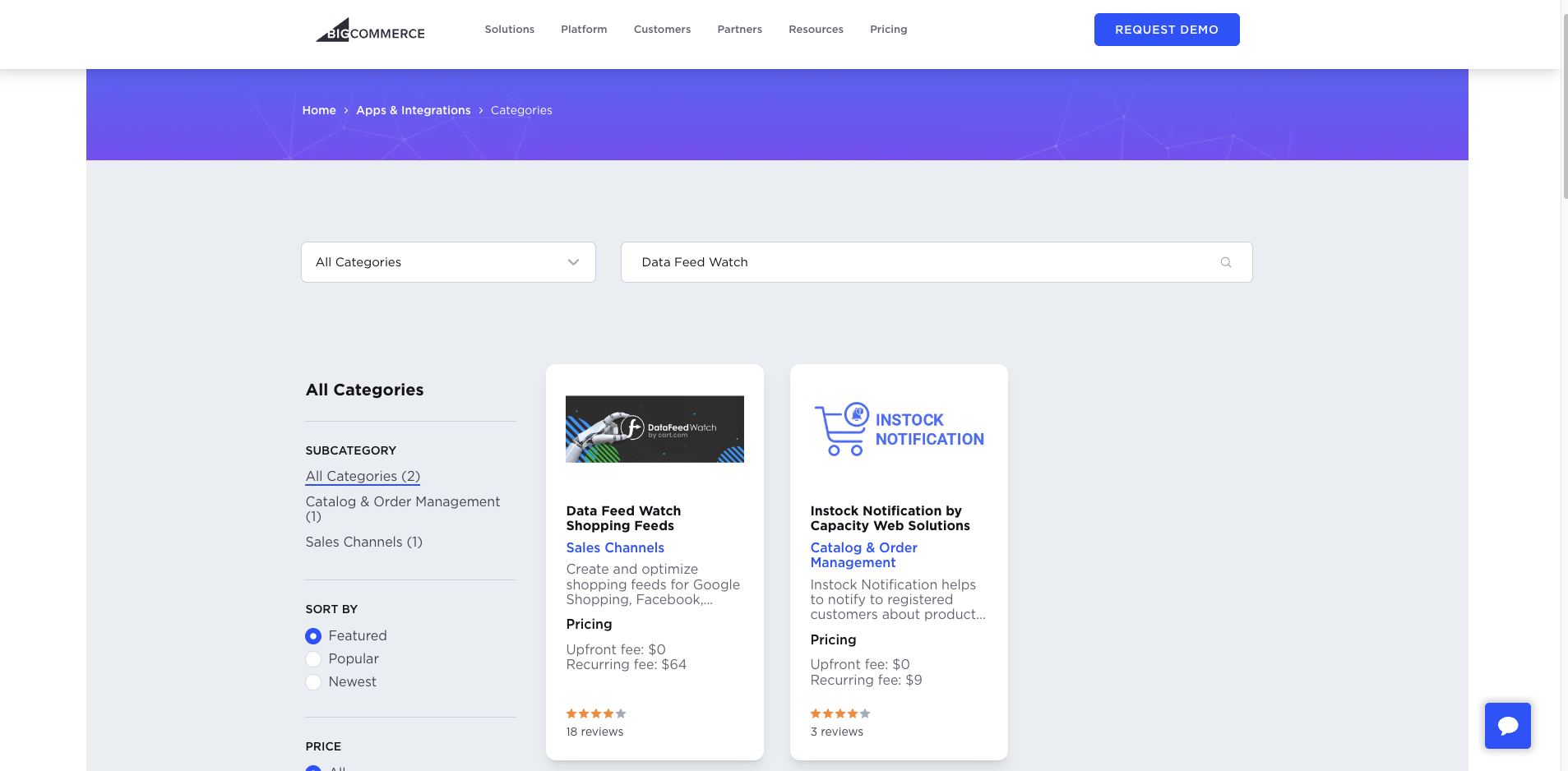
Or use this link to go directly to the DataFeedWatch page in the AppStore
6. Click GET THIS APP on the upper banner.
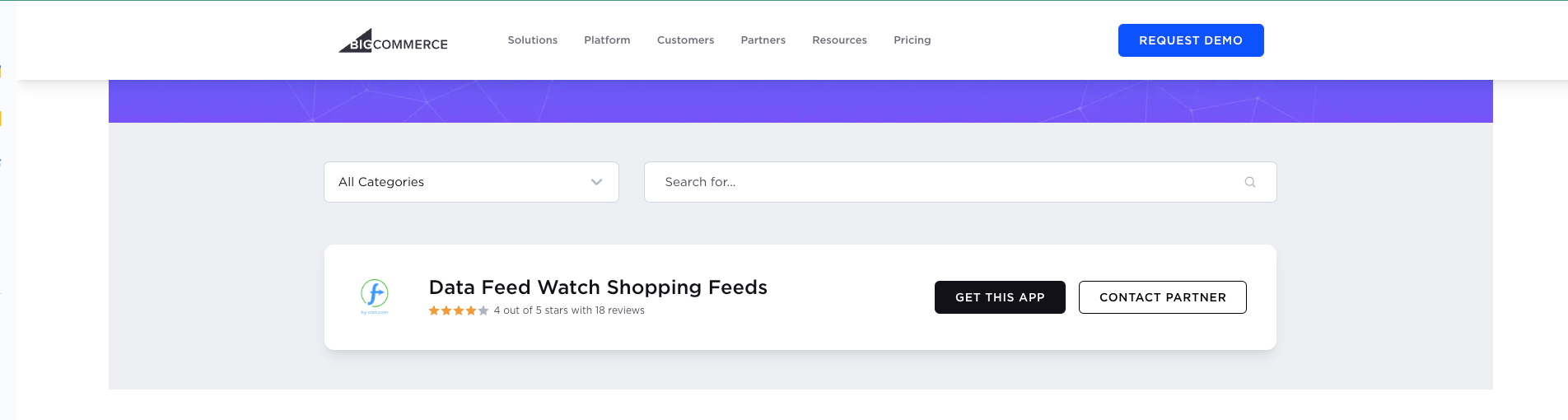
7. Log into your BigCommerce account if you haven’t done so already.
8. On the DataFeedWatch landing page, click Install.
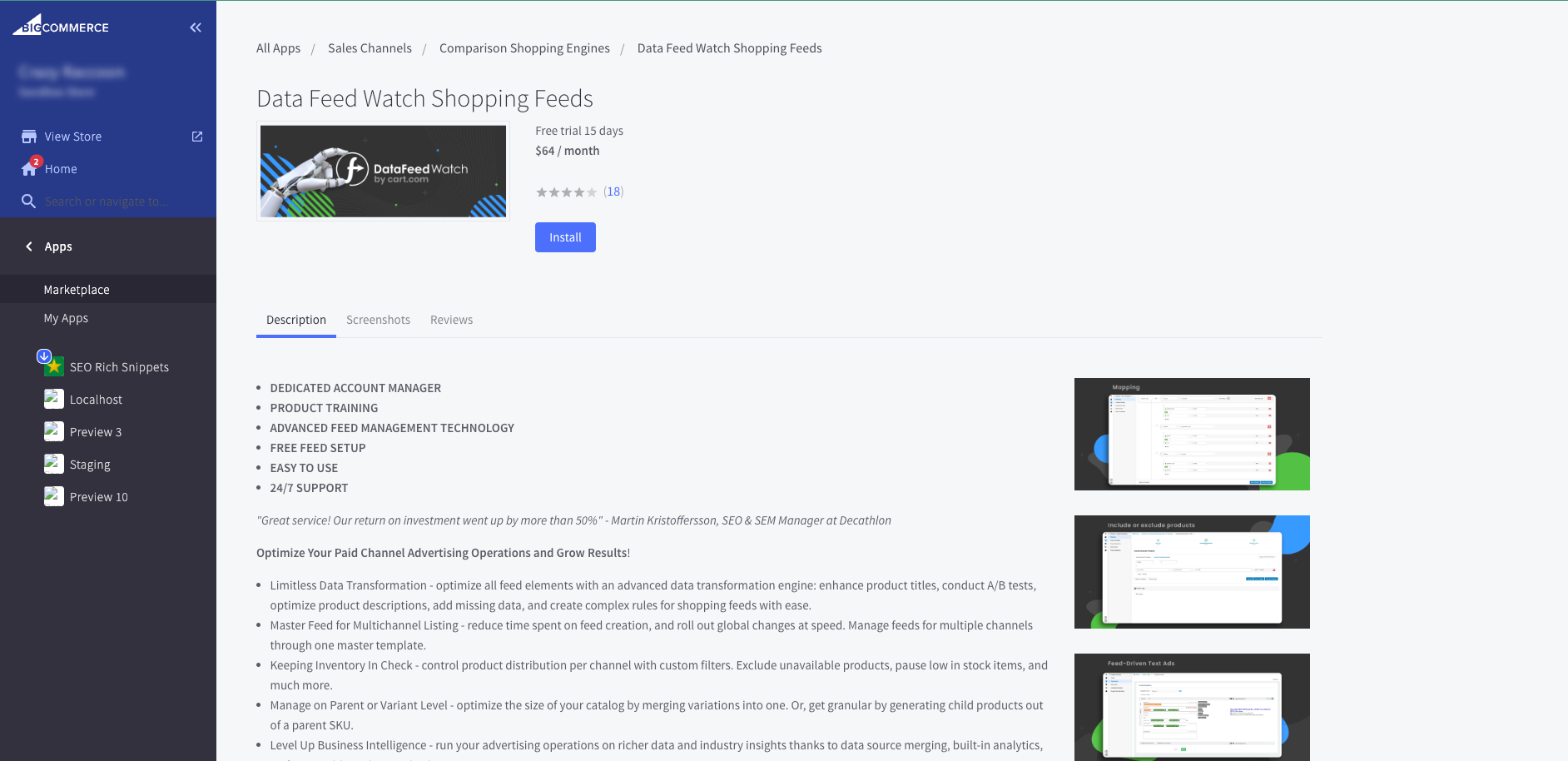
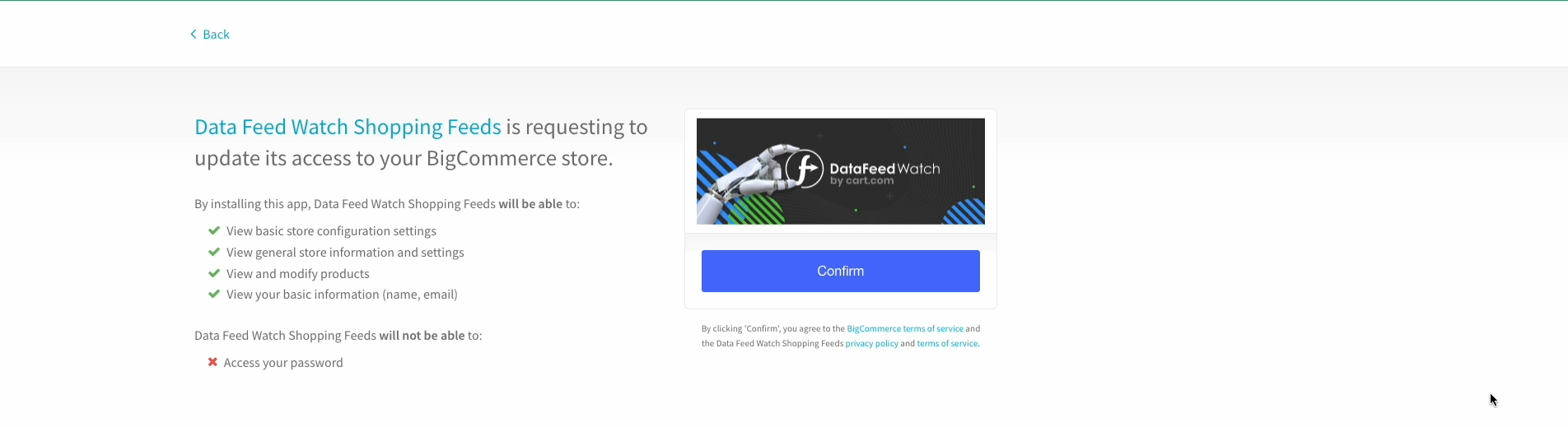
9. Click Confirm to give DataFeedWatch access to your store.
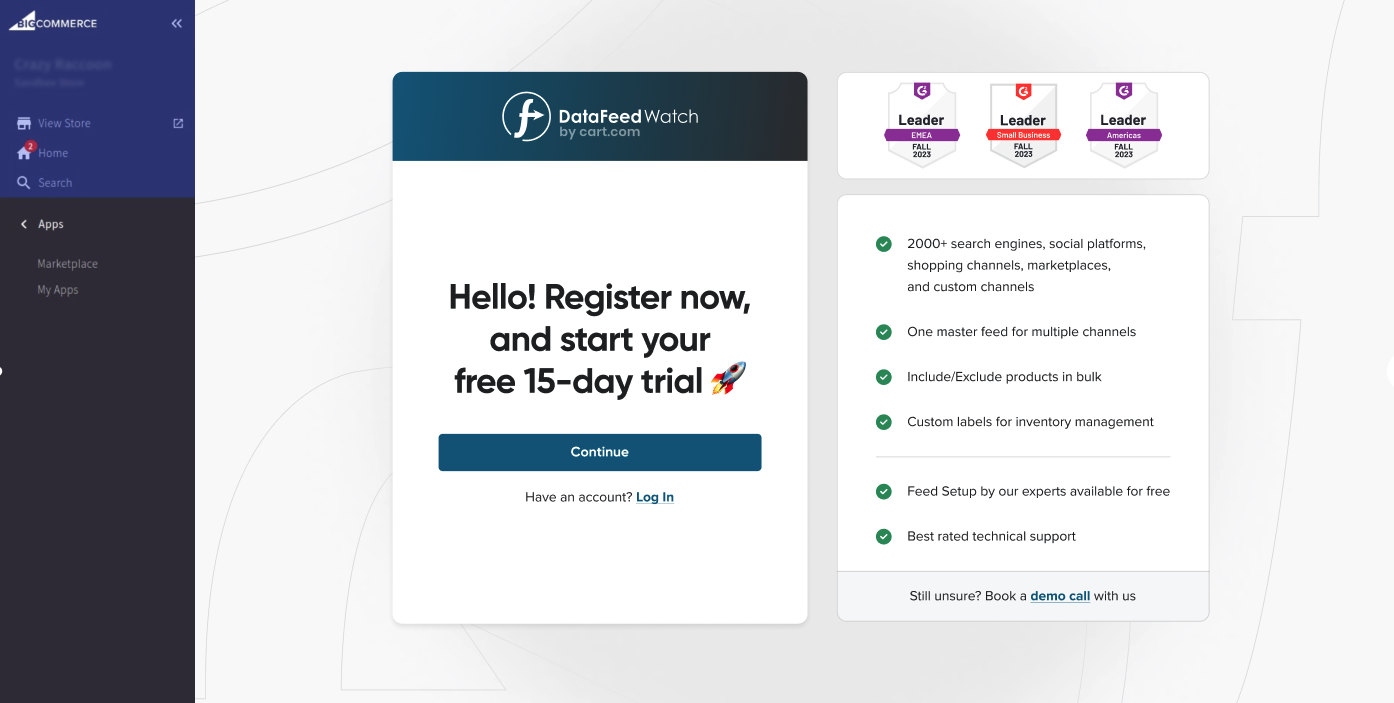
10. To register your account, click Continue.
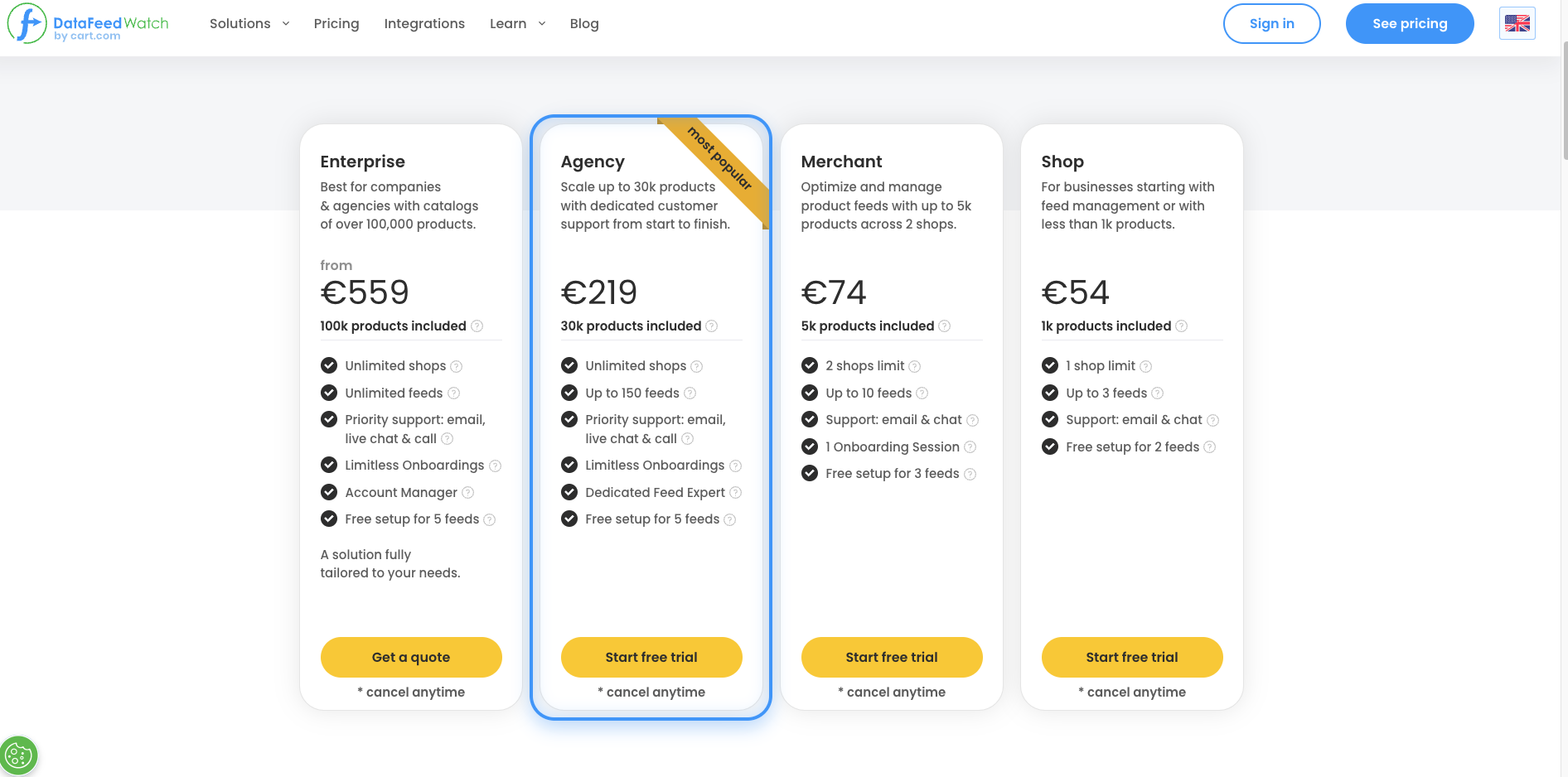
11. Select your subscription plan.
12. To finish the registration, follow the instructions in the app.
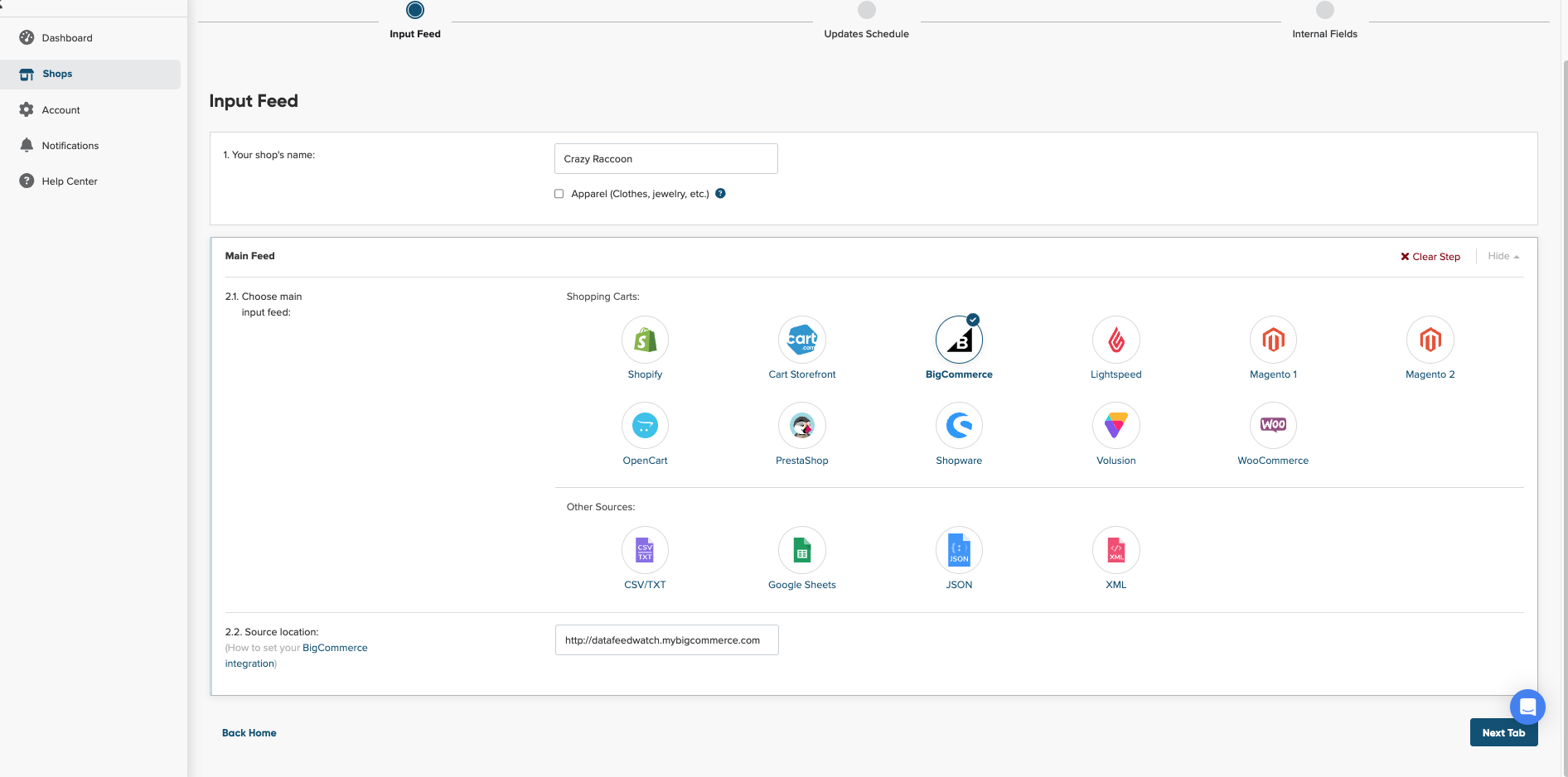
13. Once you finish, you will land on the Input Feed page.
14. Check your store data, which we’ve filled in by default.
15. If everything is correct, click Next Tab.
16. Schedule how often you want to update your feed.
17. When we finish downloading your products, create your Master Fields.
18. Map your feed.