
To use the Lookup table option, follow the steps below:
- Ensure you’ve logged into your Google Account, then open the file where you will create the value you want to change.
- In the first column, insert the values already in the feed. (e.g., id - input field).
- In the second column, add the new values.
The first column must include the values as they are in your feed. To the second one, add the new values.
In the example below, the values in the first column represent id. In the second column, you will see the brands that will be added to your feed.
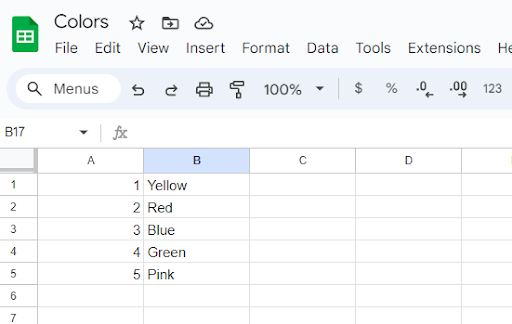
4. In the upper-right corner, click Share.
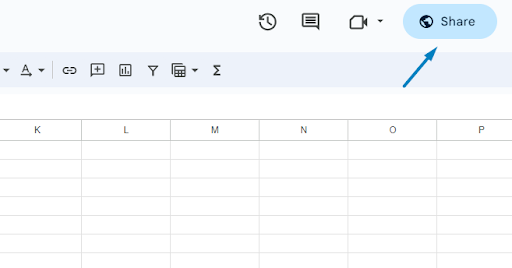
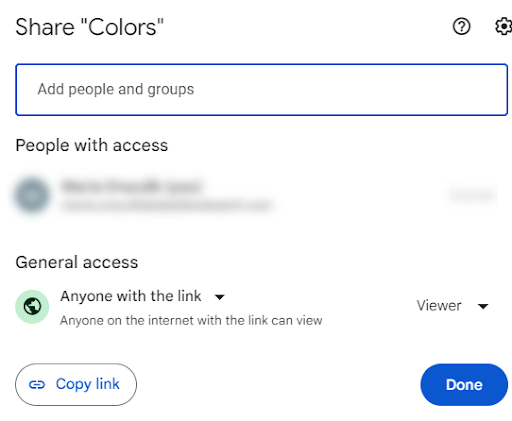
Remember to give access to the file so anyone with the link can view it.
5. Go to DataFeedWatch.
6. Go to your mapping (can be either the Master Fields or the Map Fields tab).
7. Scroll down to the field that you want to edit (in our example, it’s brand).
8. Click on the mapping type rule and select the Use lookup table from the drop-down.
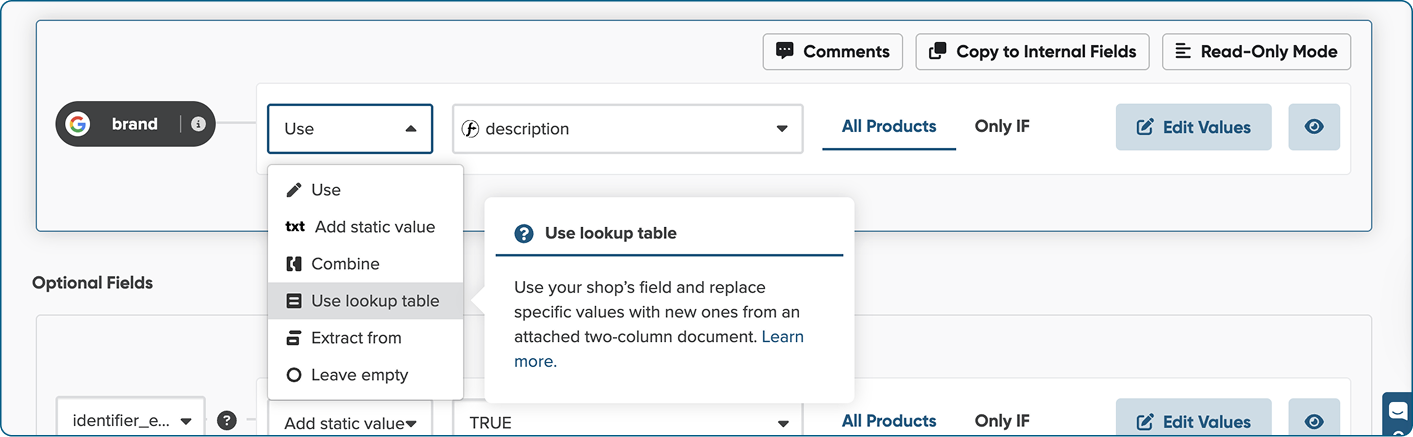
9. Select the field to be searched for values from the first column in the spreadsheet (in our example, it’s brand).
10. Below, add the file from your drive or paste the shareable link to your Google Sheet file.
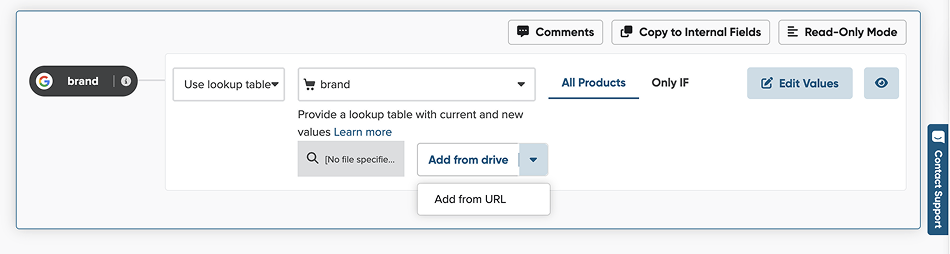
- To add the link, click on the arrow in the field Add from drive, and select Add from URL.
image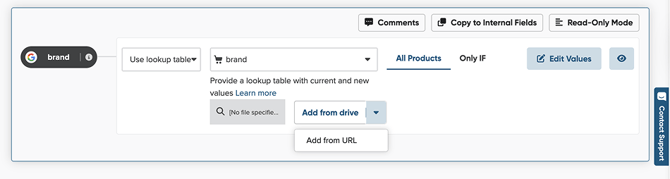
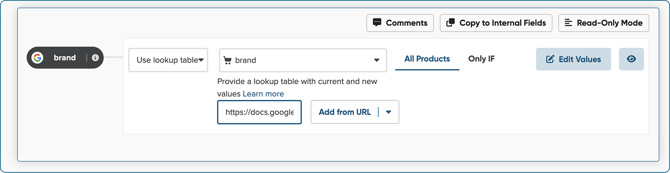
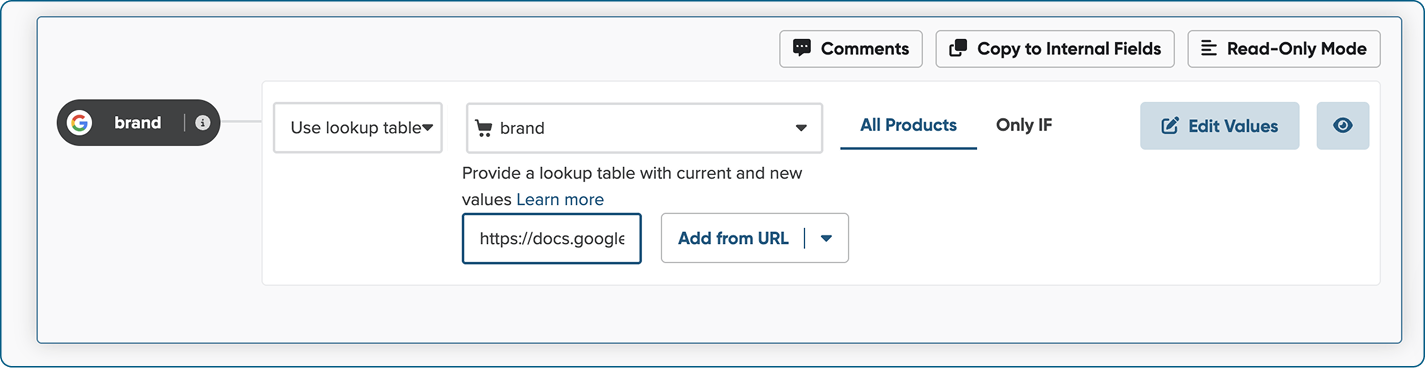
- Paste the Google Sheets URL.
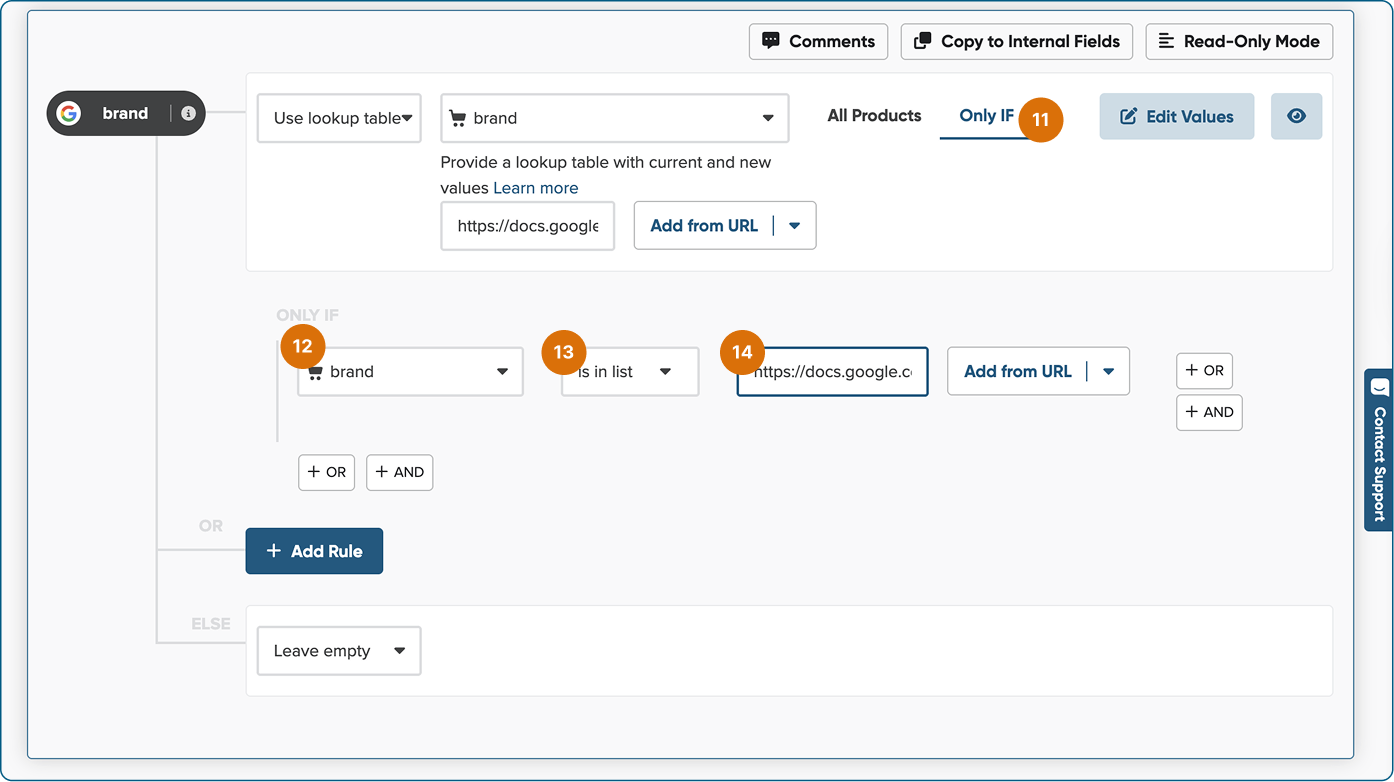
11. Next, click Only IF.
12. When the rule builder drops, select the same field to search for values from the first column in the spreadsheet.
13. Select the condition 'is in the list' from the next drop-down.
14. Add the same file as above from your drive or URL.
This will ensure that the tool will only change the values you included in the spreadsheet.
15. Then go to the Else part of the rule.
16. For the mapping type, select Use.
17. From the next field, select the one containing the values you want to replace. (In our example, this is the field 'added-to-dfw'.) The original values will be retained when you add this rule.
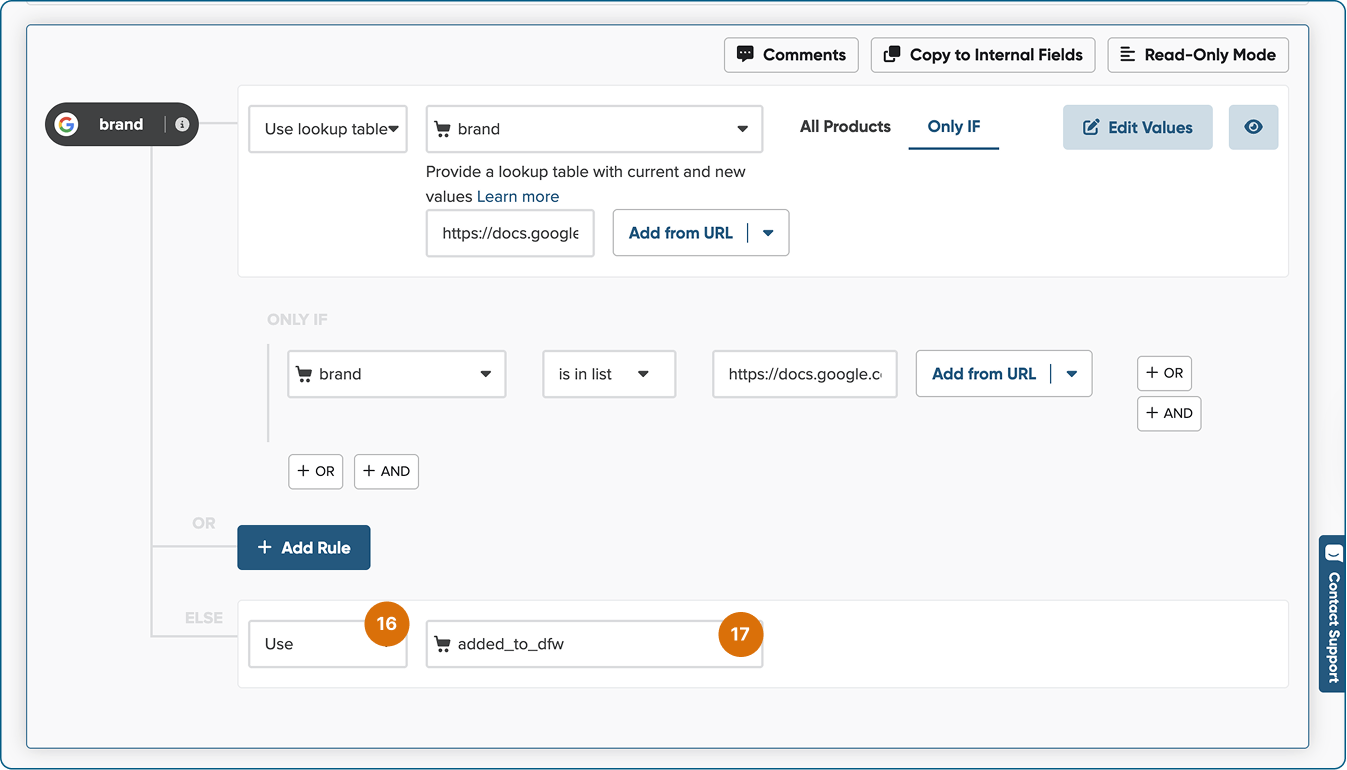
18. To apply changes, click Save and Proceed.