
To remove your HTML tags from your description
Why is it so useful?
While you can include HTML elements within the description attribute, it's generally not recommended, as Google's search engine may either remove them or display them incorrectly.
1. Go to the Mapping.
2. Look for the description field.
3. Ensure that you used Use to set up your mapping rule.
4. Click Edit Values.

5. From the first drop-down Mapping type, select Strip HTML.
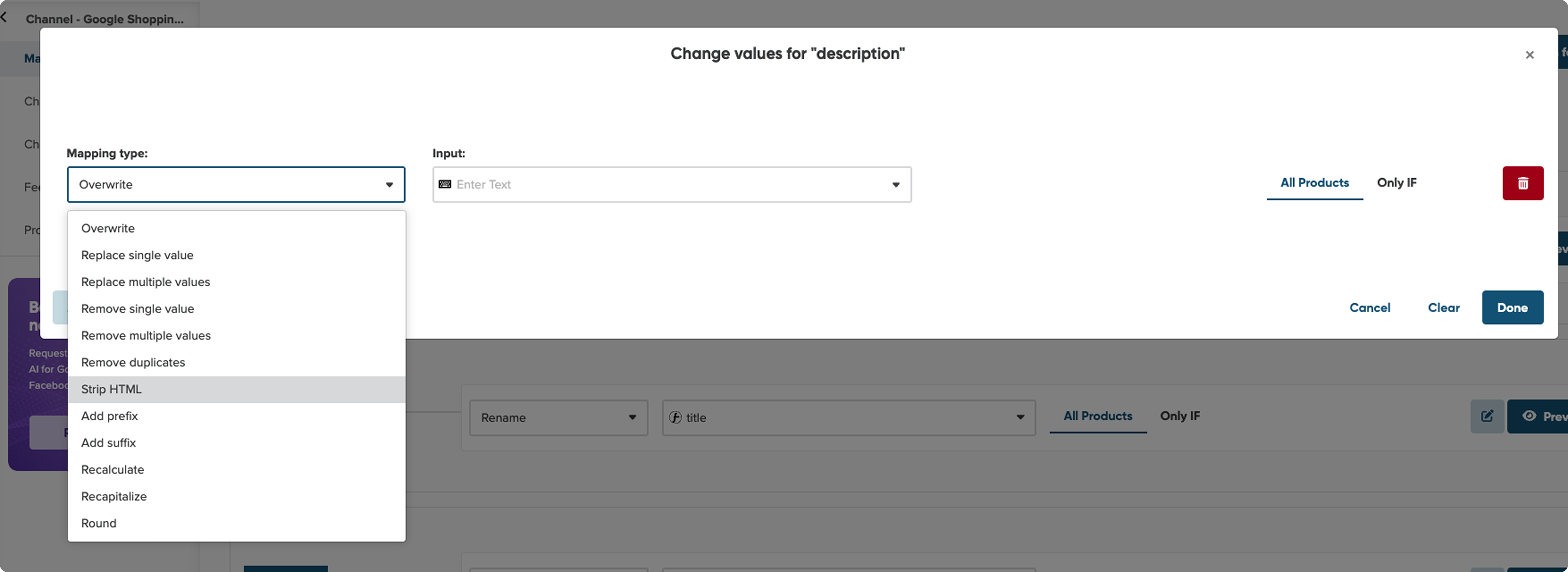
6. If you want to keep basic HTML tags for formatting, check the box Keep basic formatting.
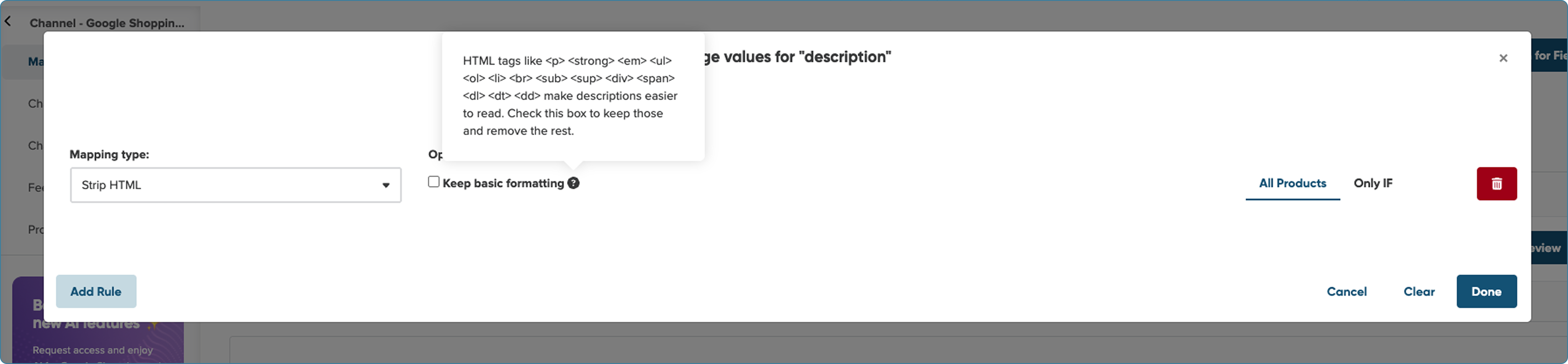
7. Click Done to save changes.
💡If you check off 'Keep basic formatting,' the following HTML tags will be preserved:
-
– Defines a paragraph.
-
– Makes text bold. -
– Italicizes text. -
-
– Creates a bulleted list.
-
-
– Creates a numbered list.
-
- – Defines each list item within
-
-
– Displays text as subscript (e.g., H₂O). -
– Displays text as superscript (e.g., x²). - – A block-level container used to structure content and apply styling.
-
– An inline container often used for styling parts of text within a paragraph. -
-
– Defines a description list, useful for key-value pairs or definitions.
-
- – Defines a term within a description list.
-
- – Defines the description or explanation of the term inside
- – Defines the description or explanation of the term inside
or. -
-
-
To remove HTML tags from any field using the RegExp:
In this article, we based on the description field to explain how to remove the HTML tags. But remember, you can use this trick with any other field in your mapping. ✨
- Select the field where you want to remove the tag.
- Click Edit Values.

- As a mapping type, select Remove Single Value from the drop-down.
- In the field Input, paste the value: <[^>]*>
- Click Confirm.
- Check off the use regexp box below the field.
- Click Done.
- To save the new settings, click Save and Proceed.
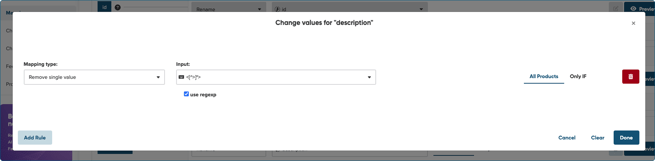

In the selected field, any text appearing between "< " and ">" (like
, , etc.) will be removed.