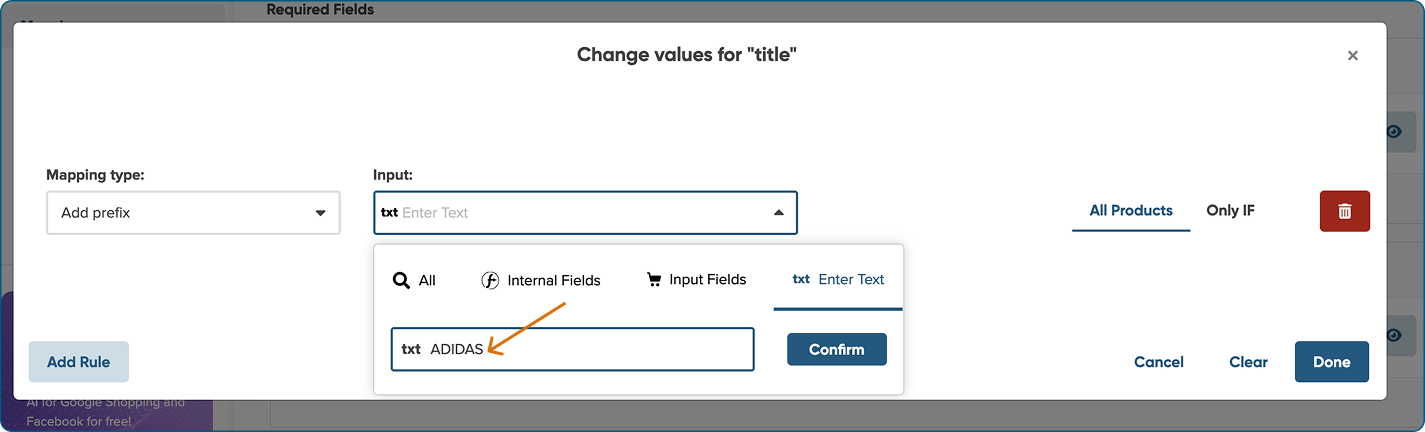
The Add prefix adds a text in front of the values of the output fields.
You can create conditions to specify for which products you'd like to add a prefix.
To Add prefix, follow the simple steps below:
-
Scroll down to find the field you would like to map (e.g. Brand).
-
From the first drop-down list next to it, select a basic mapping type (e.g. Use).
-
In the next field select the Input Field or Master Field that you would like to use.
Please note that Master Fields (that are already mapped for the whole shop) will only be available in Map Fields tab.
4. Click Edit values on the right.

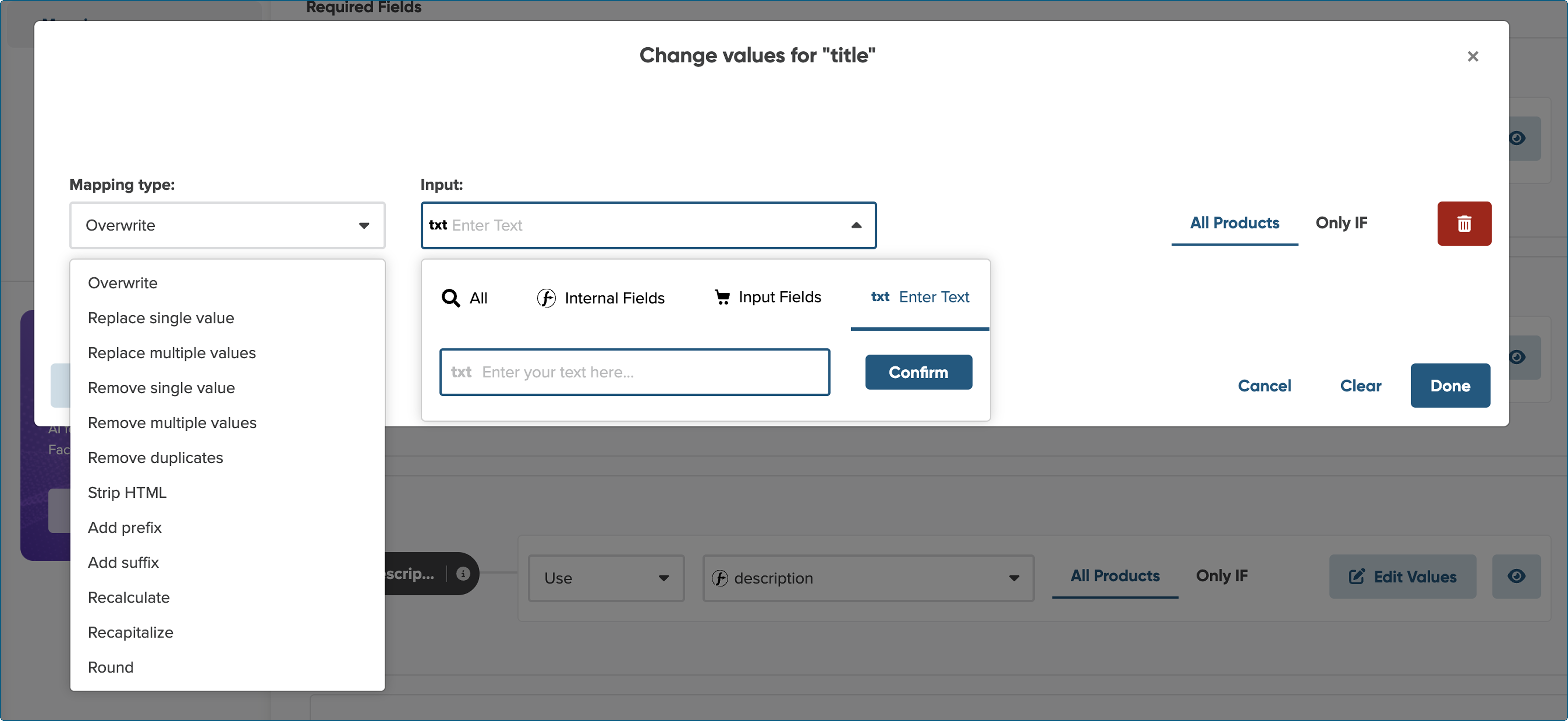
5. From the Mapping type drop-down menu, select Add prefix.
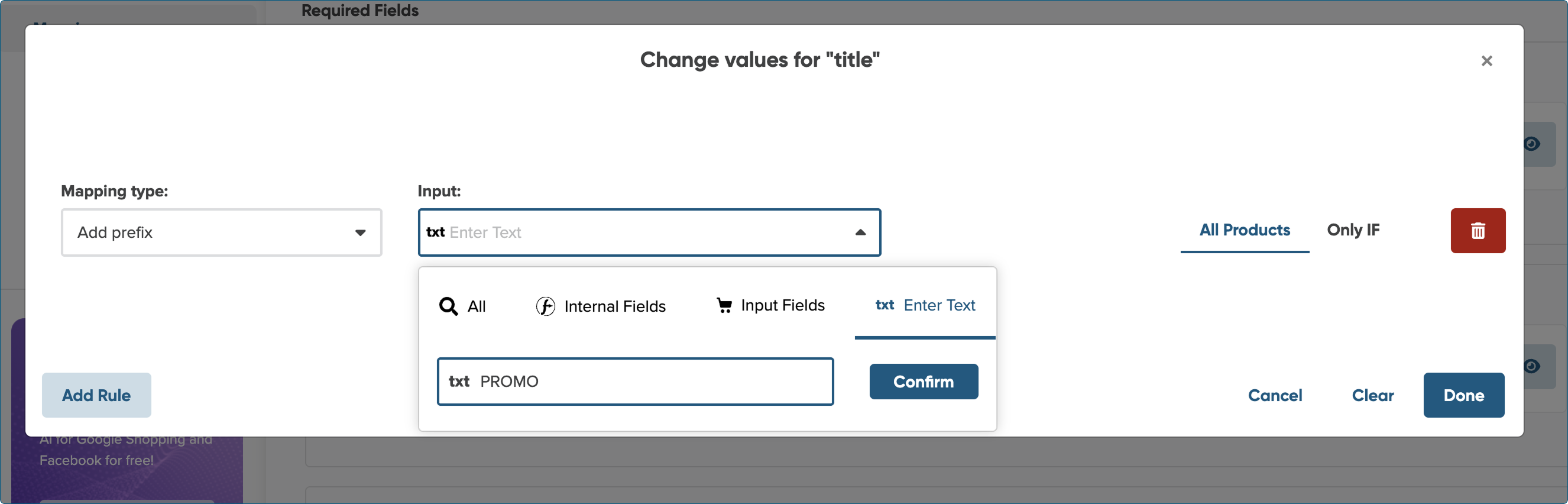
6. In the Input field on the right, enter the text that you would like to appear before the rest of the text (e.g. PROMO).
Optimization tips&tricks:
Add prefix functionality to include Brand at the beginning of the title.
-
Set Use as the mapping type for your Title field.
-
Click Edit values on the right.
-
Select Add prefix from the first drop-down list.
-
Enter the name of your brand in the input field.
- If you want your values to be separated by spaces include a space at the end of your brand name.
If you want your values to be separated by spaces, don't forget to include a space at the end of your brand name.