
It might happen that you would like to transfer your shop over to a different account.
Before you start:
- Please ensure that account to whom you would like to transfer shop already exists in the DataFeedWatch system and have a proper plan.
- Only users with the Organization Admin role can do a shop transfer.
Important Note for Feed-Based Text Ads Users!
Before you request a transfer, ensure you don’t use our Feed-Based Text Ads Solution. If you do, remember that you will lose your existing Feed-Based Text Ads settings during the shop transfer.
Please contact our support if you still want to transfer your shop to another account and keep your Feed-Based Text Ads Settings.
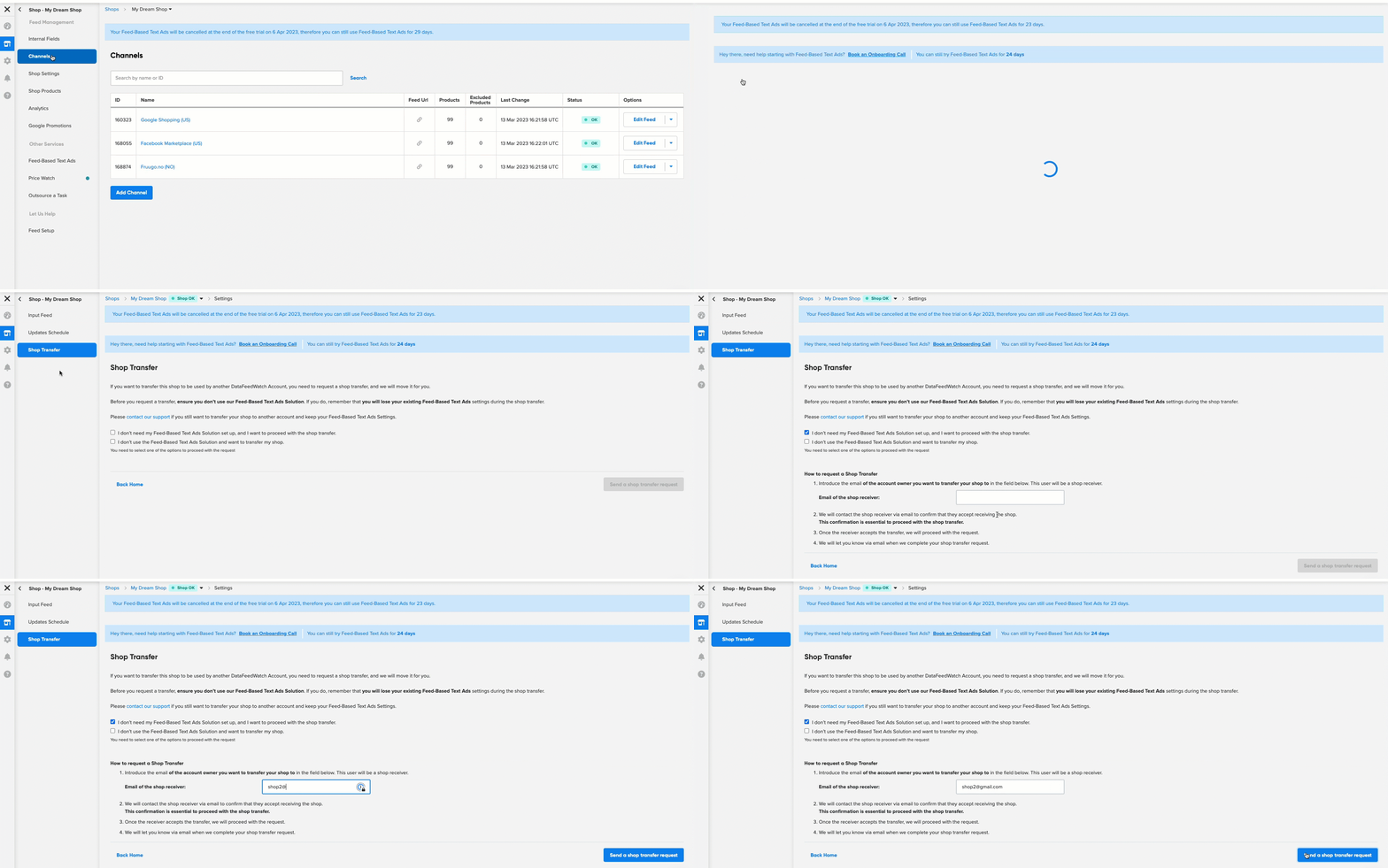
To transfer shop, follow the steps below:
- Go to your shop.
- In the left-hand navigation, click Shop Settings.
- Then, on the left-hand navigation, head to Shop Transfer.
- Follow the instruction on the screen, and fill out the requested information.
- Once fulfilled, click on the send a shop transfer.
- We will review your request and email both sides (the current shop owner and the owner to whom you are transferring the shop) for confirmation.
- Once confirmed, we will transfer the store right away.
Need more help? Reach out to us on chat 💙.