
The Shopify e-commerce platform allows you to create a shop in minutes and manage your products. But with the DataFeedWatch extension, you can achieve even more and promote your business globally!
To expand your Shopify with DataFeedWatch, follow the steps below:
- Log in to your Shopify Account
- From the menu on the left, select Apps > Visit the Shopify App Store
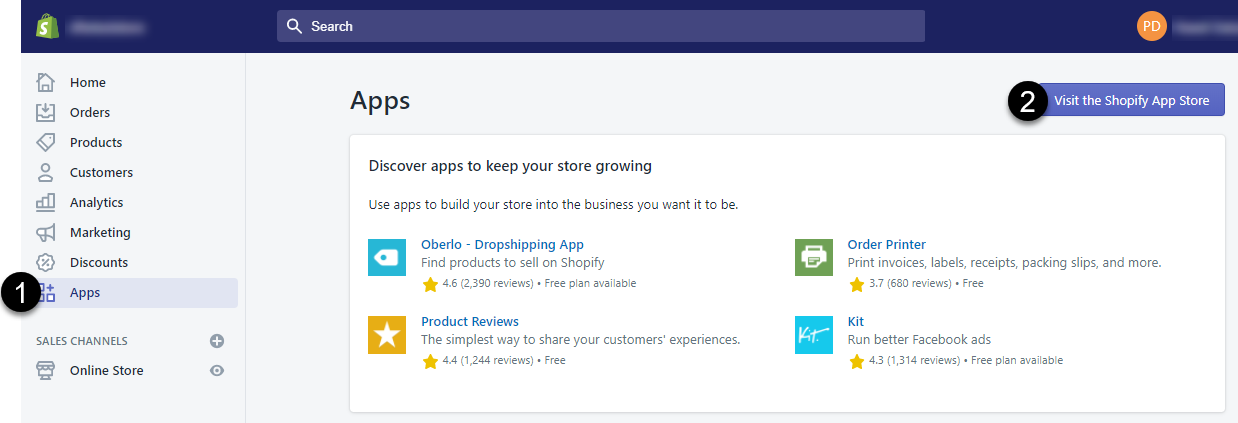
3. In the Shopify App Store, search for the DataFeedWatch app.
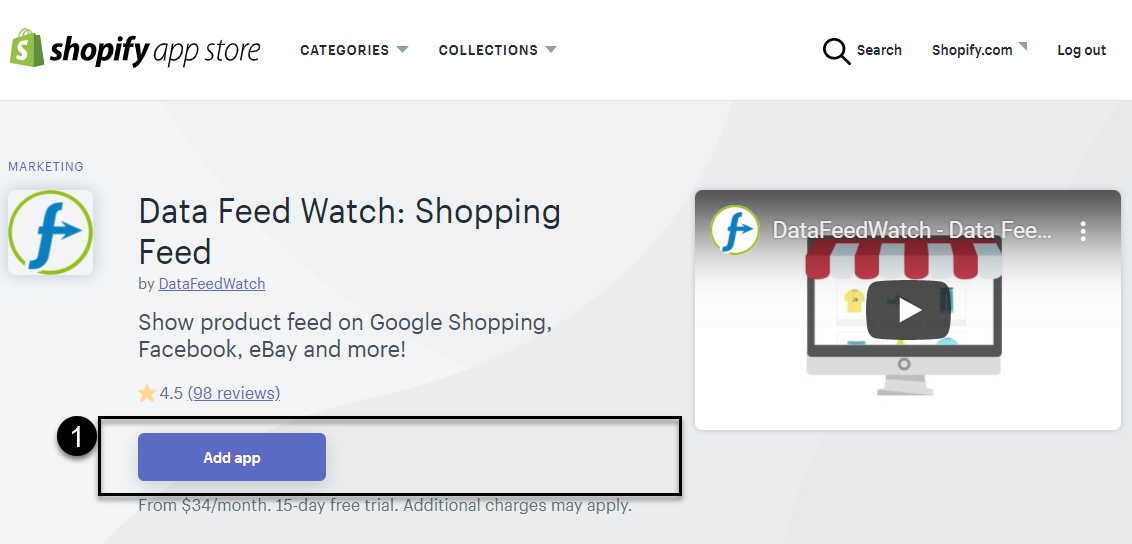
4. Click on the search result, and then click Add app > Install app.
6. To continue to Updates Schedule, click Next Tab.
-
- In the Updates Schedule tab, from the first drop-down, select your timezone.
- Use the Add Another Update button to add more than one daily update times
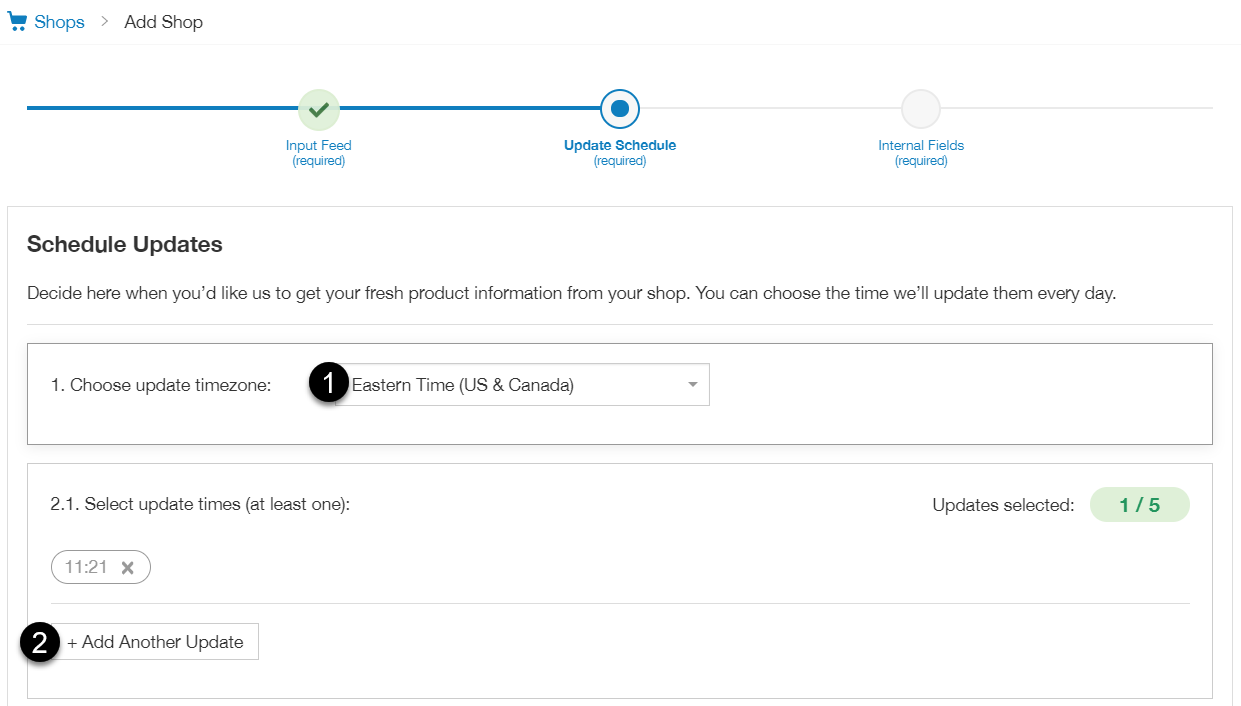
If you need downloads above your plan—you'll easily add them after you add this shop, in Shop Settings. (Feature not available in Shop Plan).
7. To continue to the Master Fields tab, click Next Tab.
-
- For each field on the left, select a main mapping type from the first drop-down.
- From the second dropdown, choose one of the attributes from your shop.
You can just check and
accept our suggestions where available.
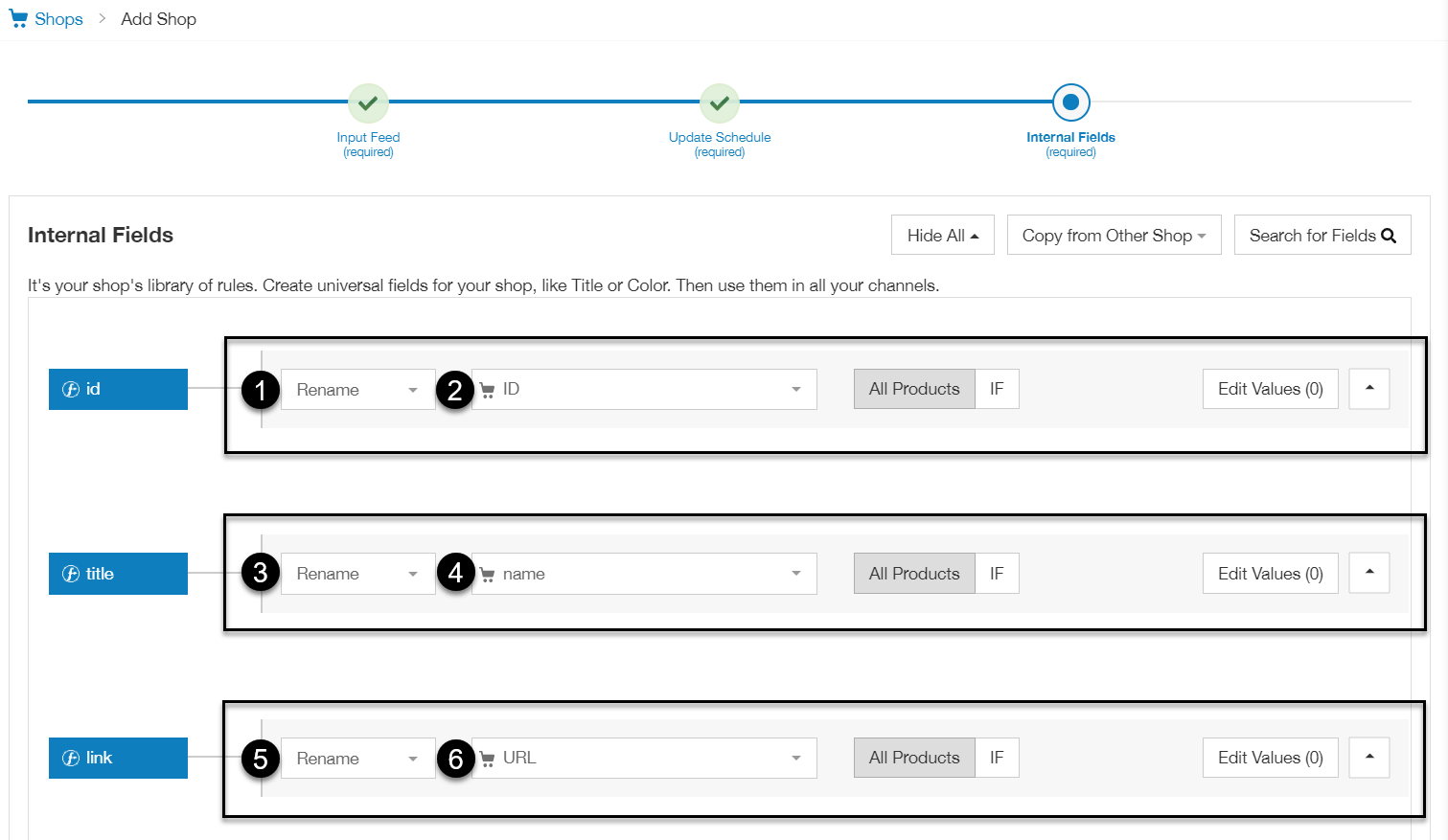
If you'd like to change and optimize your product attributes, try using our
IF Conditions and
Edit Values options.
8. To create a shop and continue to add a channel, click Finish.