The overwrite option replaces the original values with new ones. You can also create conditions for which products should be applied.
To use Overwrite, follow the simple steps below:
-
Scroll down to find the field you want to map (e.g. Brand).
-
From the first drop-down list next to it, select a basic mapping type (e.g. Rename).
-
Select the Input Field or Master Field in the next field you want to use.
Please note that Master Fields (that are already mapped for the whole shop) will only be available in the Map Fields tab.
4. Click Edit values on the right

5. From the Mapping type drop-down menu, select Overwrite
6. In the input field on the right, enter the text that you would like to appear in the chosen field (e.g. Nike)
7. Confirm your input.
8. Click the button Done.

Optimization Tips&tricks:
Imagine you want the availability field to automatically change from 'In Stock' to 'Out of Stock' when the quantity reaches 0.
In this setup, 'Out of Stock' will replace 'In Stock' whenever the quantity is 0 or less.
Steps to Configure This:
-
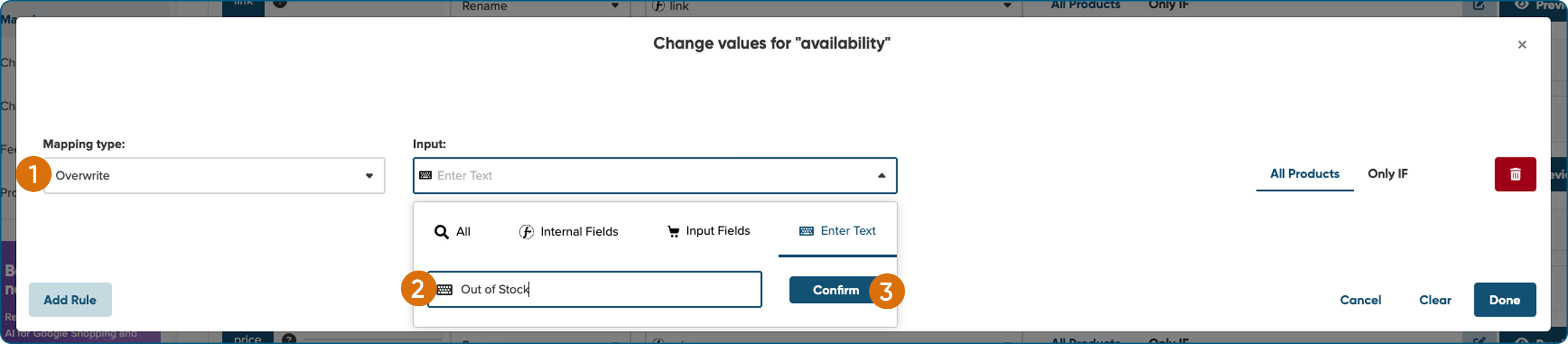
Click Edit Values.
-
Select the Mapping Type: Overwrite.
-
Enter 'Out of Stock' as the input and confirm.
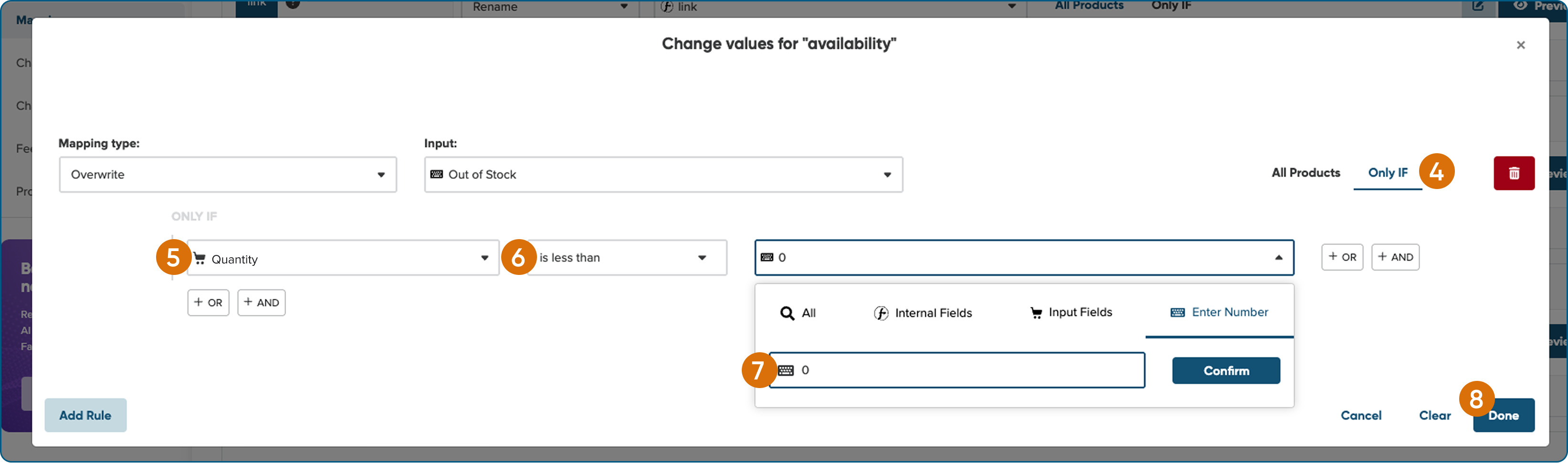
4. Click Only If.
5. Select the field Quantity.
6. From the drop-down, choose 'is less than' as the condition.
7. Enter 0 in the input field.
8. Click Done.