
How to connect your WooCommerce store to import your product data:
1. Log in to your WooCommerce dashboard and keep it open in another tab.
2. In another tab, log in to the DataFeedWatch app.
3. In DataFeed Watch, navigate to Shops.
4. Click on the blue button Add Shop below the Shop list.
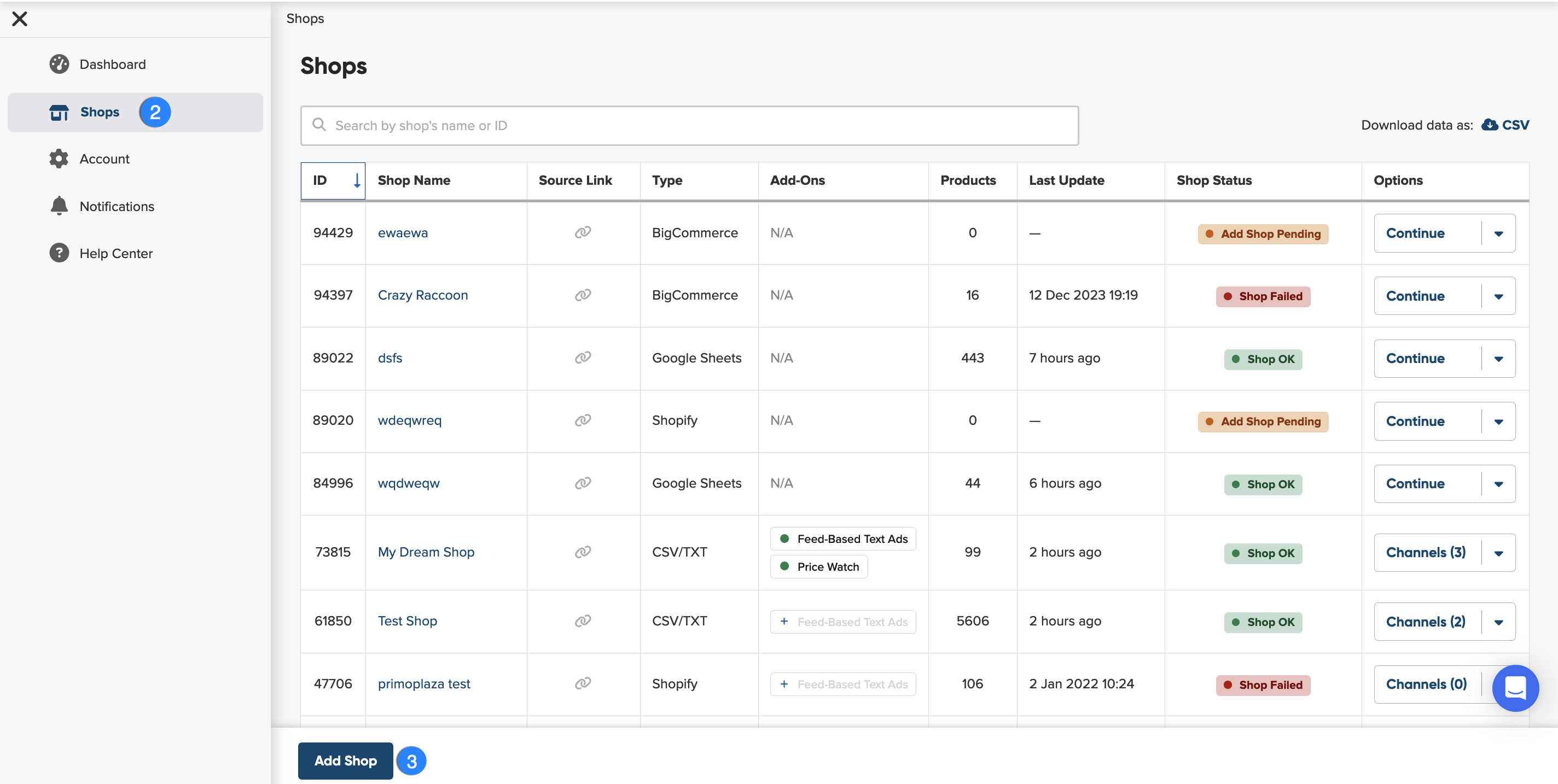
5. Before you select WooCommerce to connect, give your shop a name.
Why should you name your shop?
Giving your shop a name makes it easier to identify among others on your shop list. You can choose any name you like—it won’t affect feed optimization.

6. Next, start setting up your input feed.
What is input feed?
An input feed is the product data you import from your shop or another source so we can create an optimized channel feed.
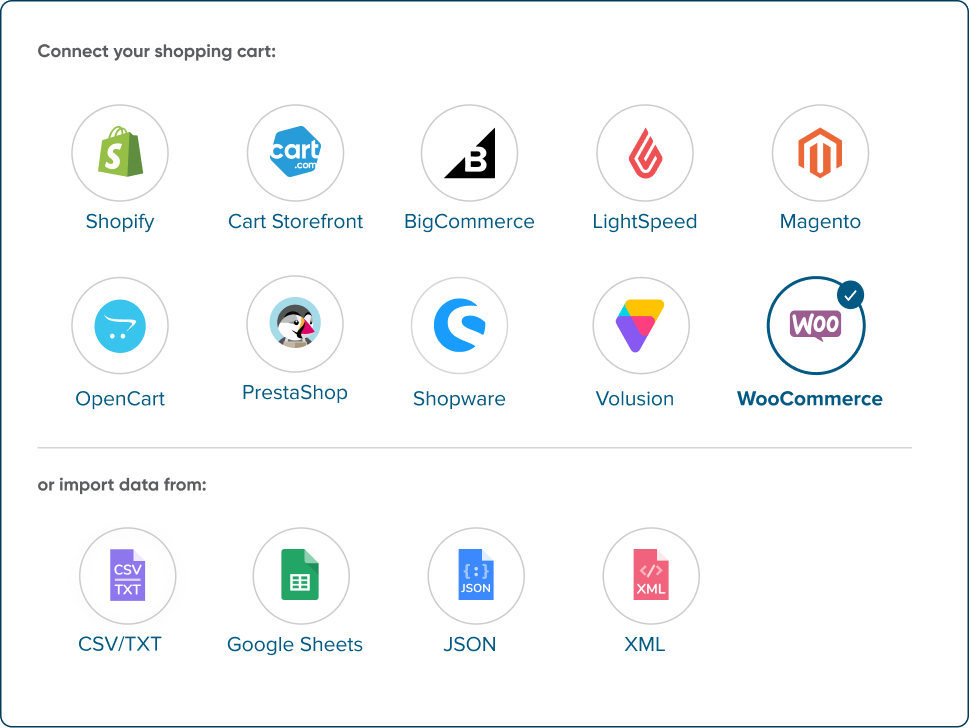
7. Select WooCommerce from the list of Shopping Carts.
8. Provide your website URL in the designated field.

9. Click on the Download DataFeedWatch Connector button to get the plugin file. (dfwconnector-woocommerce.zip).
10. Save the file on your device.
11. Go to your website's admin panel.
12. Go to Plugins in the left-hand navigation.
13. Once dropped down, click on Add New Plugin.
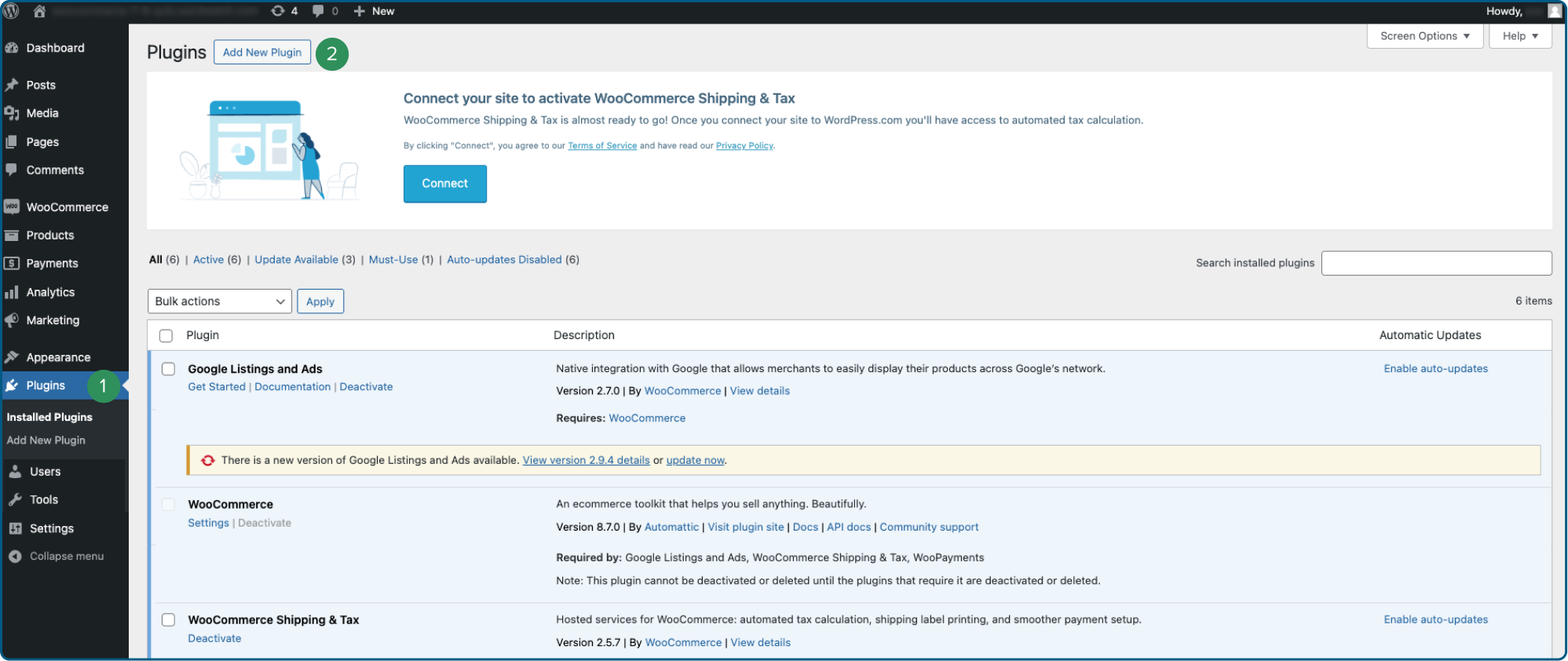
14. When the listing with plugins appears, click the Upload Plugin button.
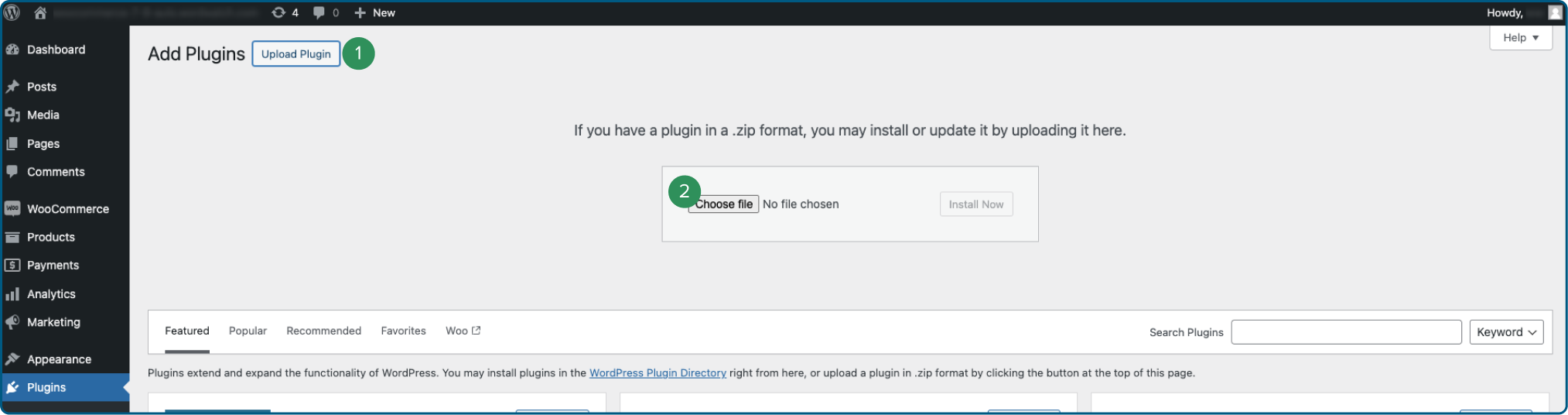
15. Click on Choose the file, select the plugin file you’ve saved (dfwconnector-woocommerce.zip), and click Install Now.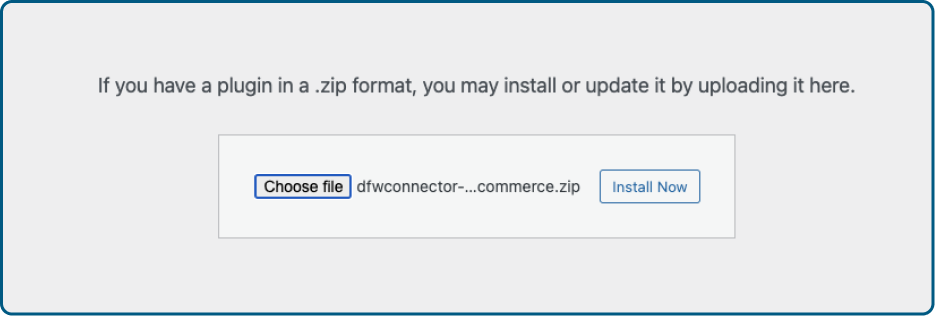
16. Once installed, click Activate Plugin.
17. Find the new plugin DataFeedWatch Connector in the side navigation, under Plugins and click on it.
18. Your connector has been installed, but you’ll be asked to connect with the plugin. Click on the blue Connect button.
19. Once connected, you will see your Store Key and the Bridge URL.
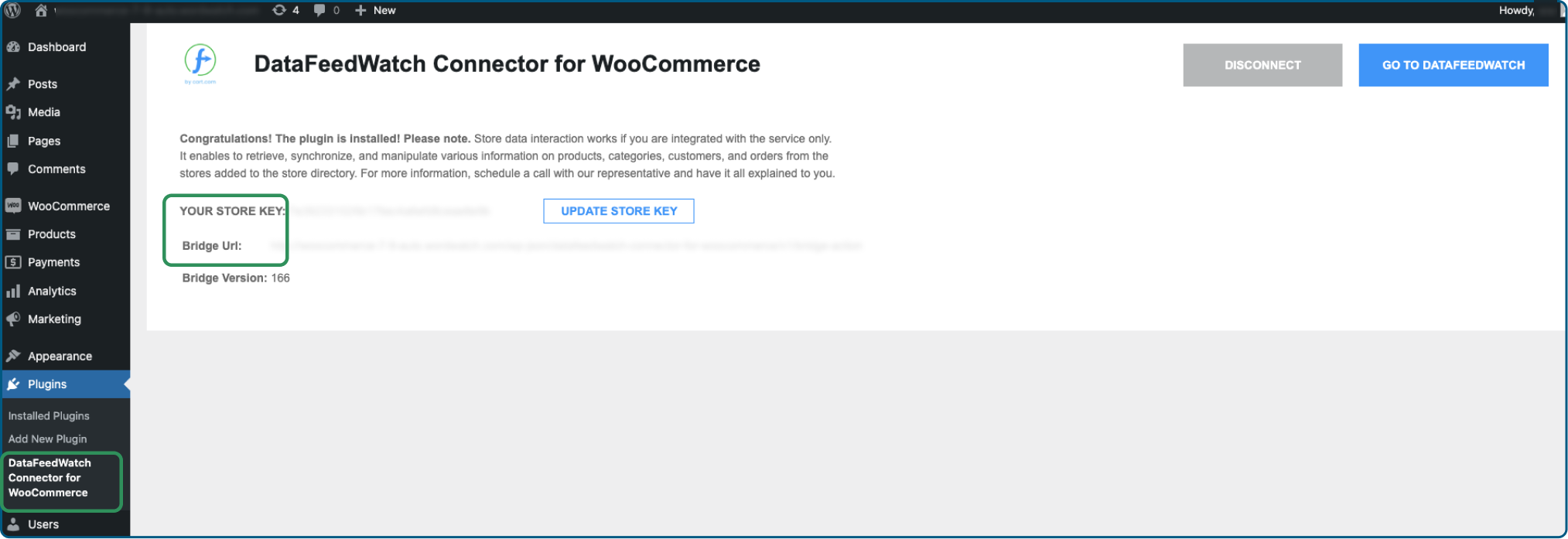
20. Copy your store key and go to DataFeedWatch.
21. Paste it into the corresponding field in DataFeedWatch.
22. Repeat the same for the Bridge URL.
23. Click Next: Update Schedule to proceed.
Can we help you with something? Contact our support team via chat. They're always happy to assist you 💙