
What's the difference between canceling a subscription and pausing it?
Meanwhile, your feed management is paused
What is the cost of pausing your plan?
What's the difference between canceling a subscription and pausing it?
The main difference is that canceling your subscription means you'll lose all access to DataFeedWatch after your billing cycle ends.
Pausing your account, on the other hand, lets you avoid the hassle of starting over. When you're ready to return, you can continue using DataFeedWatch with all your previous settings, data, and configurations intact, preserving the solid foundation you built from the start.
Meanwhile, your feed management is paused:
WE WILL:
-
Securely store your most recently imported product data.
-
Save the setup of all your shopping channels, including feed mapping rules and any optimization operations you’ve configured.
WE WILL NOT:
-
Import or process new product data.
-
Process your channel feed setup, so your final channel feed won’t be updated.
What is a cost?
When you pause your plan, you won’t pay the full monthly subscription, just €5 / $5 for maintenance. You can unpause it anytime.
How to pause your account
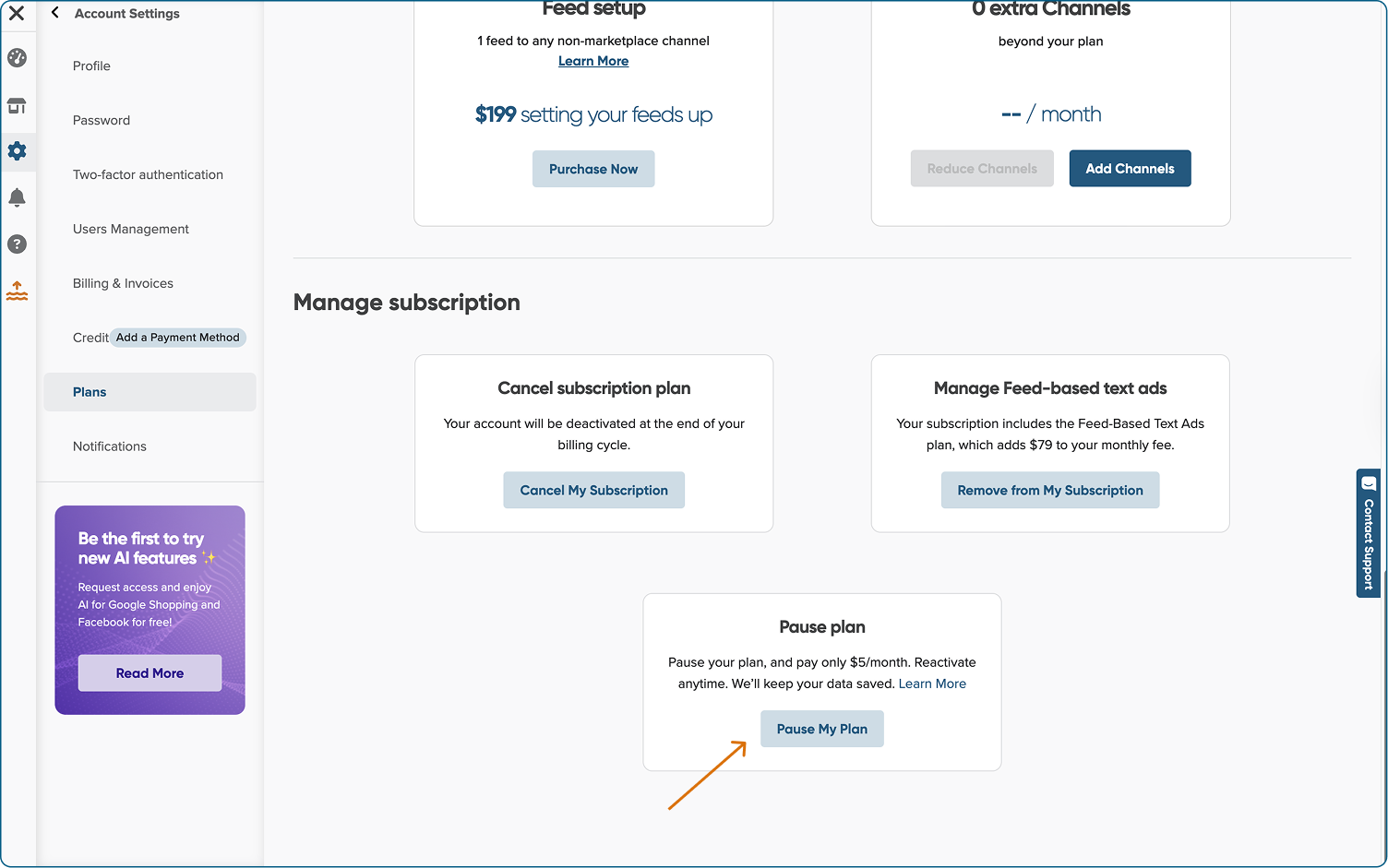
- Log in to your DataFeedWatch account.
- In the side navigation menu, click Account Settings.
- Go to the Plans section.
-
Scroll down to the Manage Subscription section.
-
Locate the tile labeled Pause Plan, then click Pause My Subscription.
- Once you confirm that you want to pause your plan, it will be paused starting from your next billing cycle.
How to unpause your account
Whenever you are ready to resume your feed marketing efforts:
-
Open the side navigation menu.
-
Go to Account.
-
Select the Plans section.
-
Find your previous plan.
-
Click the Unpause button.
-
Confirm your choice when asked.
-
Your plan will be unpaused automatically.
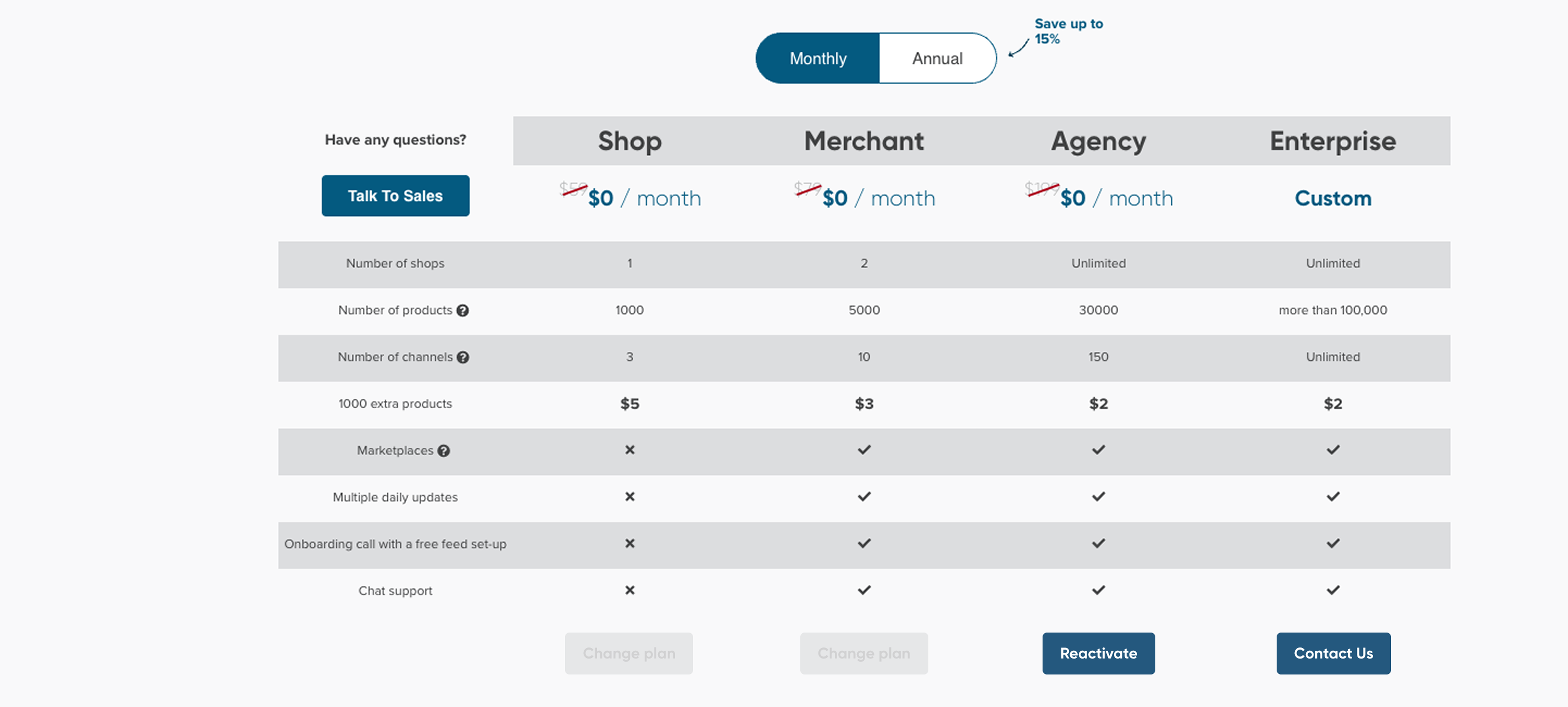
We will reactivate your account immediately and download the latest product data from your shopping cart or feed source.