
DataFeedWatch lets you add your shop's feed via the shopping cart or connect your shop via a shopping cart, CSV/TXT document, Google Sheets, JSON, or XML. Then, you can create multiple channels for every shop you add.
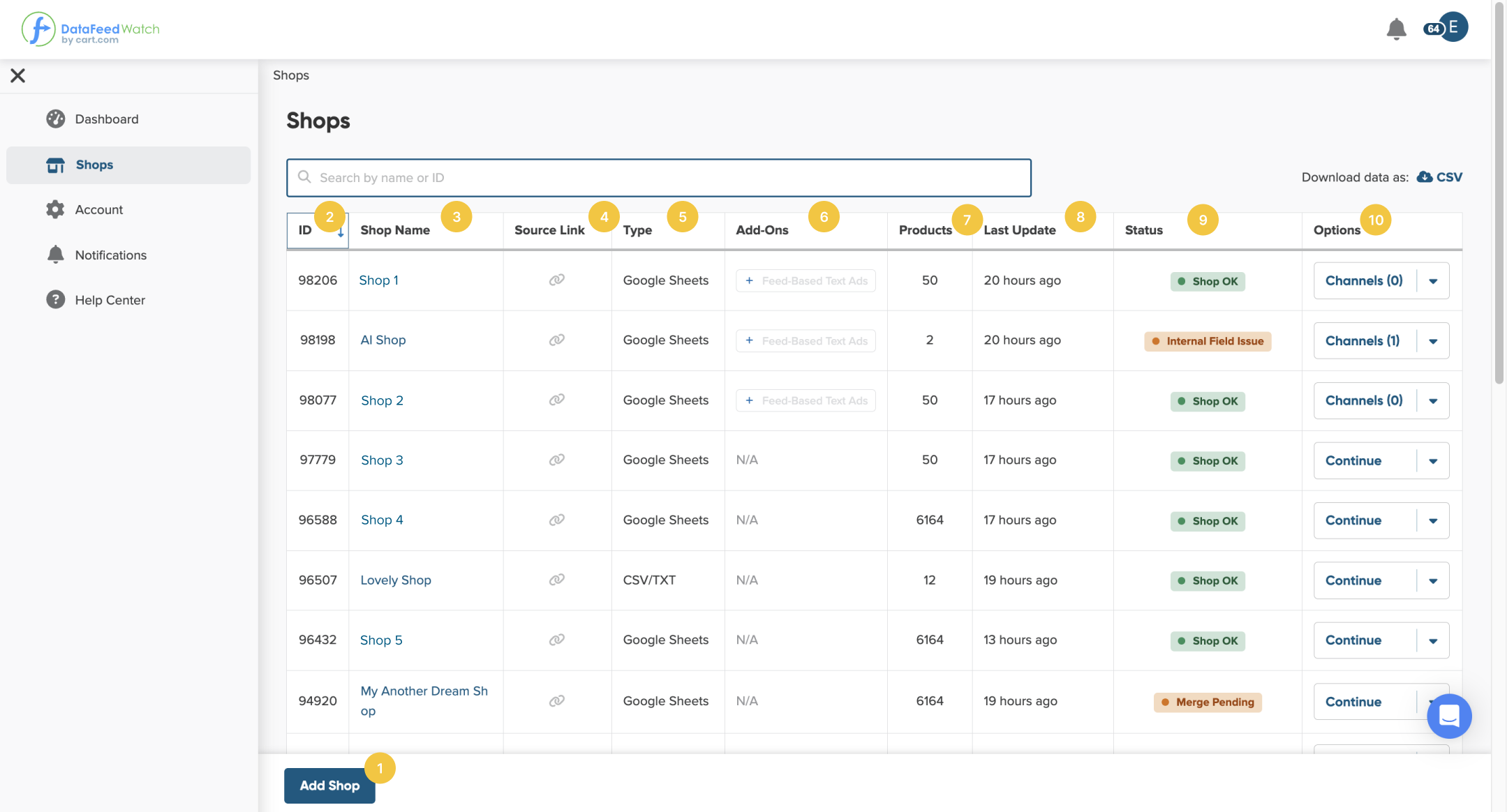
The Shops page lets you:
1. Add a new Shop
Click Add Shop and upload your input feed, which will be a source of truth for us. You can connect your shop via a shopping cart, CSV/TXT document, Google Sheets, JSON, or XML.
👉 Refer to the article Adding a Shop to find out more
2. Find the ID number of the shop
Shop ID is a unique number of your shop in DataFeedWatch. It may be helpful when you want to indicate the channel rapidly to our support if any problem occurs.
3. Go to the Channel page
Click on the Shop name to redirect you to the Channels page, and check your channels.
4. Get the URL link of your source feed at hand
It may be handy when operating across DataFeedWatch. Just click on the link icon and copy the link.
5. Check the source feed type.
Sometimes, it's hard to recall the source feed type that you've used. Take a glance at the Shops page Type, and you get it.
6. See what Add-Ons you've activated
Check what extra services you use or add them directly from the Shops page. Click on the label, and we'll redirect you to the add-on page.
Check out Feed-Based Text Ads 👉 Turning Out Your Feeds into Compelling Search Ads.
7. See how many products have been downloaded with your source feed
Check if all the products you want to advertise are included in your feed. We'll use this number for billing purposes. Go to Account > Plans to check how many products you pay for.
Note that all product variants will be counted as a separate product.
8. Check when the last update took place.
Look at when we imported the products from your source feed last time.
9. Be up to date with your shop status
Here, you can look at your shop's condition after every update. If any issue happens, we'll inform you in the Status column and guide you on what to do next.
👉 You may find it interesting: Shop Statuses Overview.
10. You can also take a few other actions with your source feed (input feed).
First of all, you can see if you have completed the process of adding your shop:
- If you see the label Continue, you should complete adding a shop.
- If you see Channels, you've finished adding your shop. Also, you can see the number of channels.
When you open a drop-down:
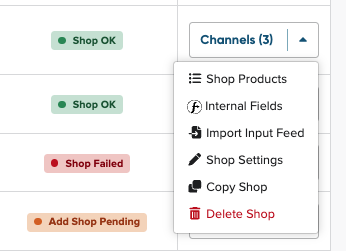
- Shop Products lets you see the list of the products and their information that we've uploaded from your source feed.
- Master Fields redirects you to the Master Fields mapping.
- Import Input Feed Data enables you to update the upload of the products from your source feed immediately, independently of the Update Schedule.
- Shop Setting redirects you to the page where you can change the name or source of your input field, add another feed, or delete your shop.
- Copy Shop lets you copy the shop with all the settings and mapping setup.
- Delete Shop allows you to remove your shop.