
How to connect your Shopware store to import your product data
1. Log in to your Shopware dashboard and keep it opened in another tab.
2. In another tab, log in to the DataFeedWatch app.
3. Navigate to Shops.
4. Click on the blue button Add Shop below the Shop list.
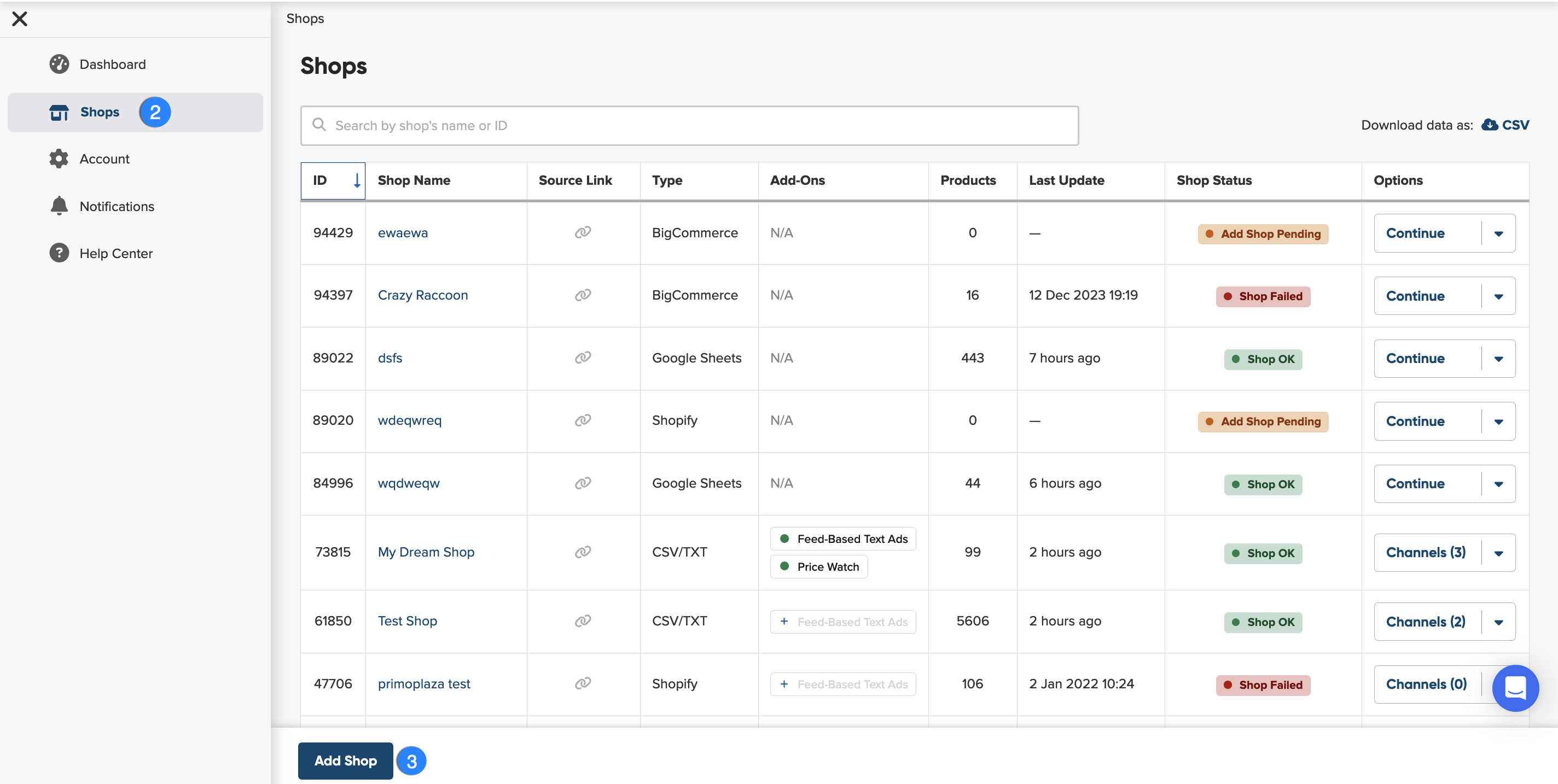
5. Before you select Shopware to connect, and import your product data, name your shop.
Why should you name your shop?
Giving your shop a name makes it easier to identify among others on your shop list. You can choose any name you like—it won’t affect feed optimization.

6. Next, start setting up your input feed.
What is input feed?
An input feed is the product data you import from your shop or another source so we can create an optimized channel feed.
7. Select Shopwarte from the list of Shopping Carts.
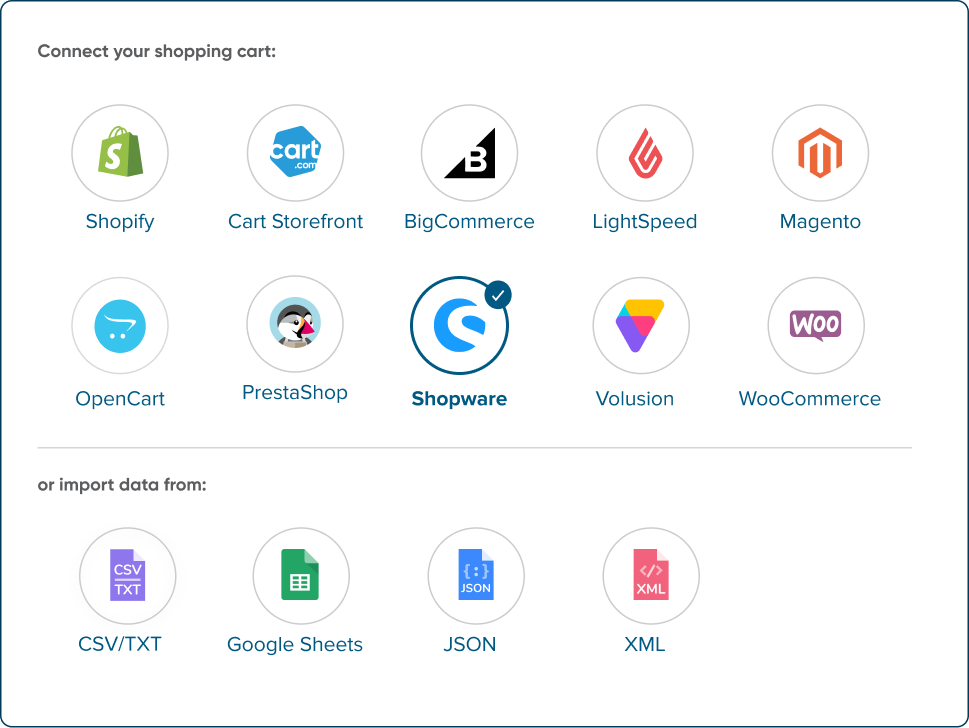
8. Provide your Shopware URL in the designated field.

9. Click on Download DataFeedWatch Connector to download the file with the extension.
Save the file dfwconnector-shopware.zip on your device.
10. Go to the Shopware Dashboard.
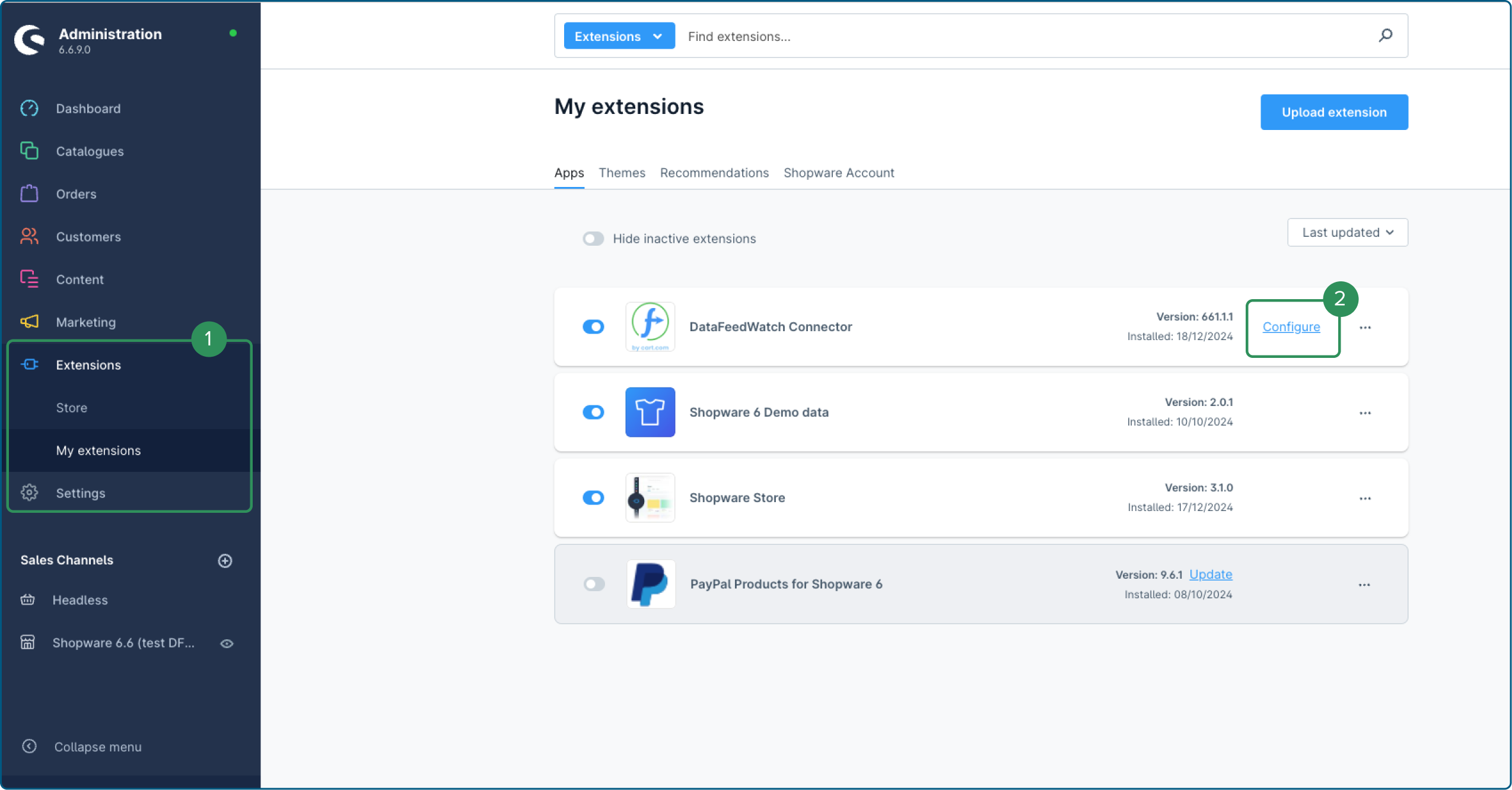
11. Head to the left-hand navigation and click on Extensions, followed by My Extensions.
12. On the My Extensions screen, click the Upload Extension button in the right-hand corner.
13. When the warning appears, click on Confirm to proceed.
14. Choose the file dfwconnector-opencart.ocmod.zip from the device you’ve downloaded before.
15. The DataFeedWatch Connector will appear on the My Extensions list.
16. Click on the Install.
17. Once installed, you need to activate it by clicking on the slider on the left-hand side of the plugin symbol.
18. When activated (the slider has turned to blue), click on Configure.
19. You are on the DataFeedWatch Connector configuration page.
20. Find Your StoreKey and Bridge Endpoint.
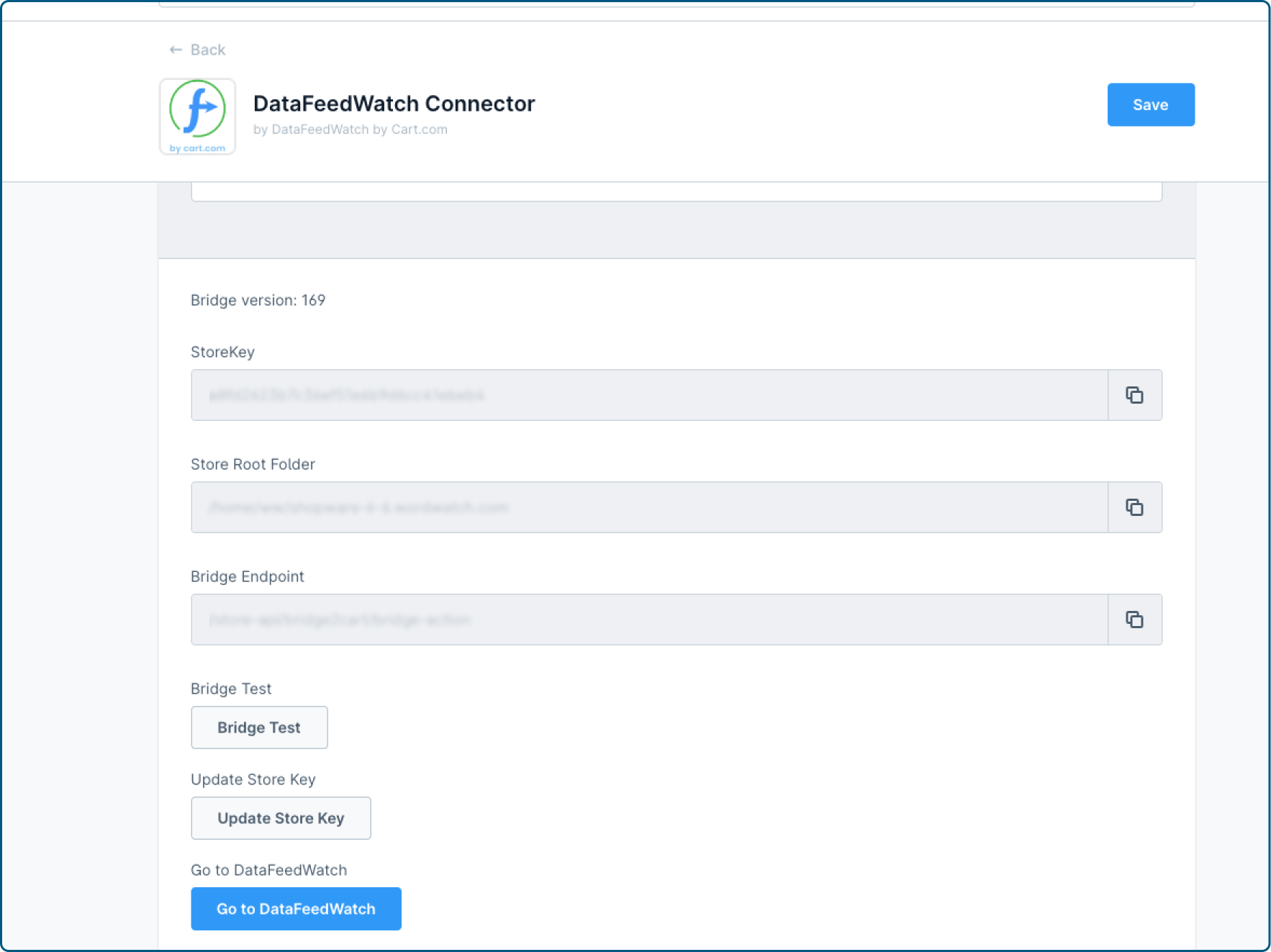
21. Copy each of them and paste them into the corresponding field in DataFeedWatch.
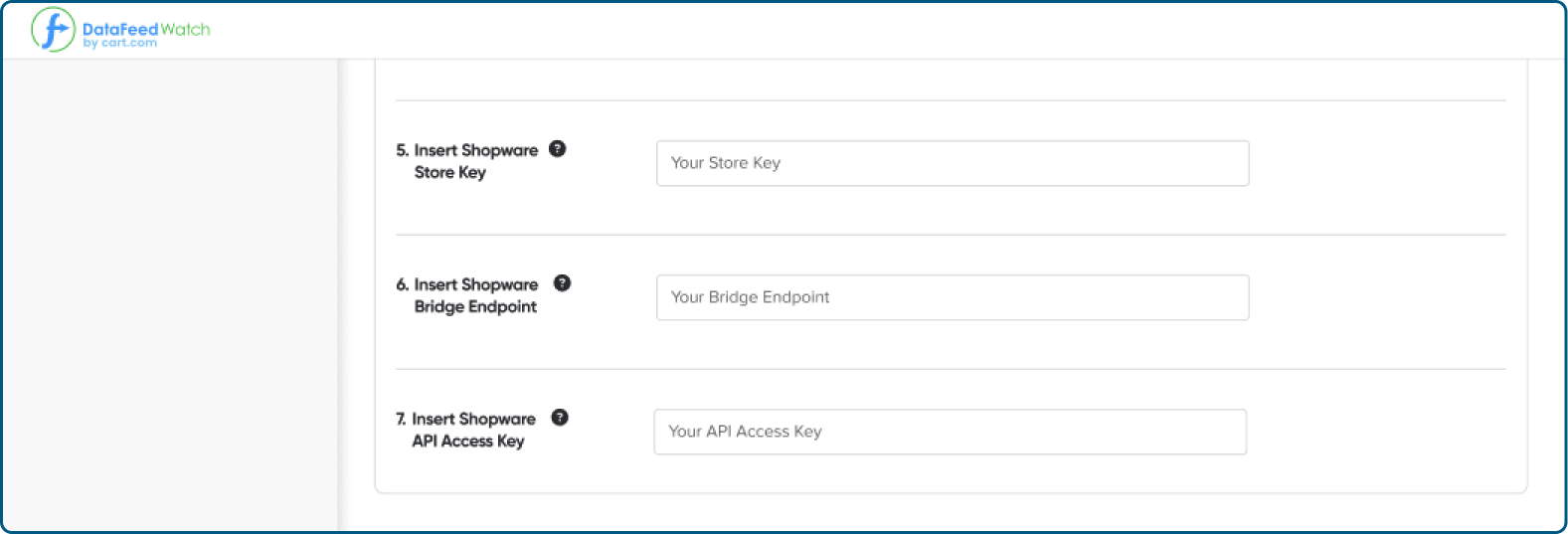
22. Next, come back to your Shopware dashboard.
23. Head to the Sales Channels at the bottom of the left-side navigation.
24. Select the sales channel (shop) you want to integrate with DataFeedWatch.
25. Once open, go to the General tab.
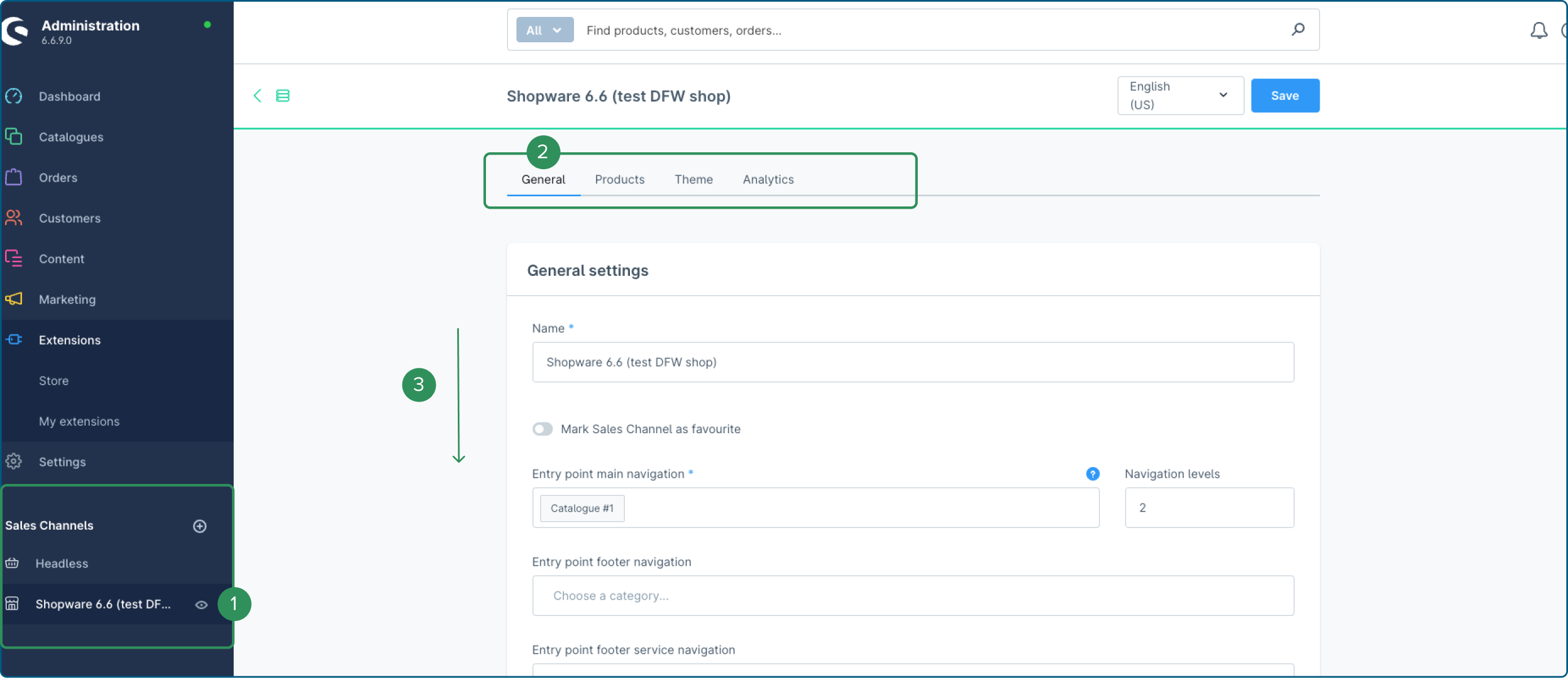
26. Scroll down to find the API Access Key.
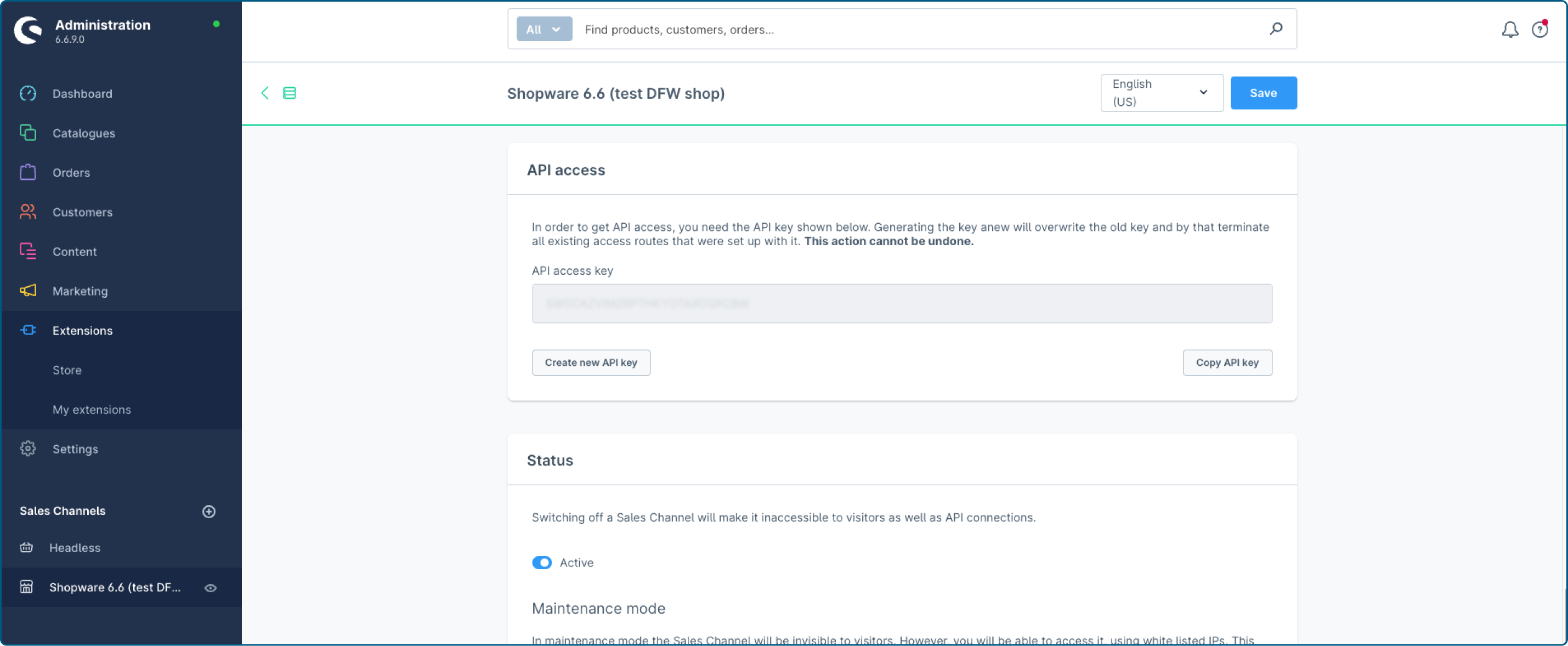
27. Copy the API Access Key, and paste it into the corresponding field in DataFeedWatch.
28. Click on Next: Update Schedule to proceed.
29. In the Updates schedule:
a. Select the timezone of your updates.
b. Choose at what time you want your updates to take effect.
c. Choose how you would like us to inform you about possible product drops and set up the values according to your preferences.
30. Click on Next: Upload your products to proceed.
Can we help you with something? Contact our support team via chat. They're always happy to assist you. 💙