
To add your Volusion shop, follow the steps below:
Note that you can connect Volusion only if you're on a Business or Prime plan.
- Log in to the Volusion Admin Dashboard
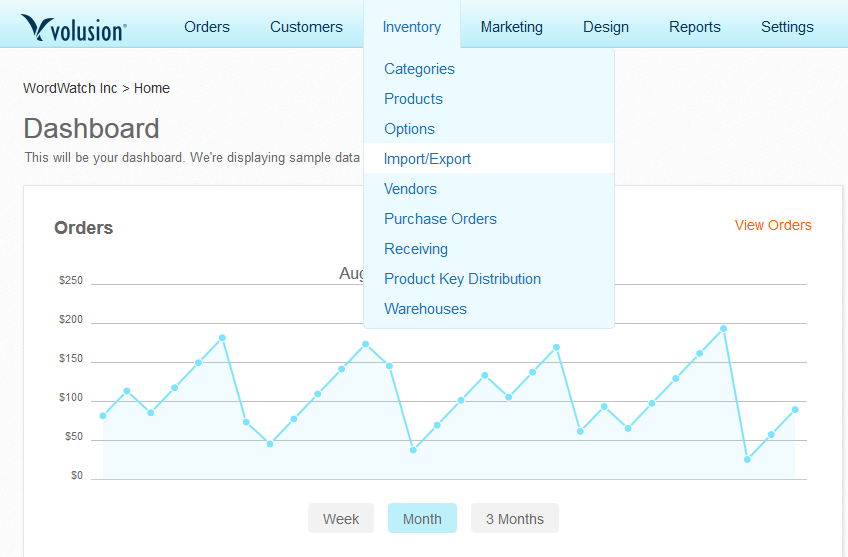
- From the menu at the top, select Inventory > Import/Export
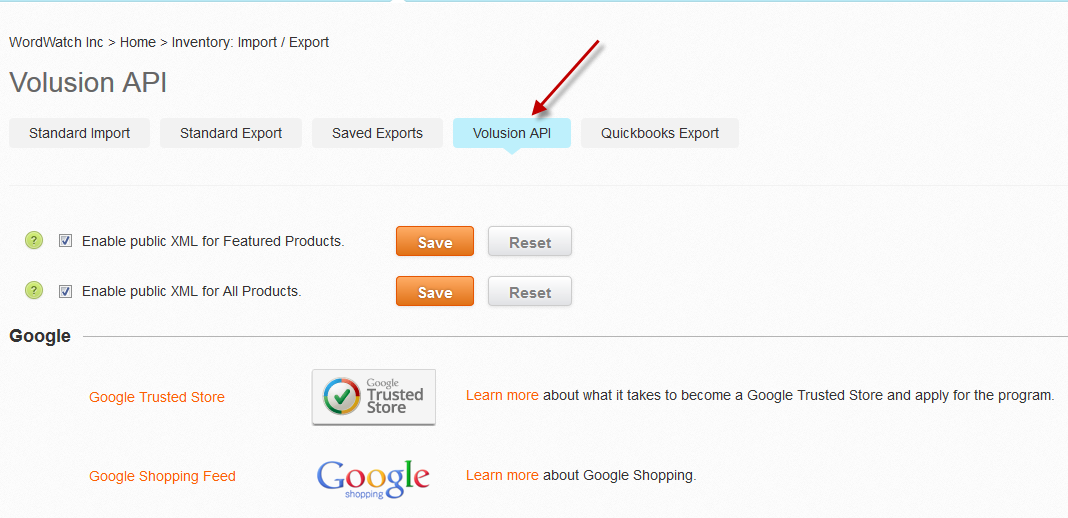
3. Click Volusion API link.
4. Check the Enable public XML for Featured Products and Enable Public XML for All Products checkboxes.
5. Click Save (both buttons).
6. In the upper-right corner, click Get Help.
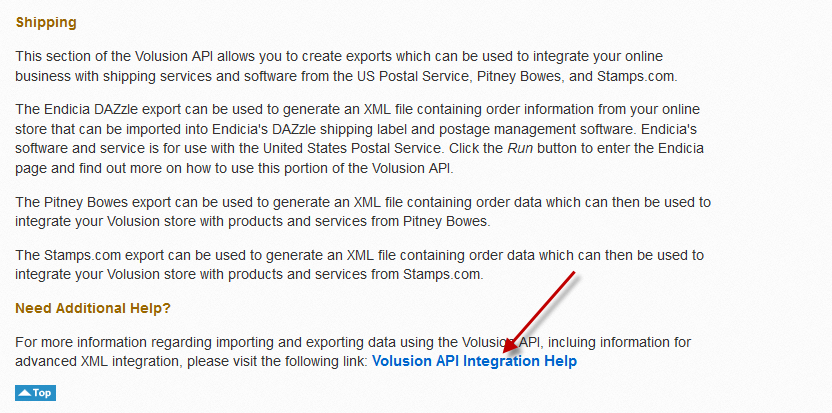
7. From the bottom of the page, click Volusion API Integration Help.
8. Select instructions for Generic Products.
9. Expand URL with Query String... section at the bottom.
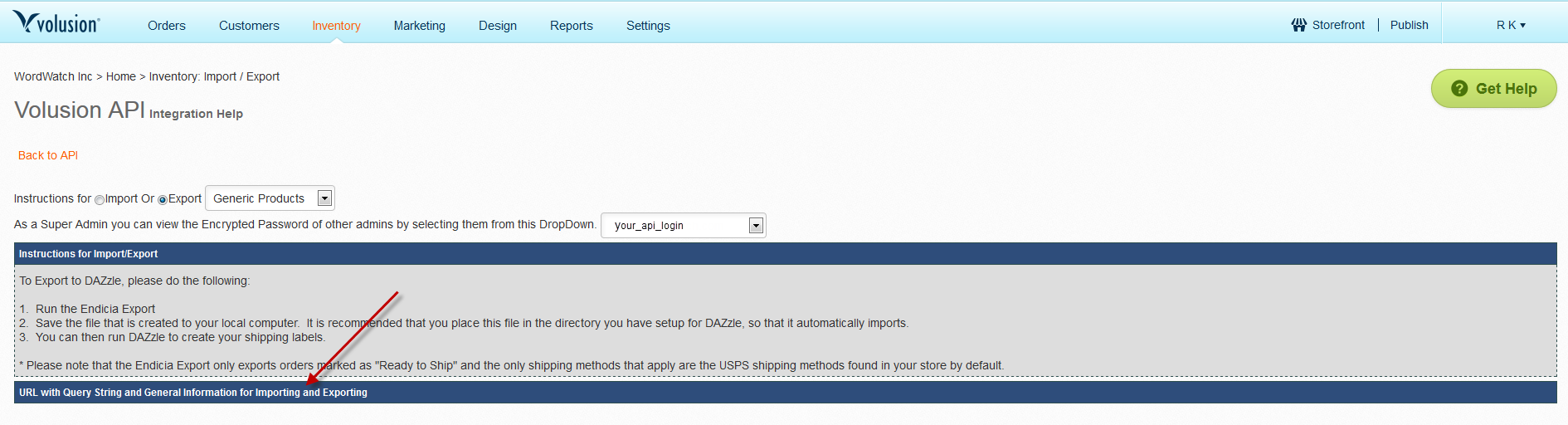
10. Retrieve Login and Encrypted Password (API KEY) in Volusion (Encrypted Password can be found in the URL displayed, between.

and

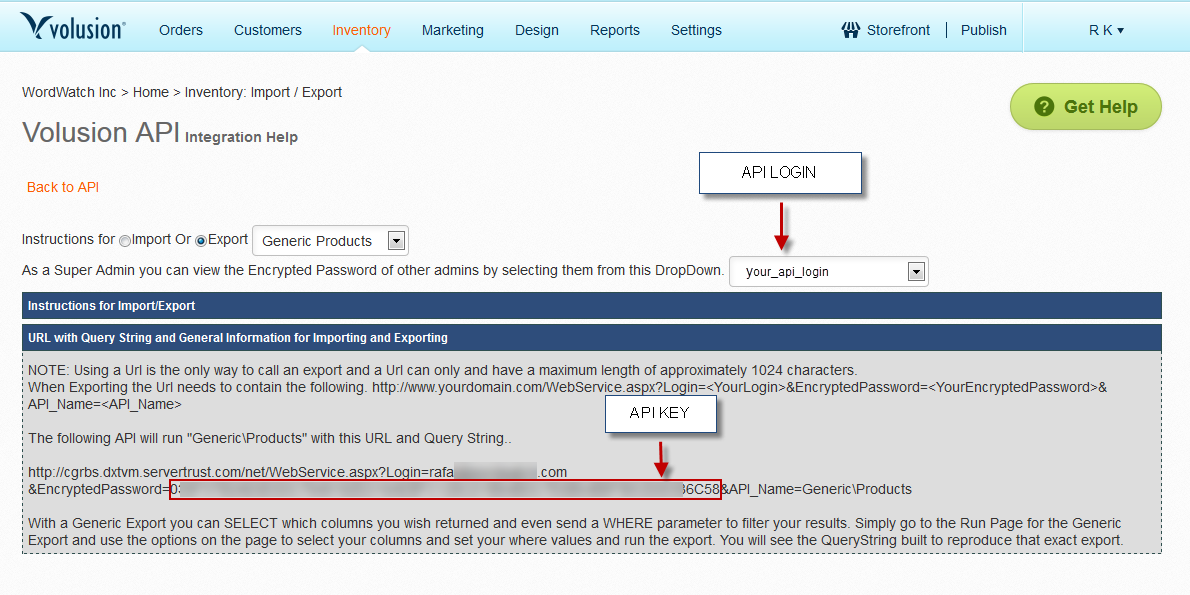 11. Log in to your DataFeedWatch Account > Shops > Add shop.
a. Enter a Name for your shop.
b. In the Main Feed section, choose Volusion.
c. Enter your shop's address.
d. Provide the Login and Encrypted Password.
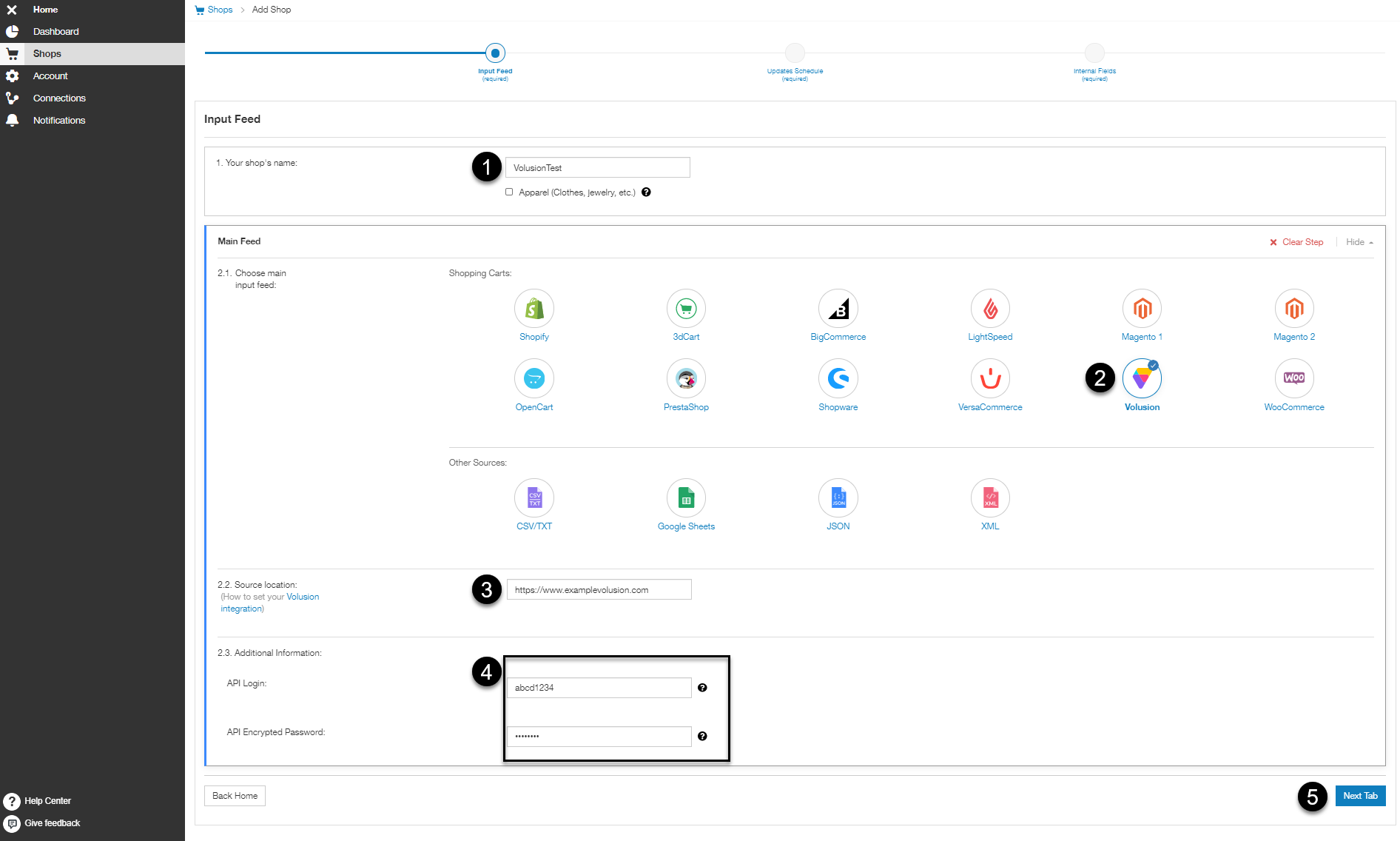
12. To continue to Updates Schedule tab, click Next Tab.
a. From the drop-down, choose your timezone (e.g. UTC, Central Time, or London).
b. Use Add Another Update button, to add more than one daily update times.
.png?hsLang=en)
13. To continue to Master Fields tab, click Next Tab.
a. For each field on the left, select a main mapping type from the first drop-down.
b. From the second dropdown, choose one of the attributes from your shop.
.png?hsLang=en)
14. To create a shop and continue to adding a channel, click Finish.