
Check out our blog article What are Custom Labels to learn more.
To add a custom label to your Google or Facebook Channel, follow these steps:
- Open channel mapping.
- Scroll down to the section Optional Fields.
- Click the button Add Optional Field.
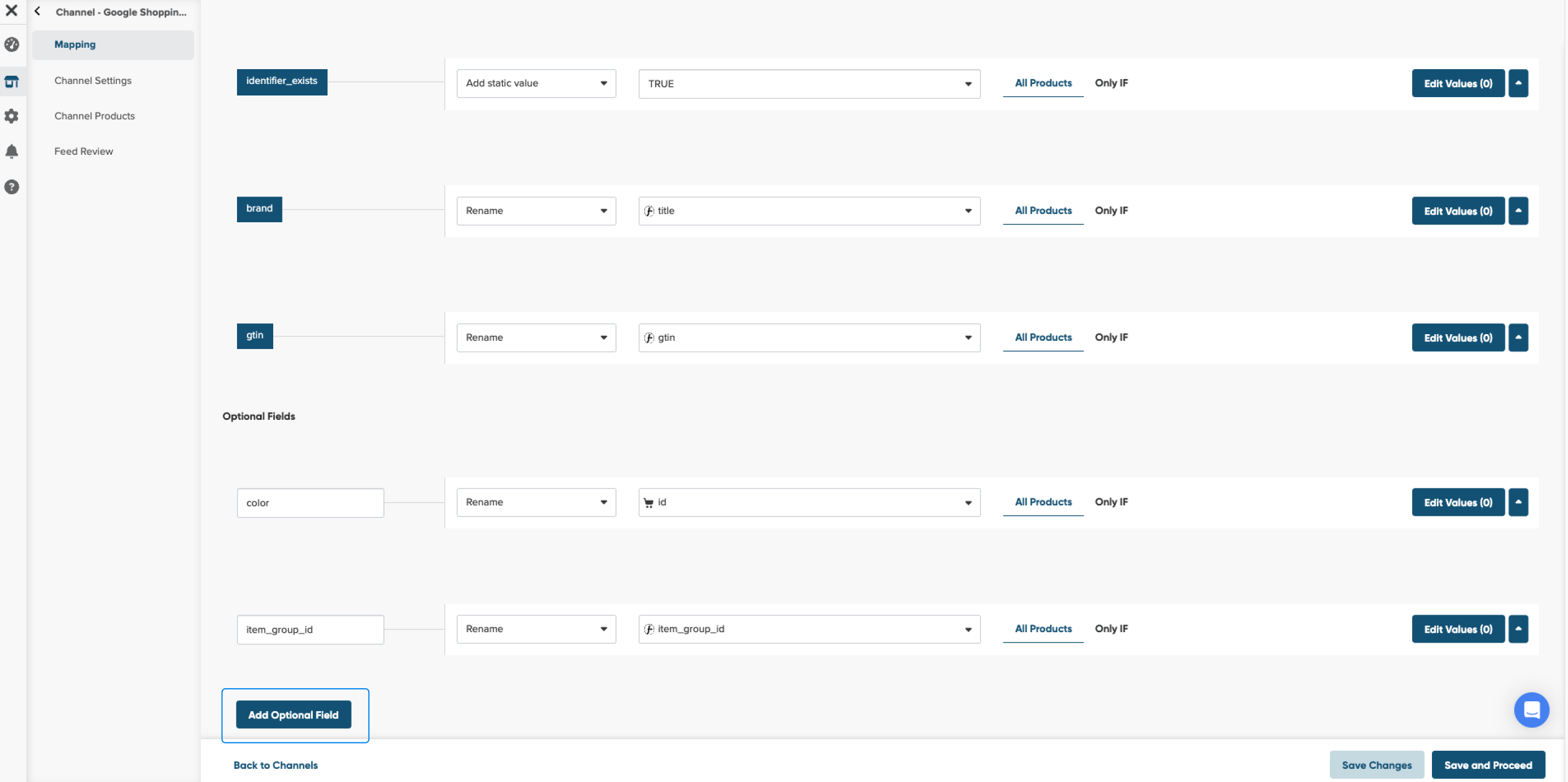
4. Into the search bar, introduce the keyword "custom''.
5. Select a custom label and click the Add field.
You can add up to 5 custom labels for each product. Start with custom_label_0 and end up with custom_label_4.
The information included in custom labels won’t be visible to your customers.
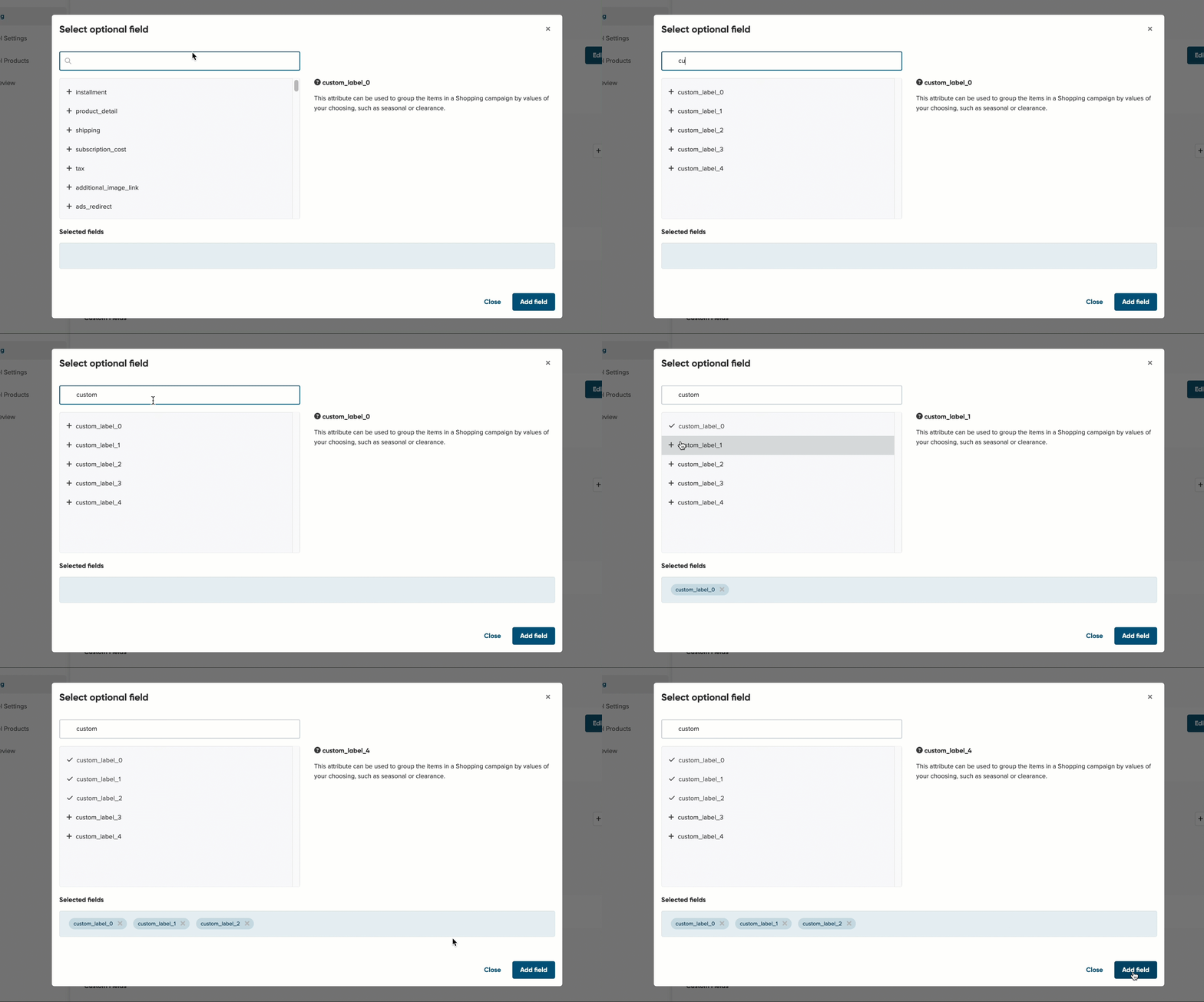
6. Now, you can map your Custom Label with the data you want.

To learn more about Custom Labels and how to use them, please refer to our blog post: 12 Powerful Custom Labels to Consider for Google Shopping Campaigns.
You are very likely to add a custom label on your own. The steps above should help you do that.
If anything is not clear enough, please contact our support team via chat, and we'll be more than happy to help!