
Some products generate clicks and costs without bringing enough sales. With Google Ads performance data in DataFeedWatch, you can automatically exclude products that don’t meet your performance goals from a channel’s output feed.
This helps you:
- Reduce wasted ad spend on products that consistently underperform.
- Focus your budget on products with stronger results.
- Save time by applying performance-based rules instead of reviewing and excluding products manually.
You decide what counts as poor performance by choosing a metric, a time period, and a threshold that fits your business.
💡 Give products a fair chance. Use enough data to make a meaningful decision. A product with only a few clicks or no performance data hasn’t necessarily performed poorly.
How to exclude products based on performance
Before you start, make sure your Google Ads account is connected, and performance data is available for your products.
For this example, we’ll exclude products with a ROAS below 2 over the last 30 days. A ROAS of 2 means generating 2 in conversion value for every 1 spent on ads.
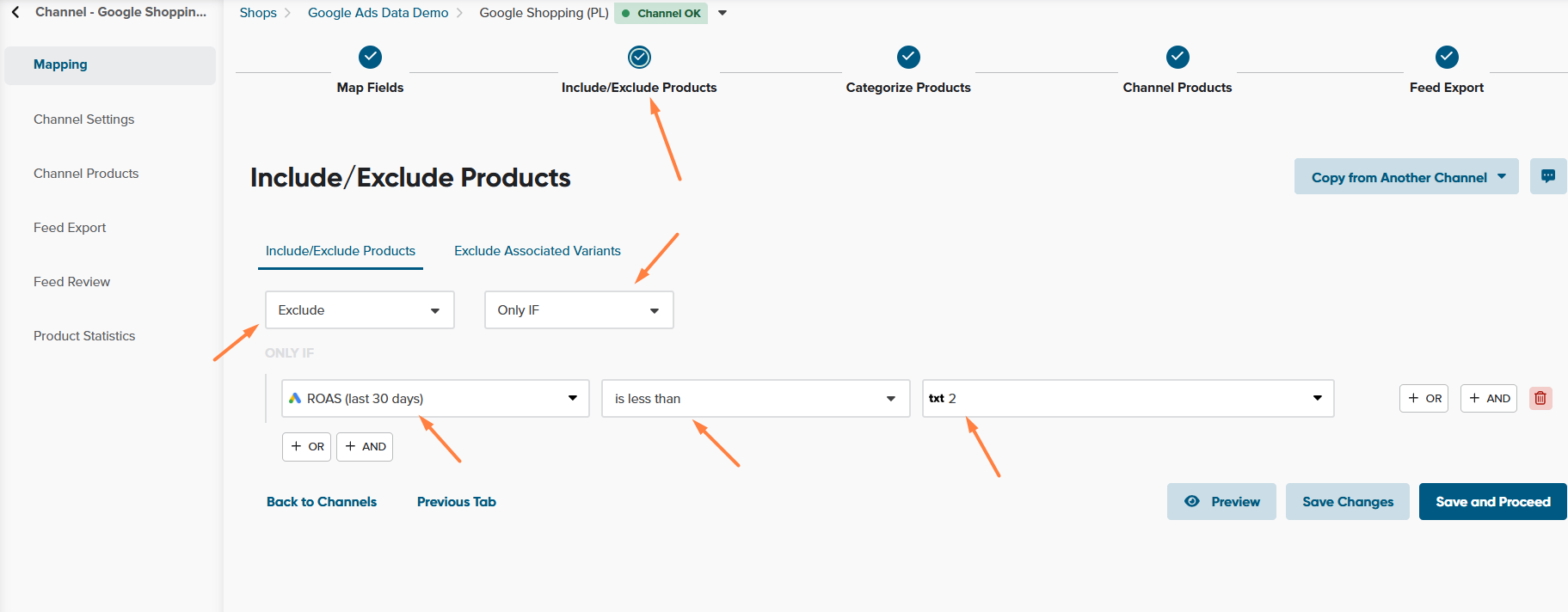
1. Open Exclude/Include. Go to your channel’s mapping and open Exclude/Include.
2. Select Exclude → Only if. Choose Exclude, then select Only if to exclude products that match a condition.
3. Choose a Google Ads metric. In Select field, open the Google Ads tab and select ROAS for the last 30 days.
4. Set your condition. Choose the condition is less than and enter 2.
Your rule now means: Exclude products if their ROAS over the last 30 days is below 2.
💡 Choose a threshold that fits your goals. ROAS 2 is only an example, not a universal profitability target. Your threshold should reflect your margins and advertising goals. Consider adding a minimum traffic or spend condition so products are only excluded after they’ve had a fair chance to perform.
5. Check the results in Preview. Use Preview to see which products match your rule.
Check whether these are the products you want to exclude. If the selection is too broad or too narrow, adjust your conditions before saving.
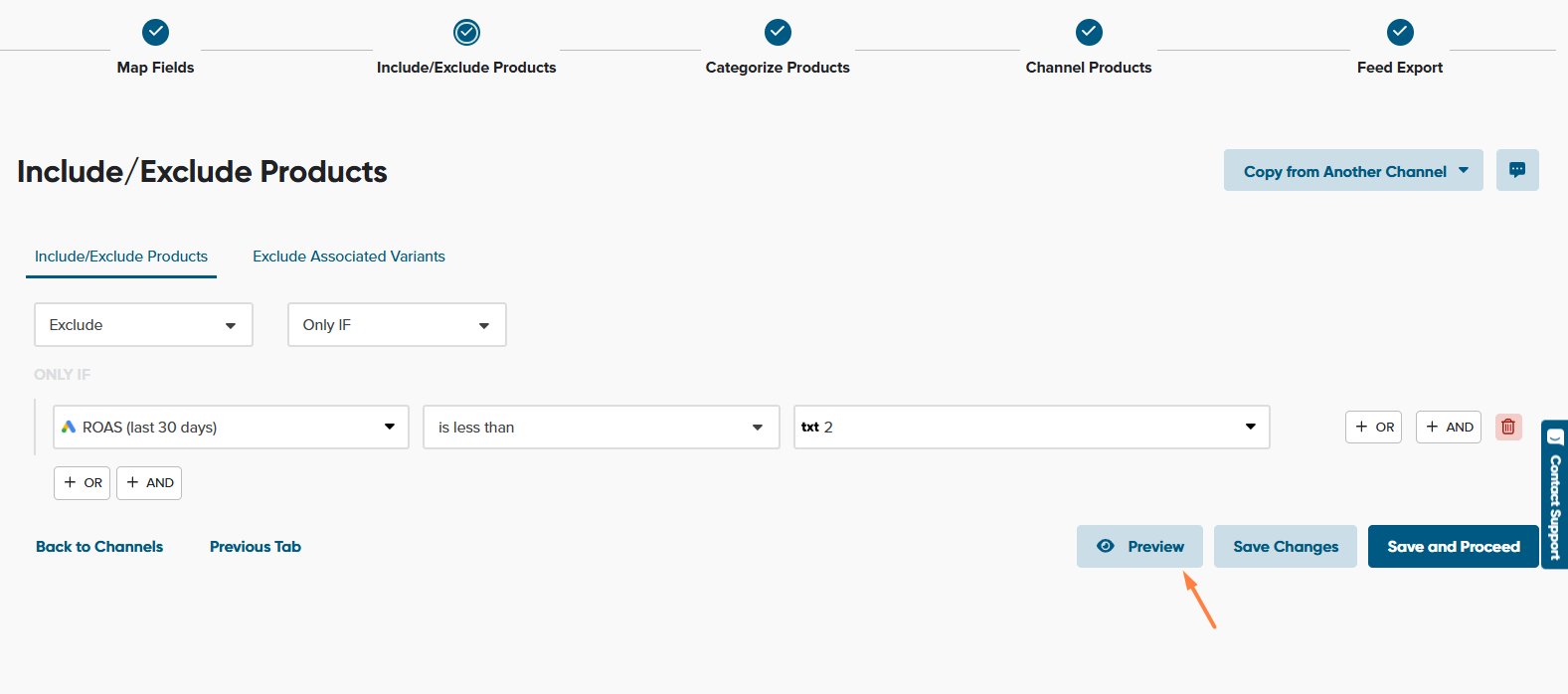
6. Save your mapping. Save your changes to apply the rule. When the feed is next generated, matching products will be excluded from this channel’s output feed.
The rule is evaluated each time the feed is generated, using the performance data available at that time.