
🙌 The changes we describe below affect October 28th, 2024.
Table of contents:
How to set a role?
👉 If you haven't added a user yet, please refer to the article: Adding Users.
💡If you're adding a new user, go directly to step 5.
- Enter Account Settings from the side navigation
- Select Users Management.
- From the list of the users, find the one you want to edit. Then click on the Edit User button.
- OR Add a new user.
- Enter the data of the user.
- Set user permissions:
-
-
From the first drop-down, select the role that best matches the level of access you want to grant the user.
-
-
-
If you have a Shop Admin or Shop Member role, select the shop where you want to grant access from the next drop-down.
-
7. Click Save Changes.
.gif?hsLang=en)
Now, let's explore the permissions for each role.
What role should I set?
Organization Admin
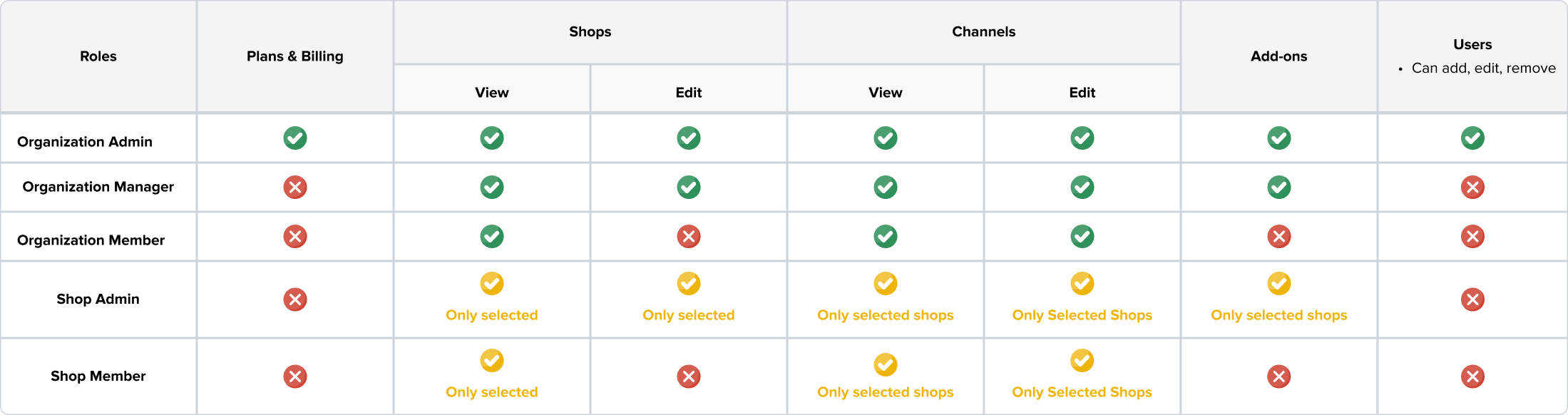
Organization Admin has the highest level of permissions.
💡 This role is ideal for granting a user full access to your account, shops, channels, add-ons, and billing.
Organization Manager
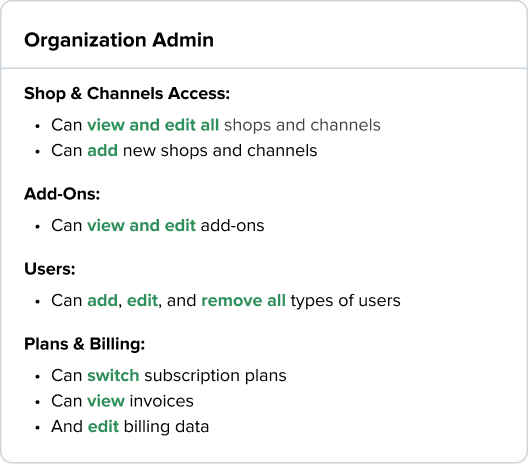
The Organization Manager role grants users full access to accounts, shops, channels, and add-ons, but excludes access to plans, billing, invoices, and subscription settings.
💡 This role is ideal if you want to provide a user with full access to all your shops, channels, and add-ons, but restrict financial and subscription controls.
Organization Member
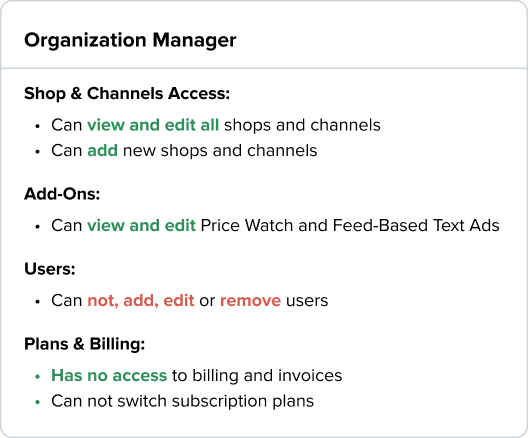
💡 This role is ideal if you want to give a user:
- View-only access to all shop channels.
- Full editing access for channels.
But restrict them from:
- Adding, editing, or removing shops.
- Accessing billing, invoices, or subscription settings.
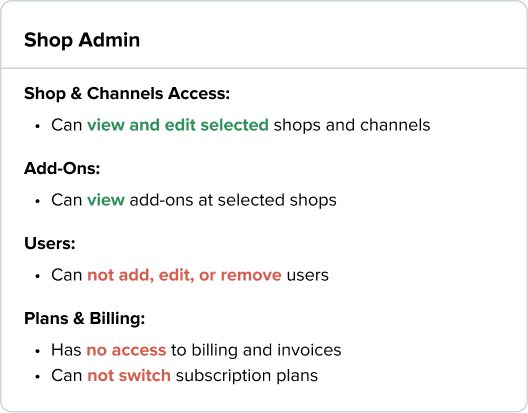
Shop Admin
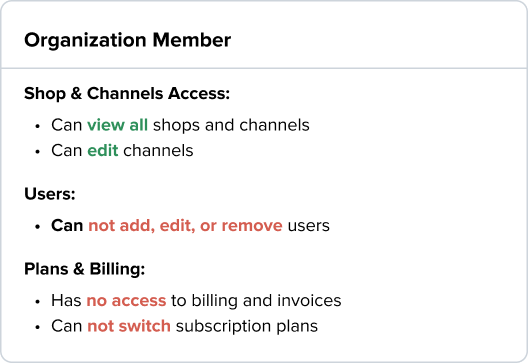
The Shop Admin role is similar to Organization Admin but only provides access to specific shops and has limited access to account settings.
💡 This role is ideal if you want to give a user:
- Full access to edit specific shops and their channels.
- The ability to add and edit channels within those shops.
But restrict them from:
- Adding, editing, or removing shops.
- Accessing billing, invoices, or subscription settings.
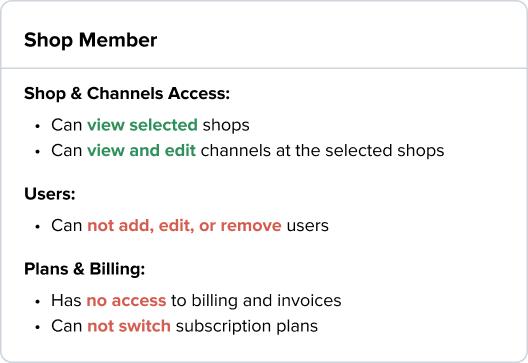
Shop Member
💡 This role is ideal if you want to give a user view-only access to selected shops and the ability to edit their channels.
How to add another role?
To assign an additional role to a new user:
- After setting the first role, click on the +Add Another Role button.
- Choose the additional role from the drop-down, and specify the Shops if necessary.
- Click Save Changes.
🔇You can assign multiple roles to a user. However, not all role combinations are compatible. Find some use cases where role conflicts may occur below.
Use Case 1: How to Restrict Shop Access for a User with the Organization Admin Role.
Use Case 2: How can full access to some shops be granted and restricted access to others?
Use Case 3: Why you cannot add more roles to the Shop Member role?
Use Case 4: How to extend access to selected shops?
Use Case 5: How do I restrict access to one of my shops after granting full edit access to all of them?
Use Case 1: How to Restrict Shop Access for a User with the Organization Admin Role
Maria is your work colleague, and you assigned her the Organization Admin role.
After some consideration, you realize she doesn’t need access to one of your shops.
The solution you’ve come up with is to keep the Organization Admin role while restricting her access to the shop she doesn’t need.
Unfortunately, DataFeedWatch doesn’t support this approach. Why?
The Organization Admin role provides full access to all shops and channels, and it cannot be combined with additional roles to limit access.
To give Maria restricted access to one shop while maintaining full access to the others, you should assign her the Shop Admin role. Then select all the shops except the one she doesn’t need access to.
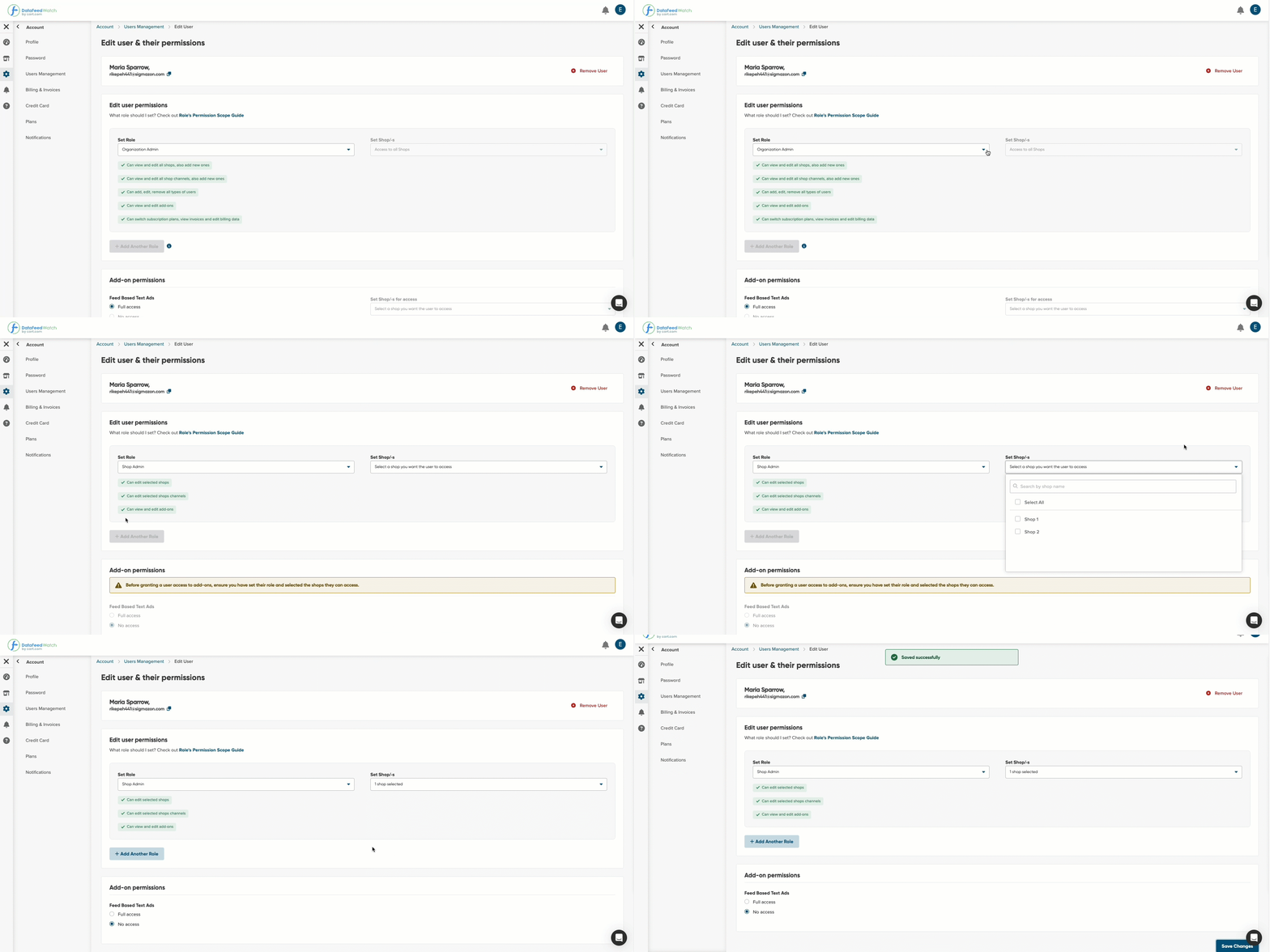
Done! Maria can now add and edit the selected shops, their channels, and more (see Shop Admin for details). Remember, she will not have access to billing and invoices.
Use Case 2: How to grant full access to some shops and restrict access to others
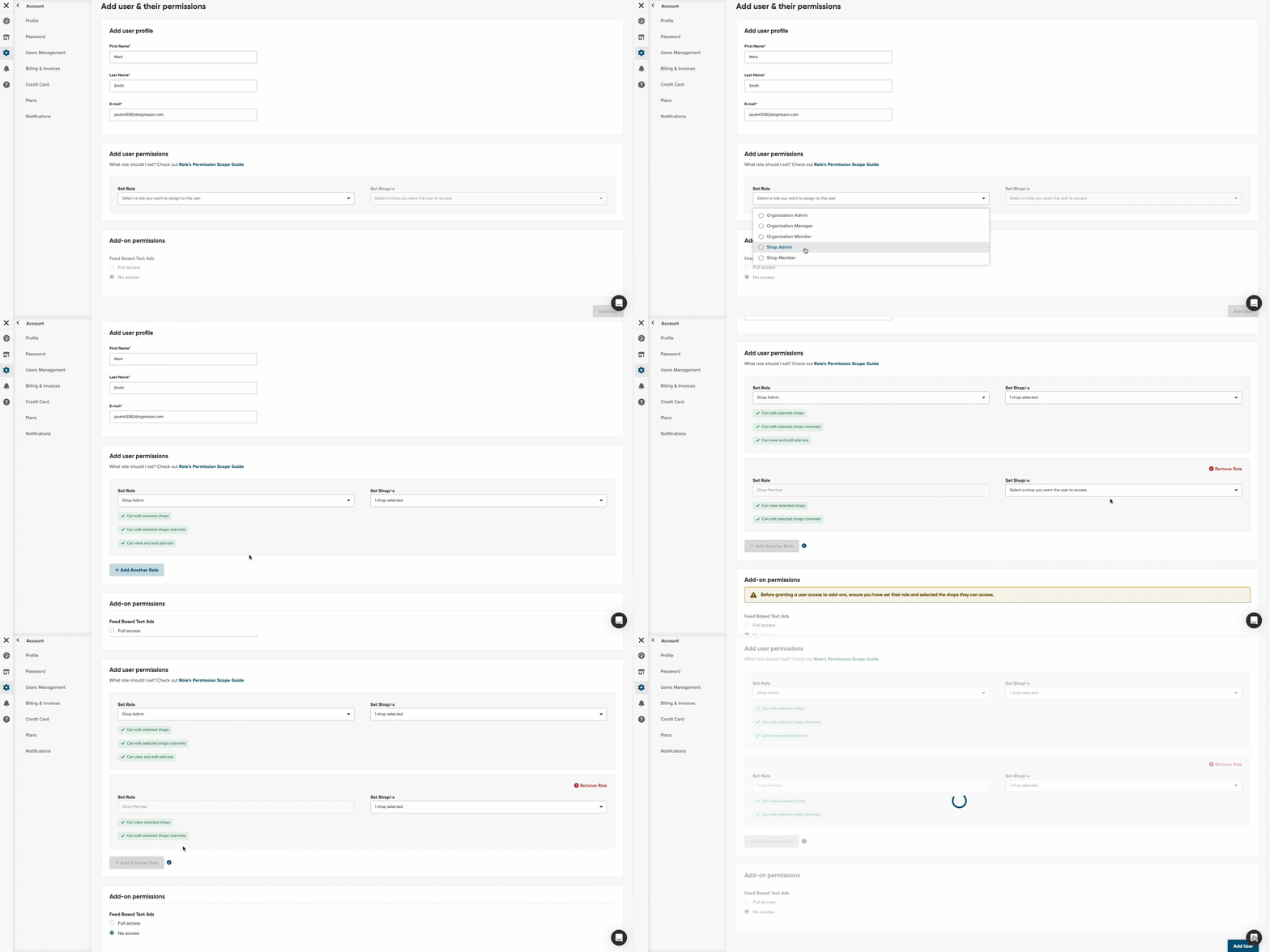
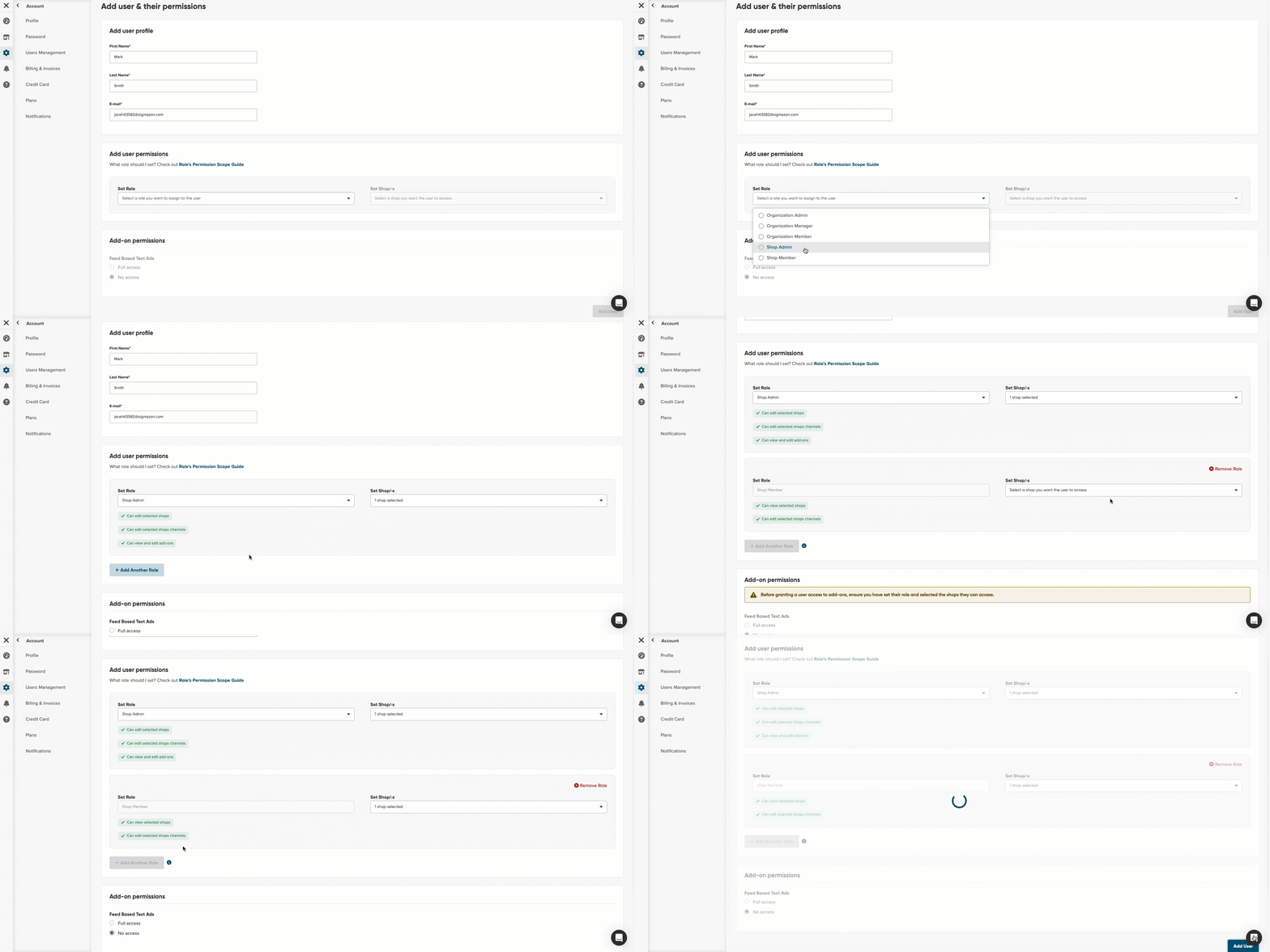
You have two shops, and you’ve already set up one of them: Shop 1, and mapped its channels. You don’t have time to complete the setup for Shop 2, so you ask your colleague Mark to handle it.
To enable Mark to do this, you need to provide him with full access to Shop 2 and view-only access to the shop you’ve already set up (Shop 1), so he can use it as a reference.
Here’s how to set it up:
-
Assign the Shop Admin role to give Mark full access to the shop. Be sure to select this specific shops during setup.
-
Click on the Add Another Role button.
- For view-only access to the other shop, assign the Shop Member role and select that specific shop.
Use Case 3: How to grant full access to a store when a user has limited access to it?
Currently, one of your colleagues has the Shop Member role to all your shops. You decide to add the Shop Admin role to enable him to edit one of your shops.
You go to the Users Management page, find his email, and click on Edit User. Attempting to add another role, you notice that you can’t. Why?
.gif?hsLang=en)
The Shop Member role has the most limited permissions and does not allow multiple roles.
To provide additional permissions:
-
You must first change the Shop Member role to Shop Admin
-
Next select the shops you want him to have full access to shop.
-
Then +Add Another Role, and set the Shop Member role.
.gif?width=688&height=343&name=use_case_3_p_2%20(1).gif)
.gif?hsLang=en)
Use Case 4: How to extend access to selected shops
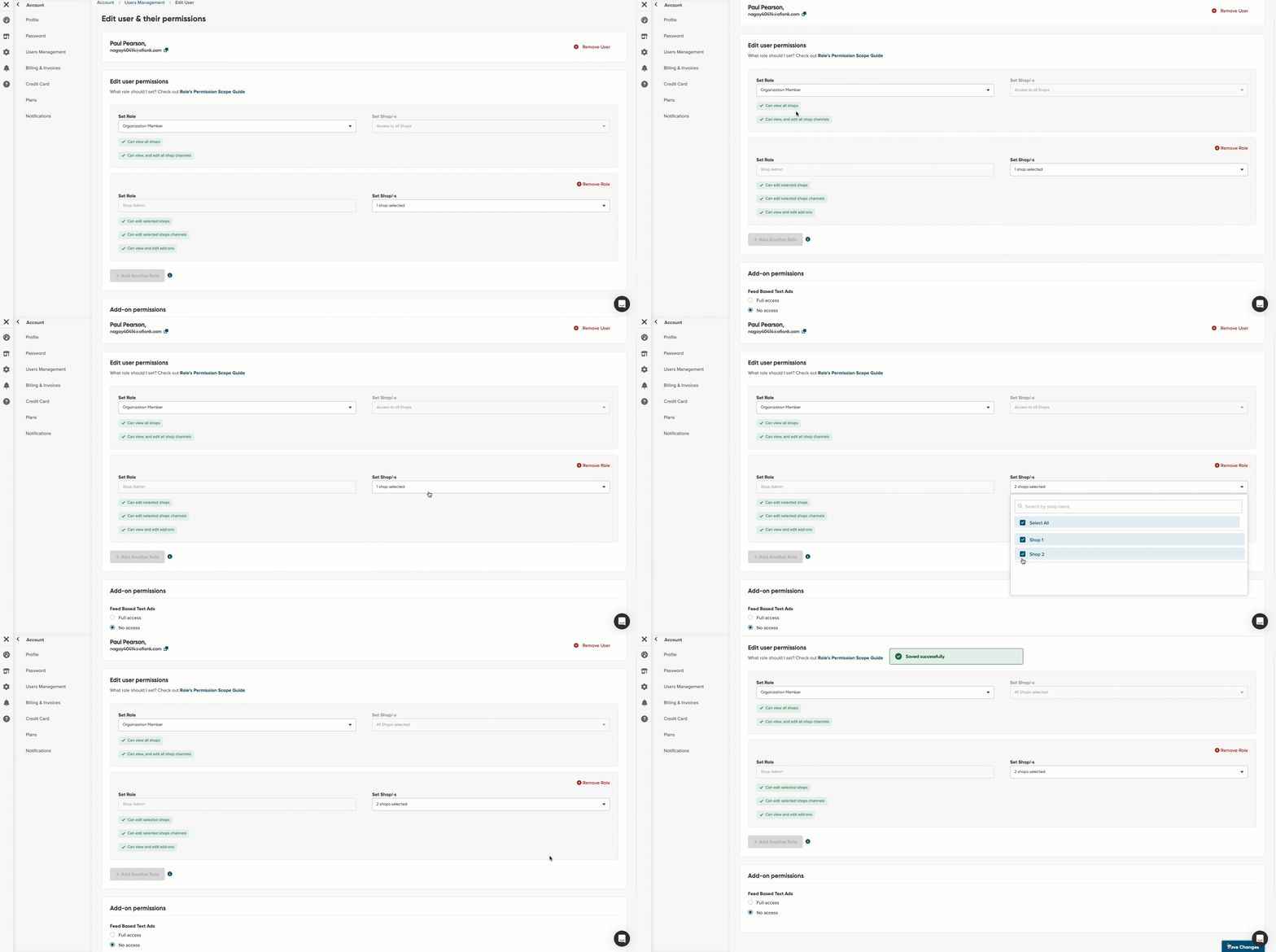
Your colleague Paul has requested the ability to edit shops that till now he can only view.
You enter the Users Management page and review his setup. Currently, Paul has the Organization Member role, meaning he can view all your two shops, and has the Shop Admin role to one of them.
You see that you can’t add more roles because this combination prevents it.
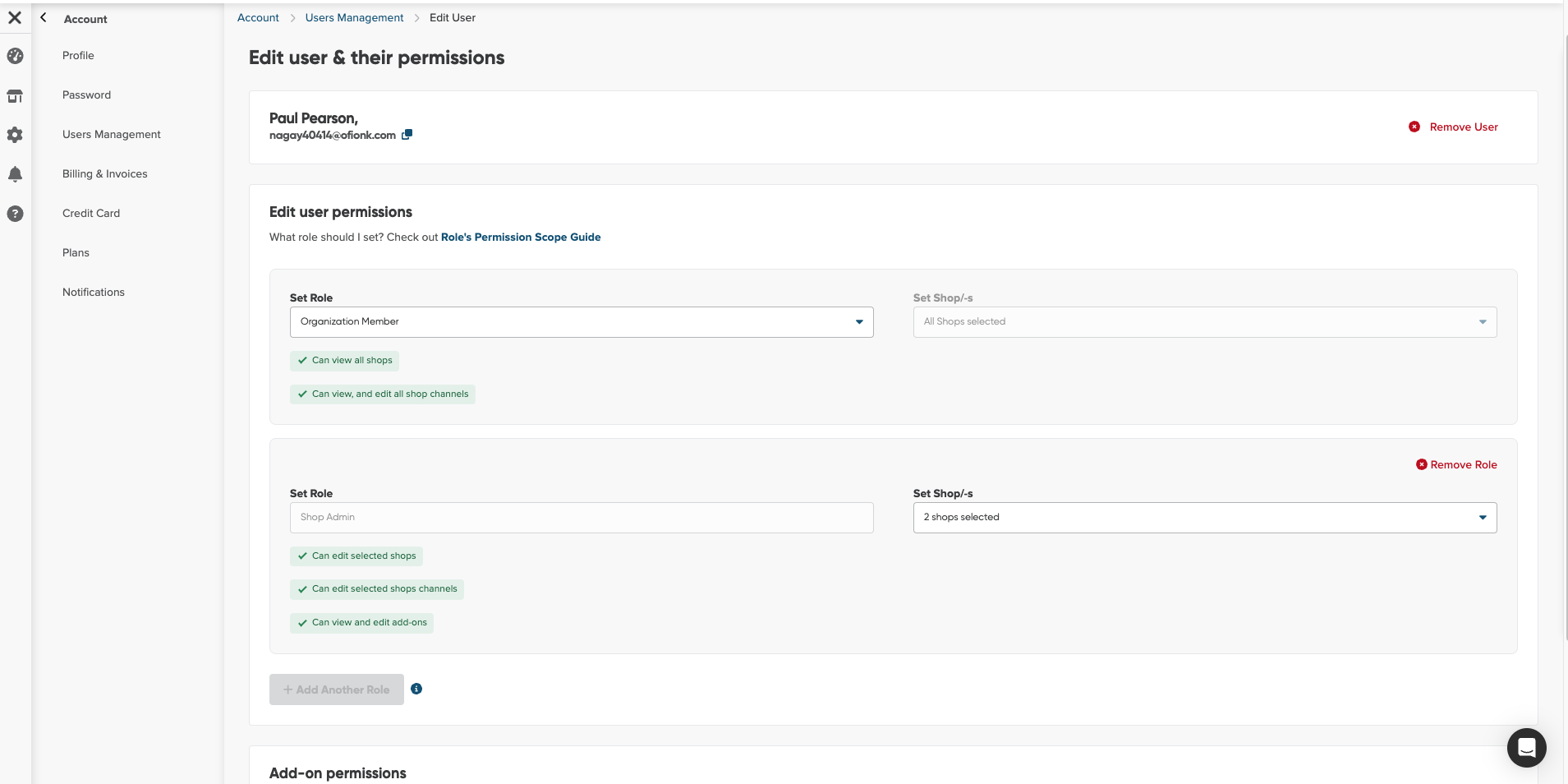
Since Organization Members can view all shops, and Shop Admins can edit only selected ones,
adding another role could conflict with the existing permissions.
If you want Paul to have full access to more shops, simply assign more shops to the Shop Admin role.
Use case 5: How do I restrict access to one of my shops after granting full edit access to all of them?
Let’s assume you assigned the Shop Admin role to one of your colleagues, giving them edit access to all shops and channels. After a few months, you both decide that your colleague only needs access to half of them.
To restrict access to half of the shops, you want to assign them the Shop Member role for those shops and keep the Shop Admin role for the other half. You go to User Management to edit their permission scope.
When trying to set the role, you notice that the option to add a Shop Admin role is not available. Why?
The reason is that assigning all shops to the Shop Admin role prevents combining roles.
In your case, to assign the Shop Member role to half of the shops:
-
Go to the Set Shops drop-down.
-
Unselect the shops you want to restrict access to.
-
As you can see, the button to add another role becomes active.
-
Click +Add Another Role.
-
Assign the Shop Member role.
-
Select the shops to which you want to restrict access.
-
Save changes.
Frequently Asked Questions
1. What role should I set, if...
2. Can a user have more than one role?
6. How to grant access to add-ons, like Feed-Based Text Ads?
7. Which roles have access to billing?
8. Which roles can add other users?
9. Which role has the most limited permission scope?
10. Which role has the highest level of permission scope?
1. What role should I set, if:
- I want to give full access to all my shop?
The best options for you are Organization Admin or Organization Manager. - I want to permit editing in only one of my shops?
If you want to let a user edit your shop, and channels, the best option is Shop Admin.
If you want a user to only edit the channels of your shop, a better option is Shop Member. - I don’t want to grant access to billing and plans?
Only the Organization Admin has access to billing and plans. - I want to give access to the add-on?
All the roles, except Shop Member, can have access to add-ons. - I want to give full access to one of my shops.
The best option in this case is Shop Admin. - I want to give access to edit three out of my five shops and full access to add-ons of all my shops.
First, to give them full access to three of your five shops, set the Shop Admin Role.
Then select the three shops you want to give full access to.
Next, go to Add-ons permission, and select Full Access. Then Select all when setting the shops.
2. Can a user have more than one role?
Yes. To learn more go to Adding another role.
3. How to remove the role?
To remove the role:
- You need to go to Users Management.
- Click on Edit User to enter their role setup.
- Click on the right-hand corner Remove Role button.
.gif?width=688&height=343&name=removing_role%20(1).gif)
.gif?hsLang=en)
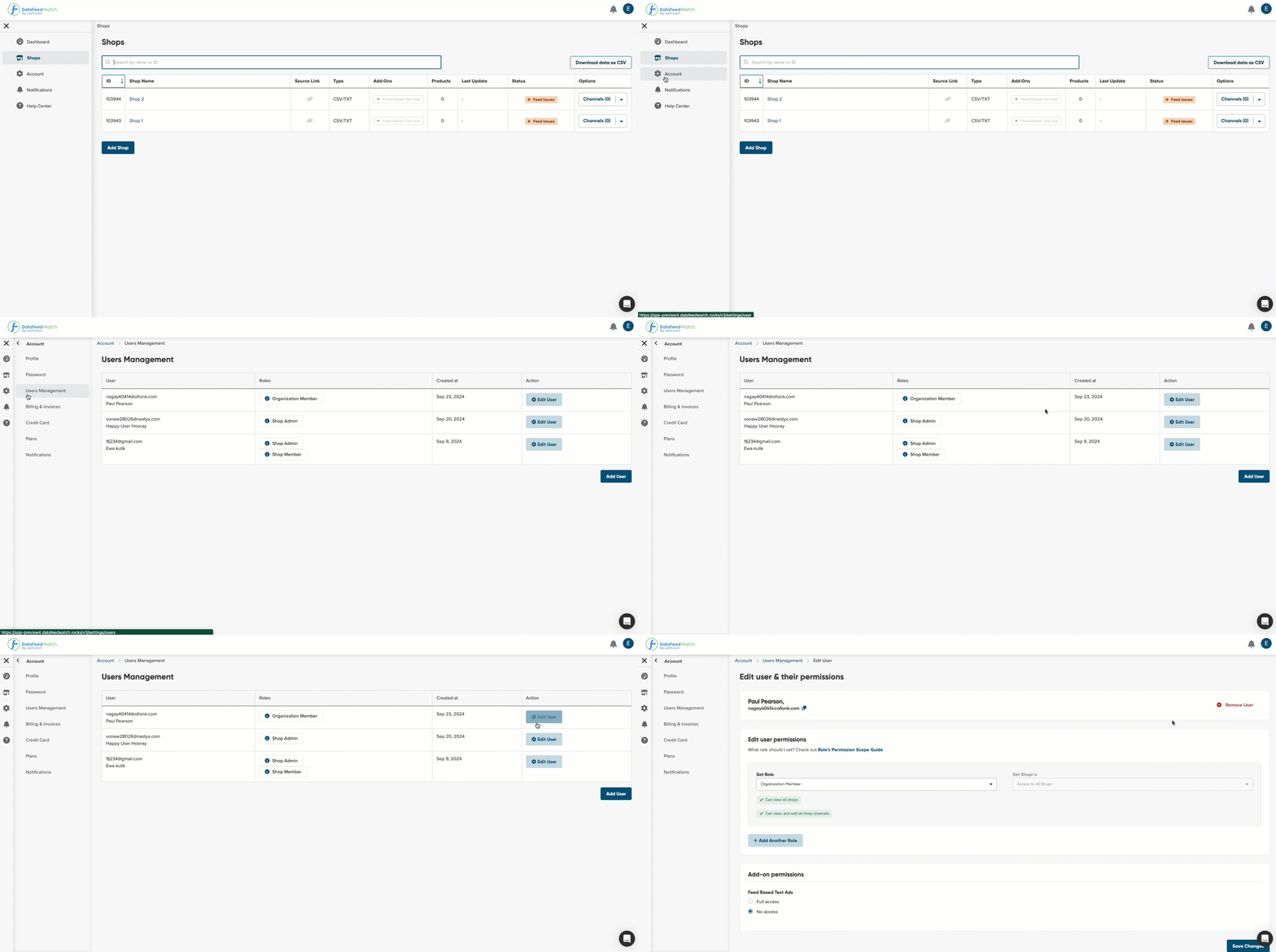
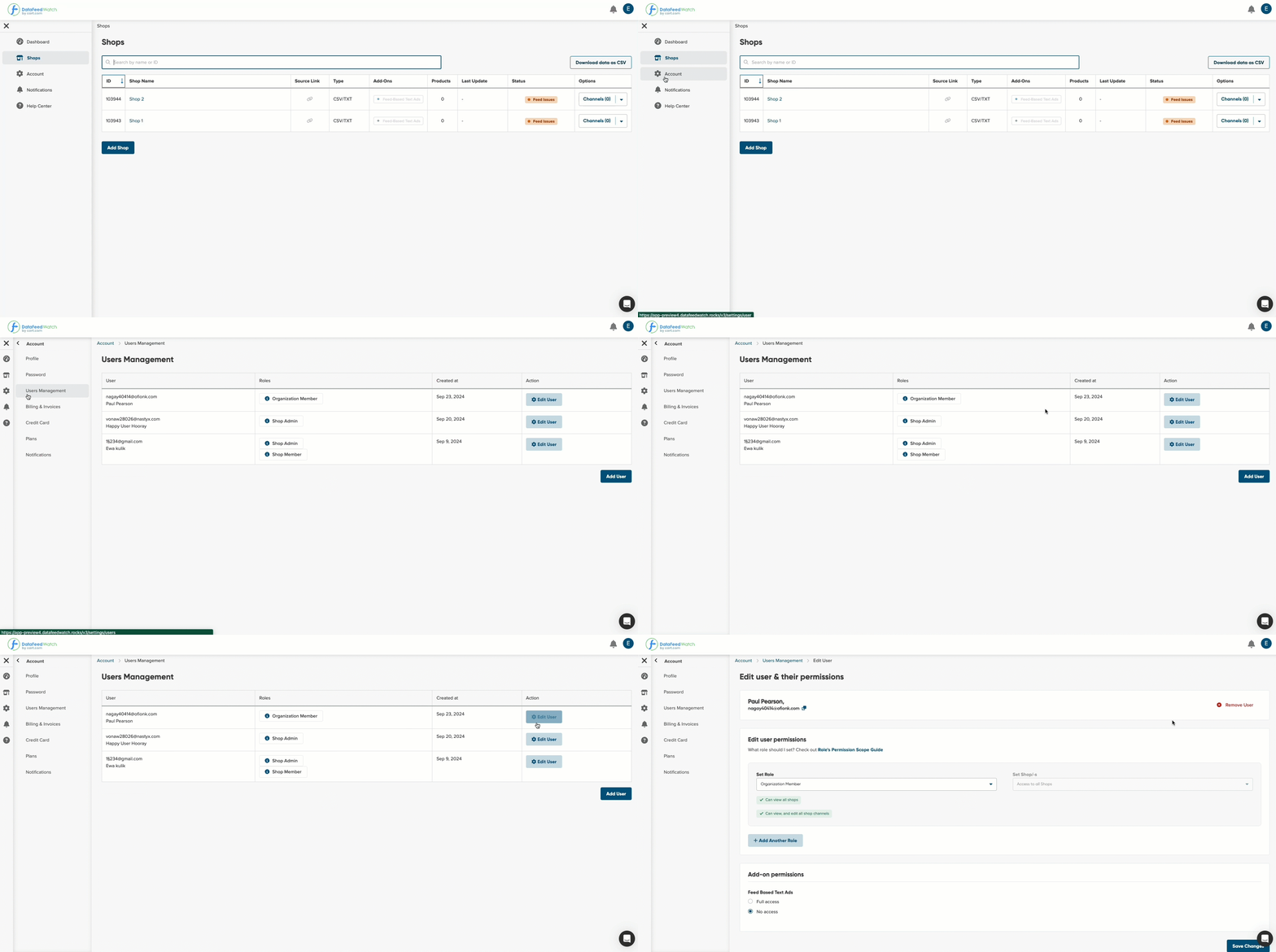
4. How to edit a user?
- Enter Account Settings from the side navigation
- Select Users Management.
- From the list of the users, find the one you want to edit.
-
Click on the Edit User button.
5. How to remove the user?
-
Enter Account Settings from the side navigation
-
Select Users Management.
-
From the list of the users, find the one you want to edit.
-
Click on the Edit User button.
-
When you open the user page, next to their email, you’ll find the Remove User button.
-1.gif?width=688&height=343&name=removing_user%20(1)-1.gif)
-1.gif?hsLang=en)
6. How to grant access to add-ons, like Feed-Based Text Ads?
-
Enter Account Settings from the side navigation
-
Select Users Management.
-
From the list of the users, find the one you want to edit.
-
Click on the Edit User button.
-
Go to the section Add-on permissions, and select either the full or no access according to your preferences.
.gif?hsLang=en)
7. Which roles have access to billing?
Only the Organization Admin has access to billing. They can switch subscription plans, view invoices, and edit billing data.
8. Which roles can add other users?
The users that can edit and add other users should have one of the following roles: Organization Admin, Organization Manager, and Shop Admin.
9. Which role has the most limited permission scope?
It's Shop Admin. They can view only the selected shops, and edit their channels.
10. Which role has the highest level of permission scope?
The Organization Admin. They have full access to all shops, as well as they can switch subscription plans, view invoices, and edit billing data.