
The legacy method is no longer recommended because it can cause price discrepancies and limit your ability to create feeds tailored to each country’s currency, language, and pricing.
This guide shows you how to update your shop settings and switch to the Country-Specific Pricing model (Shopify Markets).
Contents:
Why should you switch to Country-specific pricing?
Take a look at the differences:
How to update your pricing model from currency-based to market-specific
Step 1: Access the Download Configuration
1. Go to Shops.
2. Select the Shopify shop you want to edit.
3. In the side navigation, click Shop Settings.
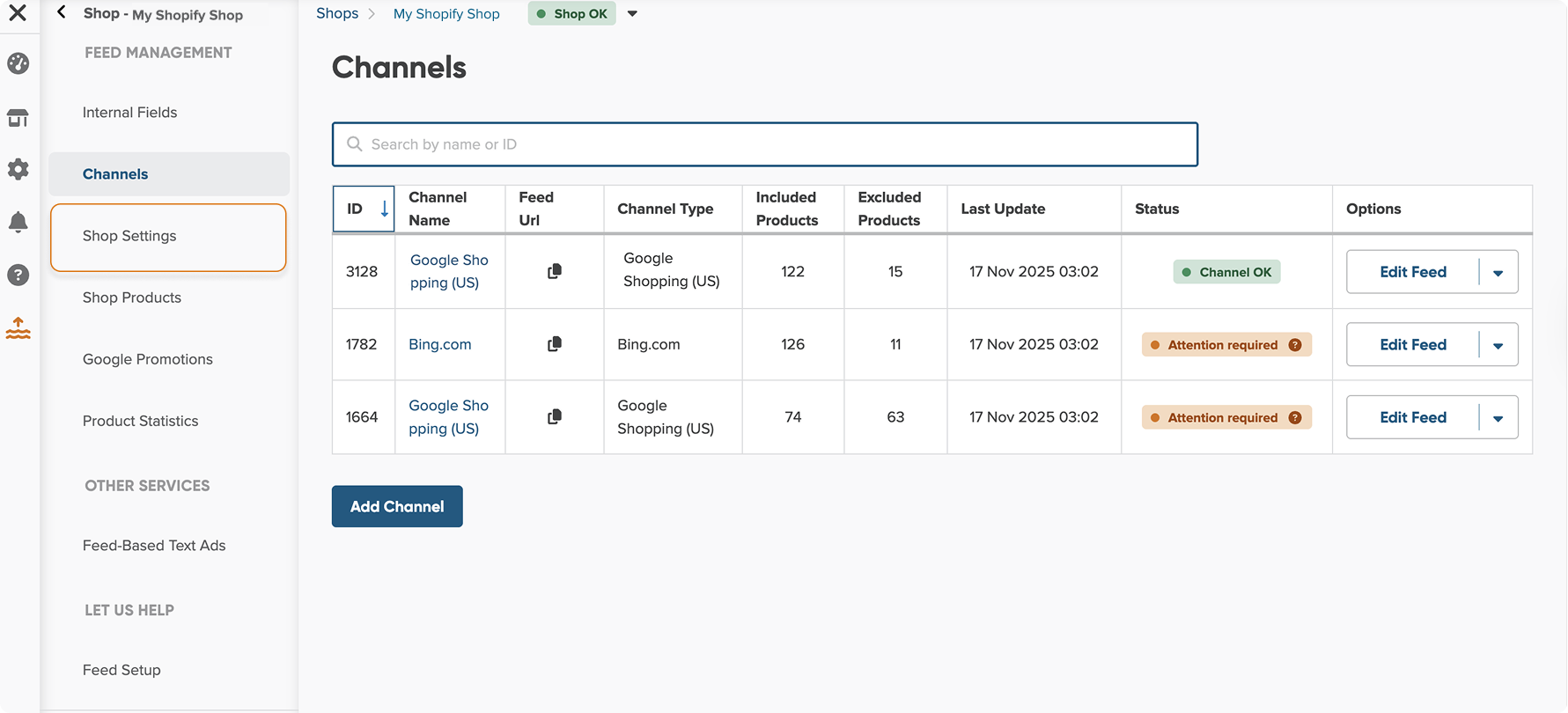
4. Find Download Config and open it.
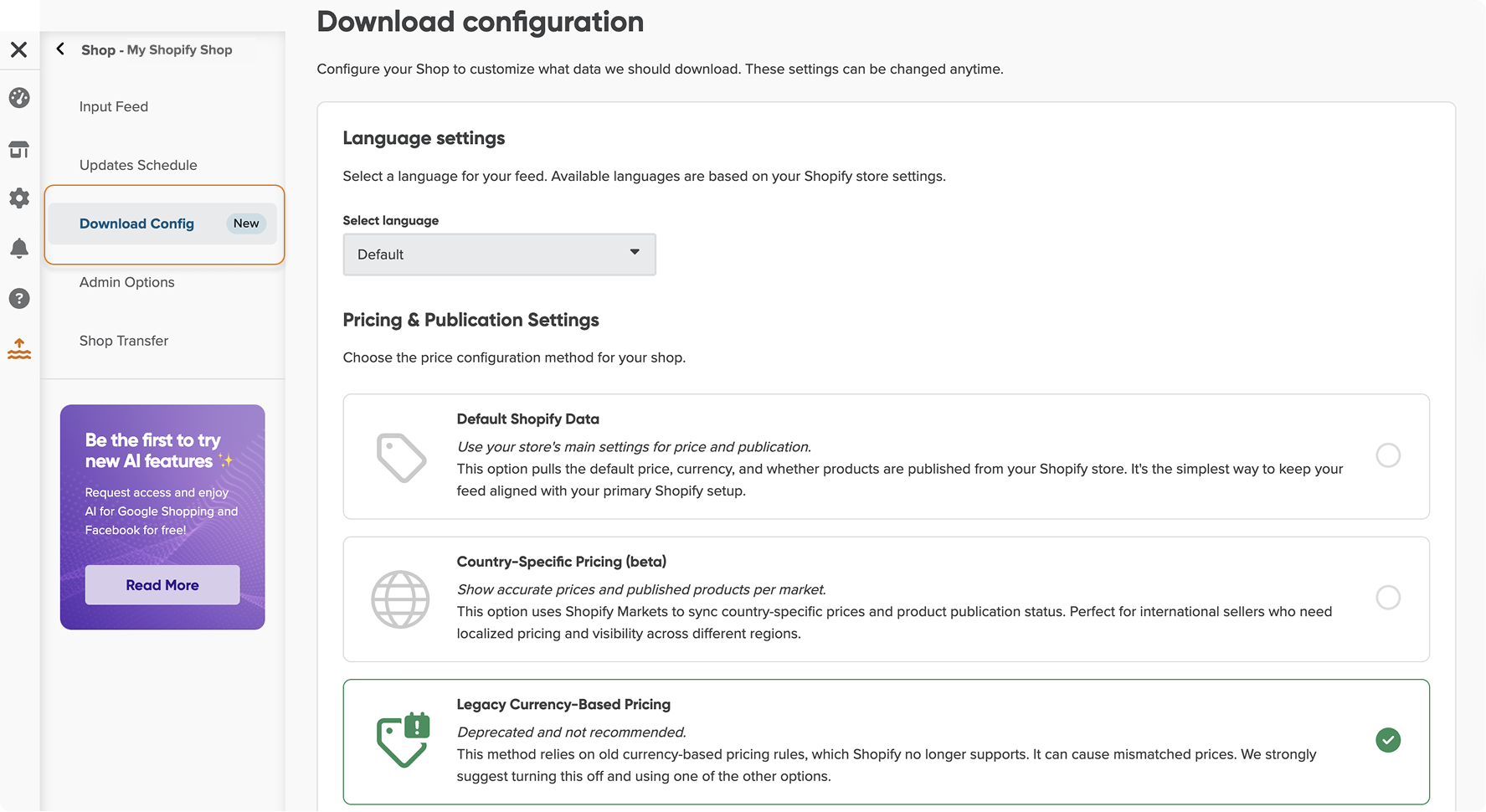
Step 2: Switch to Country-Specific Pricing
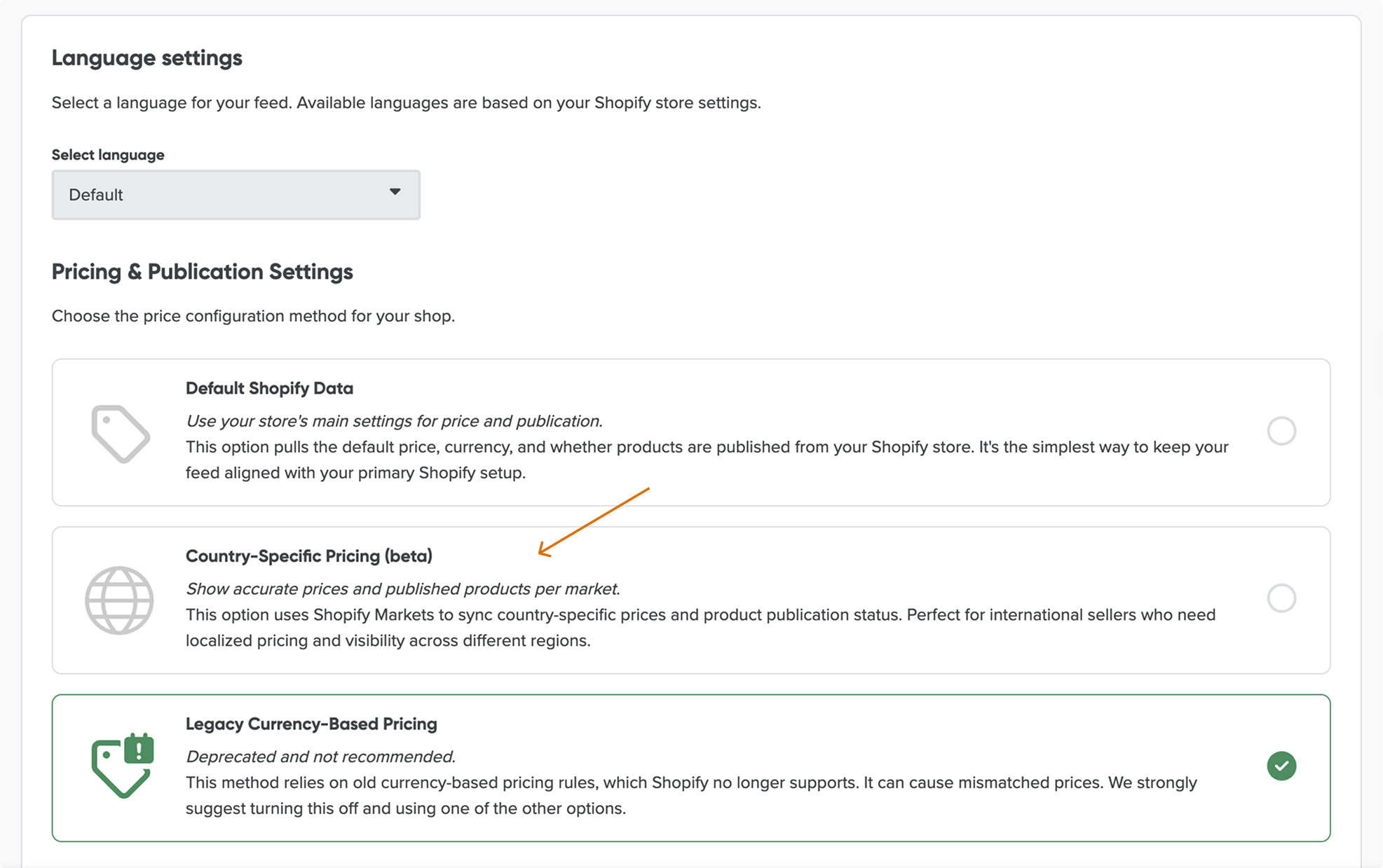
In the Pricing & Publication Settings section, you will see three primary options:
- Default Shopify data – Recommended if you don’t sell in multiple markets and want to use default prices and currency.
- Country-specific pricing – Recommended if you sell in multiple countries and need localized pricing.
- Legacy Currency-Based Pricing: The current, deprecated method for existing shops, that were set up before October 21st, 2025.
1. Select the Country-Specific Pricing option.
2. A warning pop-up will appear. This warns you that switching will remove the old currency-based price fields from the Master Fields and may break your existing channel mappings.
No worries, this is expected, and we’ll guide you on what to do next.
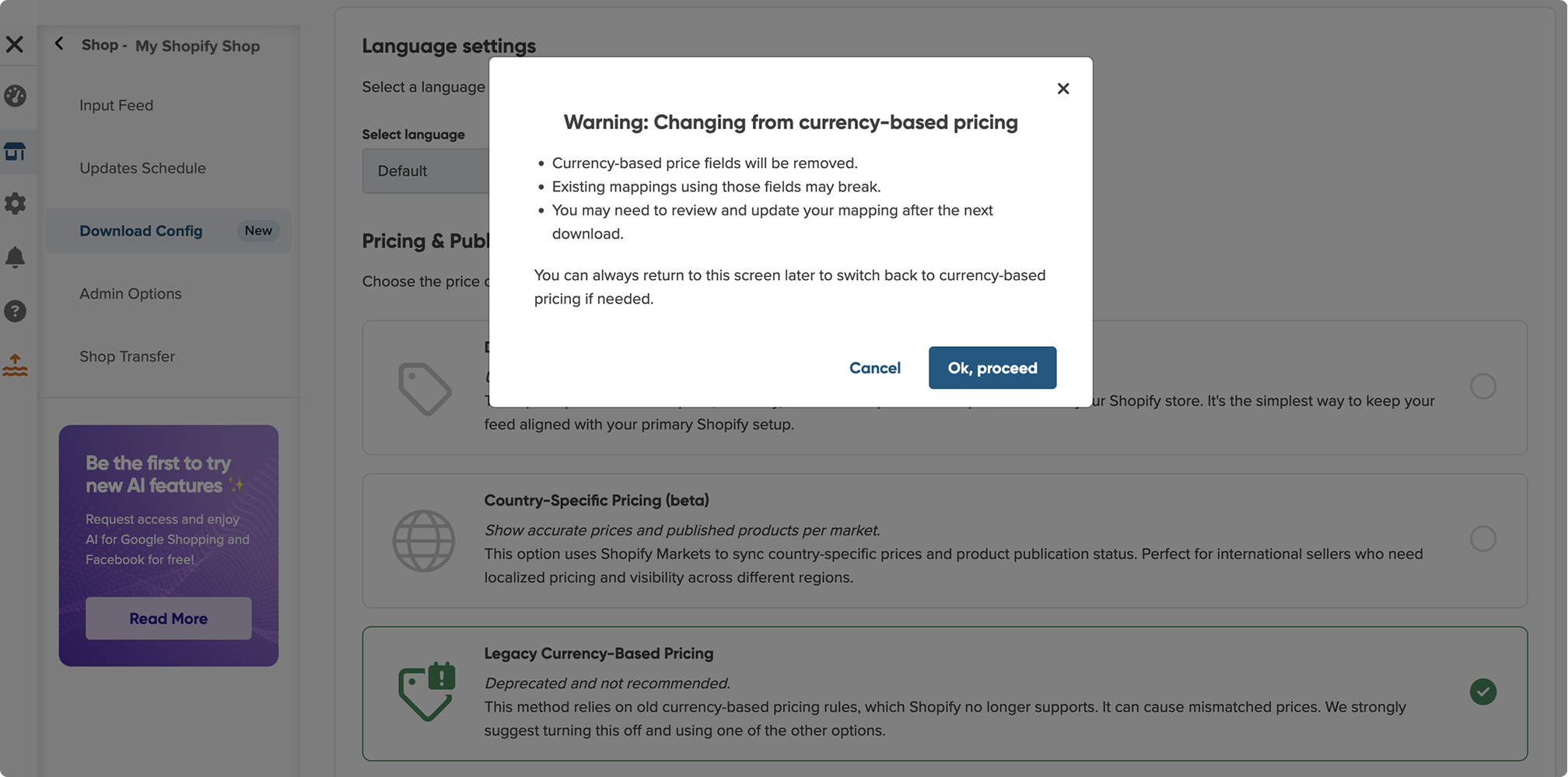
3. Click OK, and proceed to confirm the change.
4. Make sure the selected countries are the ones you want to get price and availability from.
If not, click + Add more countries under the Country-Specific Pricing section to update the slection.
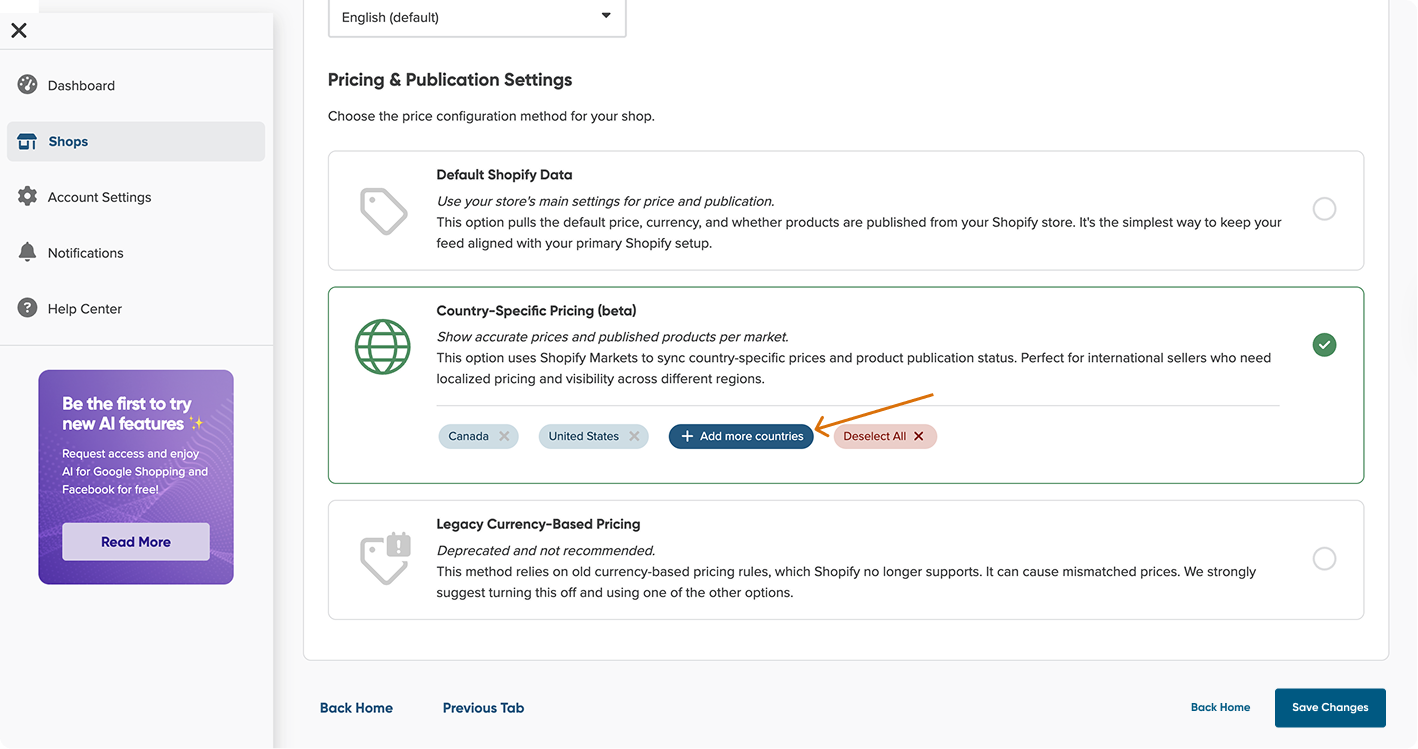
6. Click Apply, and then Save Changes again.
Step 3: Run a product download
The changes you have made will apply during the next product download. To reflect the new data structure immediately:
- Return to the Shops list.
- Click the Options dropdown next to your shop.
- Select Import Input Feed to start a manual product fetch.
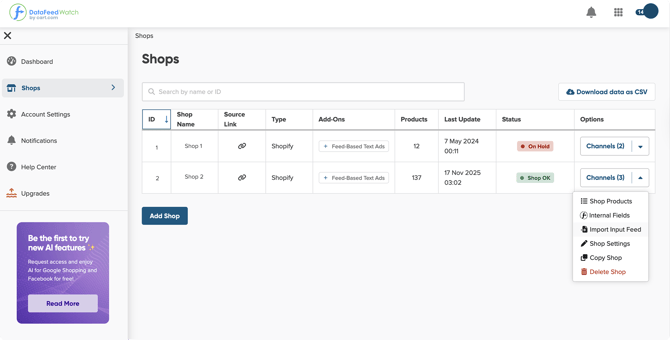
Step 4: Update Your Master Field Mappings (If Needed)
After the download finishes, you may see a warning in your Master Fields if your previous rules used old currency-based pricing (like price_usd).
1. Go to the Master Fields tab for your shop.
2. Navigate to the field with error (e.g., Price field).
3. Replace the old field with the relevant country-based price field from Shopify.
Eg. price_usd → price_us
price_eur → price_de, price_es, etc.
Step 5: Update Your Channel Mappings (If Needed)
Since your shop now uses the Country-Specific Pricing model in Master Fields, this setting can also impact your channel mappings.
Check each channel to make sure its status is Channel OK. If you see a different status, update the mapping as needed.
You have the option to switch back to the old pricing method (Legacy Currency-based pricing) whenever you want by going to the Shops > Shop Settings > Download Config.
How to exclude products not published in a market
Use publication status fields (e.g., published_in_mx for Mexico) to ensure you only advertise products available in that market.
- Go to the Exclude Products tab for your channel.
- Add a rule to exclude products where the publication status for the channel’s target country is set to FALSE.