
What you'll find in this article:
Before your start
You need to have an authenticator app installed on your mobile device.
You can install any authentication app from the App Store (iOS) or Google Play Store (Android). We recommend trusted providers like Google Authenticator or Microsoft Authenticator.
How to install the Google Authenticator app:
How to install the Microsoft Authenticator app:
How to set up Two-Factor Authentication
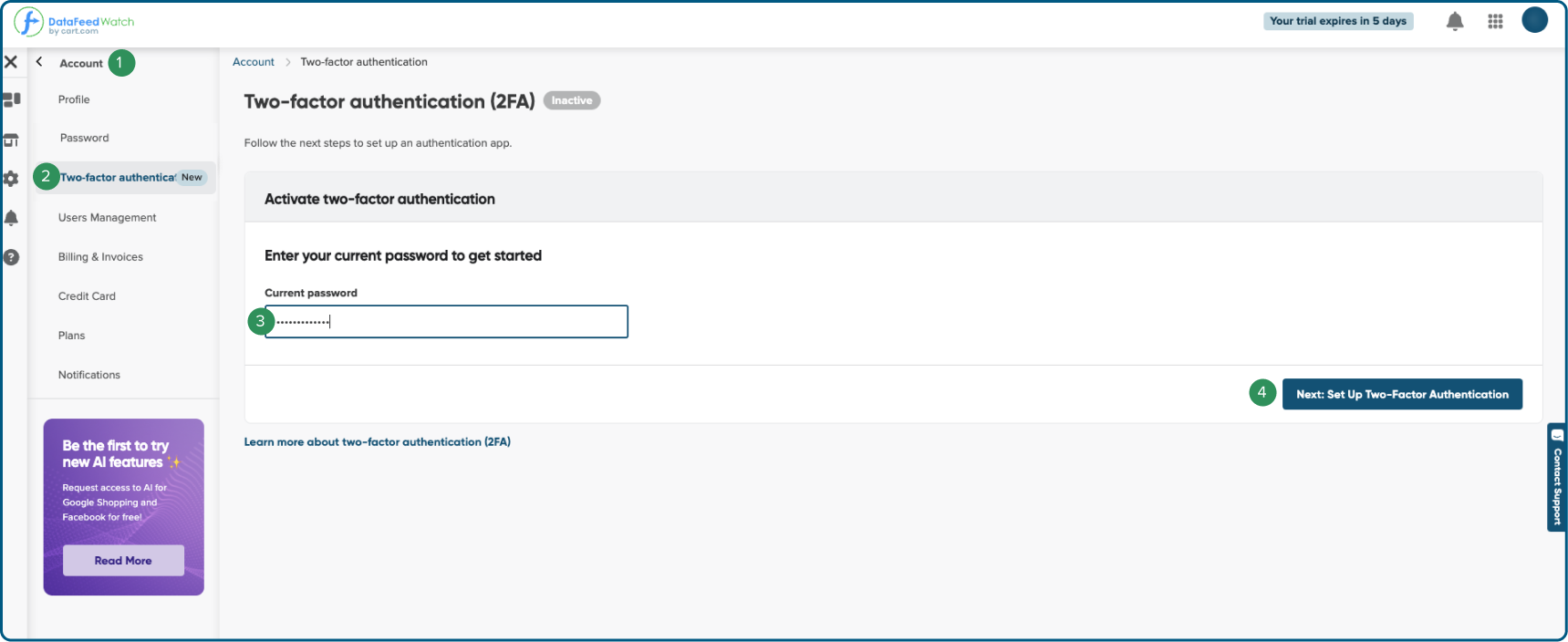
1. Log in to your DataFeedWatch app.
2. In the side navigation, open Account.
3. Then look for Two-Factor Authentication, and open it.
4. Enter your current password for DataFeedWatch to get started.
5. Click Next: Set Up Two-Factor Authentication.
6. Open or install (if you haven't done it already) an authenticator app on your trusted mobile device.
7. Open your authenticator app on your mobile device.
8. Find the option to scan a QR code.
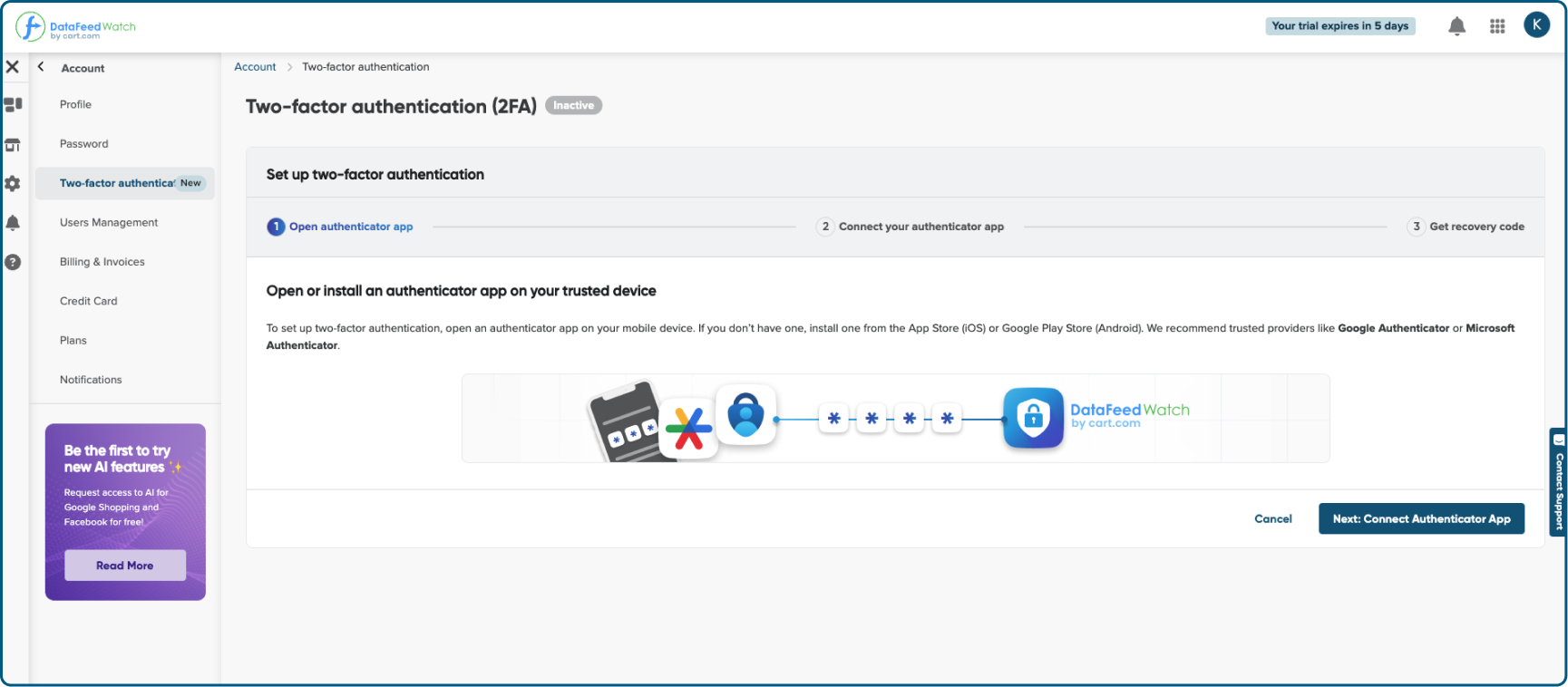
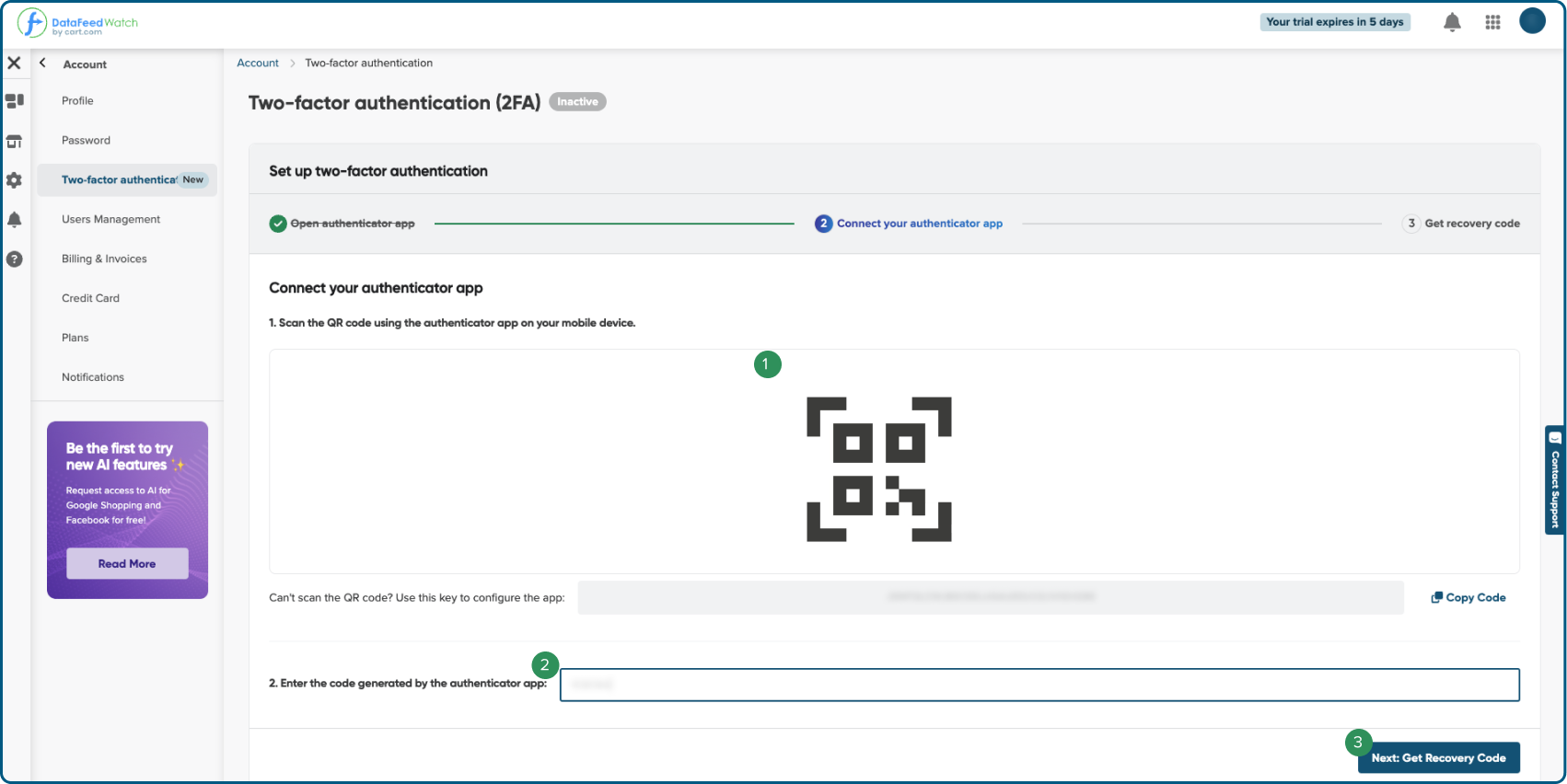
9. Scan the QR code displayed in DataFeedWatch.
10. Your authenticator app should now be connected to DataFeedWatch and appear in the authenticator app's list of connections.
11. From now on, you should see the authentication codes generated by the app on your mobile device.
12. Enter the active code into the corresponding field in DataFeedWatch.
13. You'll be displayed a recovery code. You'll need it to log in without your mobile device.
14. Save it in a secure location, as it is displayed only once.
You'll need a recovery code if you ever need to log in without your mobile device. Save it in a secure location, as it's displayed only once.
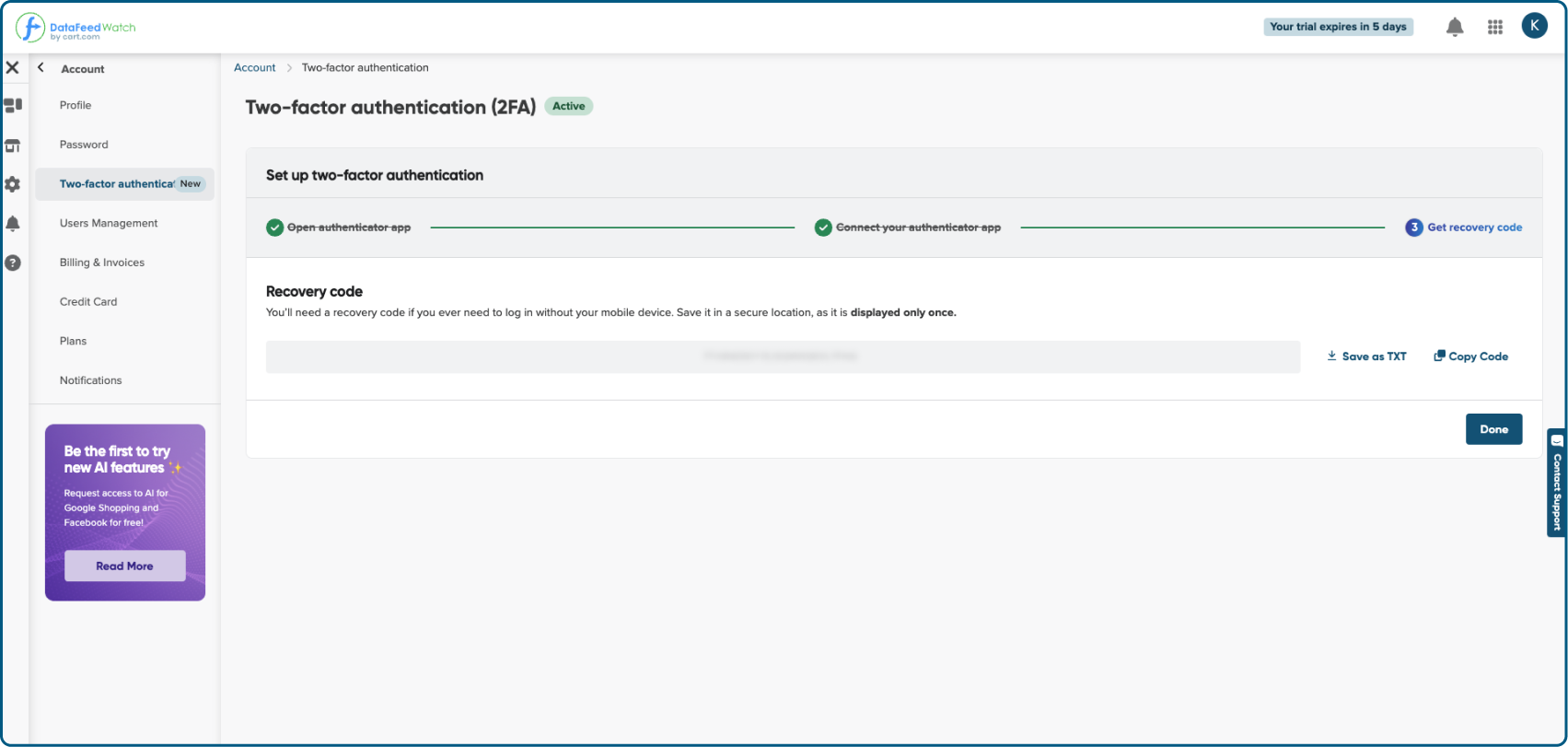
15. Click Done.
16. Your Two-Factor Authentication is now set up.
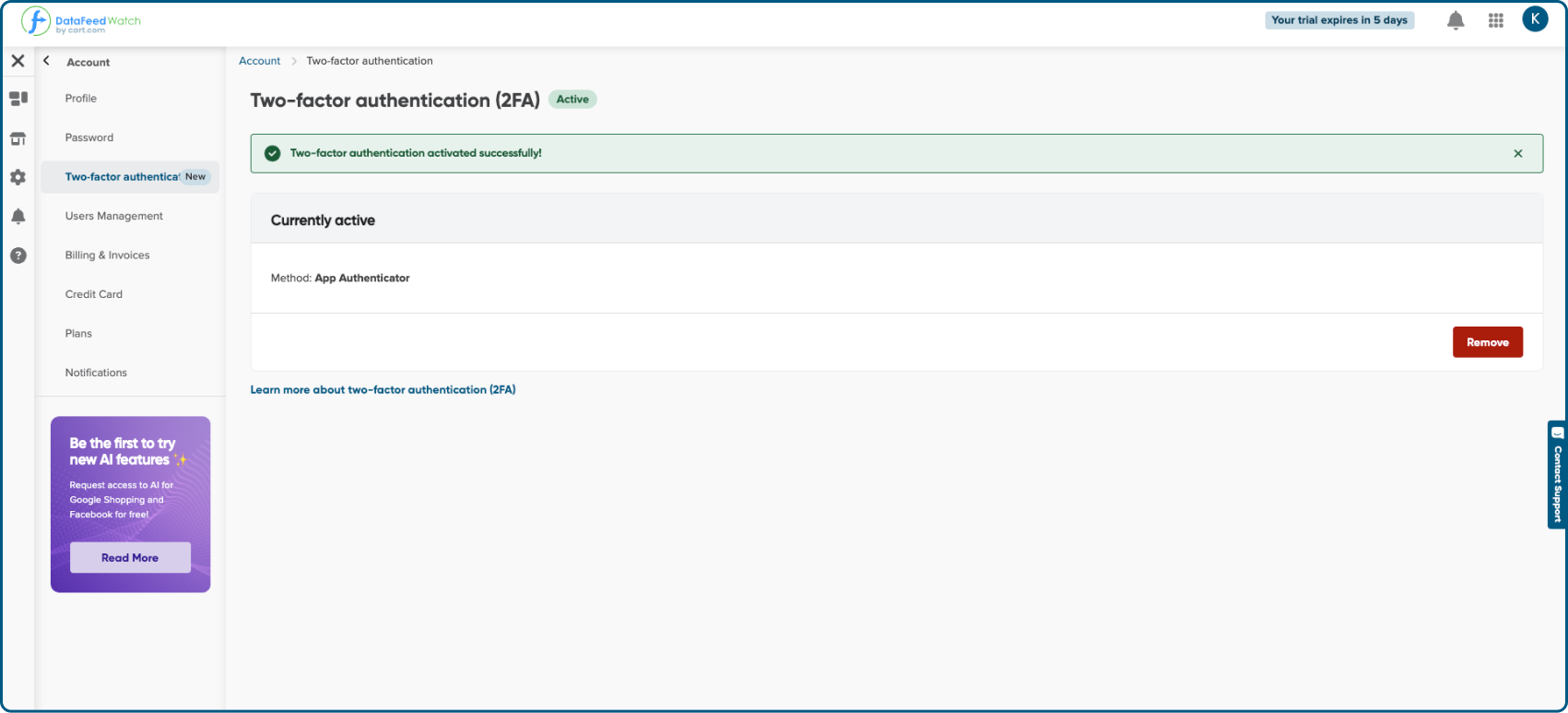
How to remove Two-Factor Authentication
1. Log in to your DataFeedWatch app.
2. In the side navigation, open Account.
3. Then look for Two-Factor Authentication, and open it.
4. Look for the active authentication method.
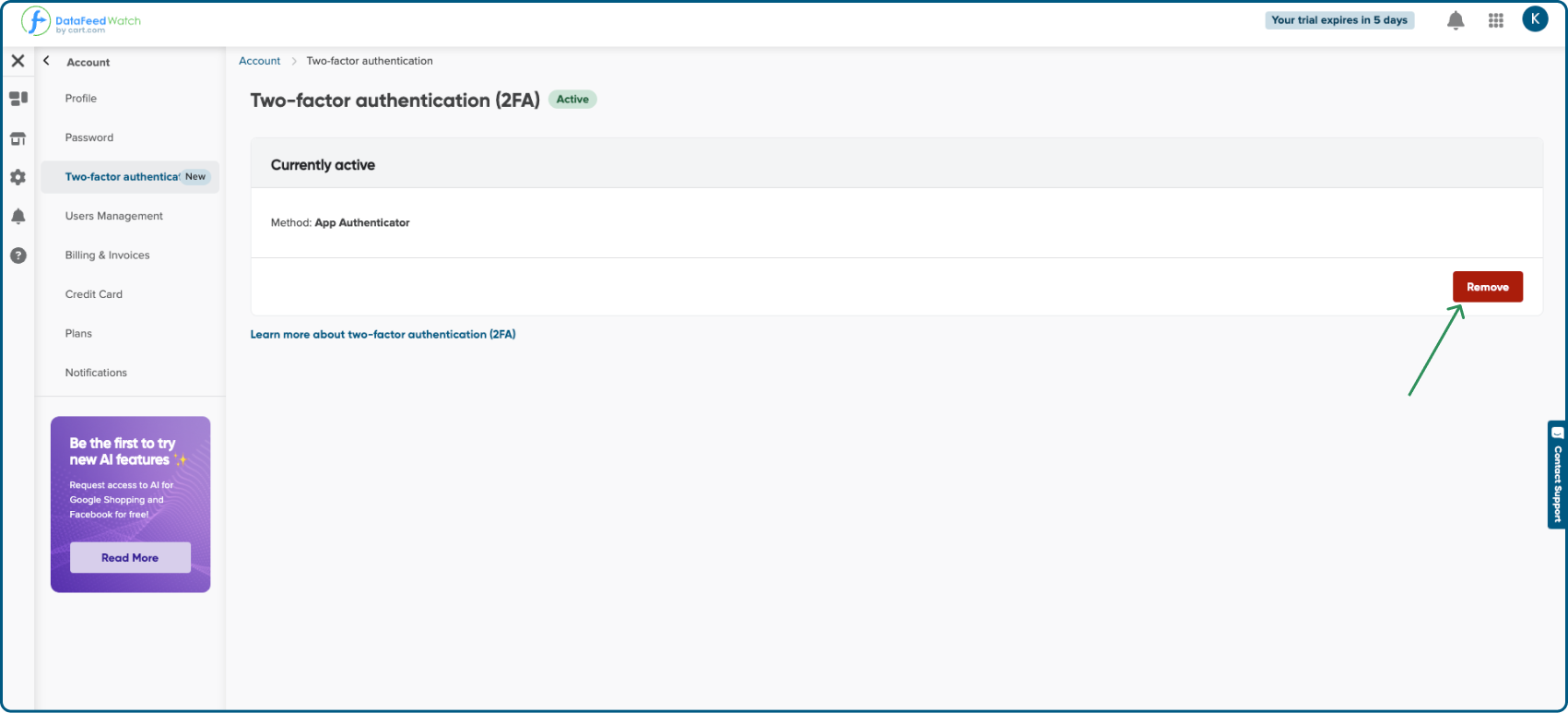
5. Click the Remove button.
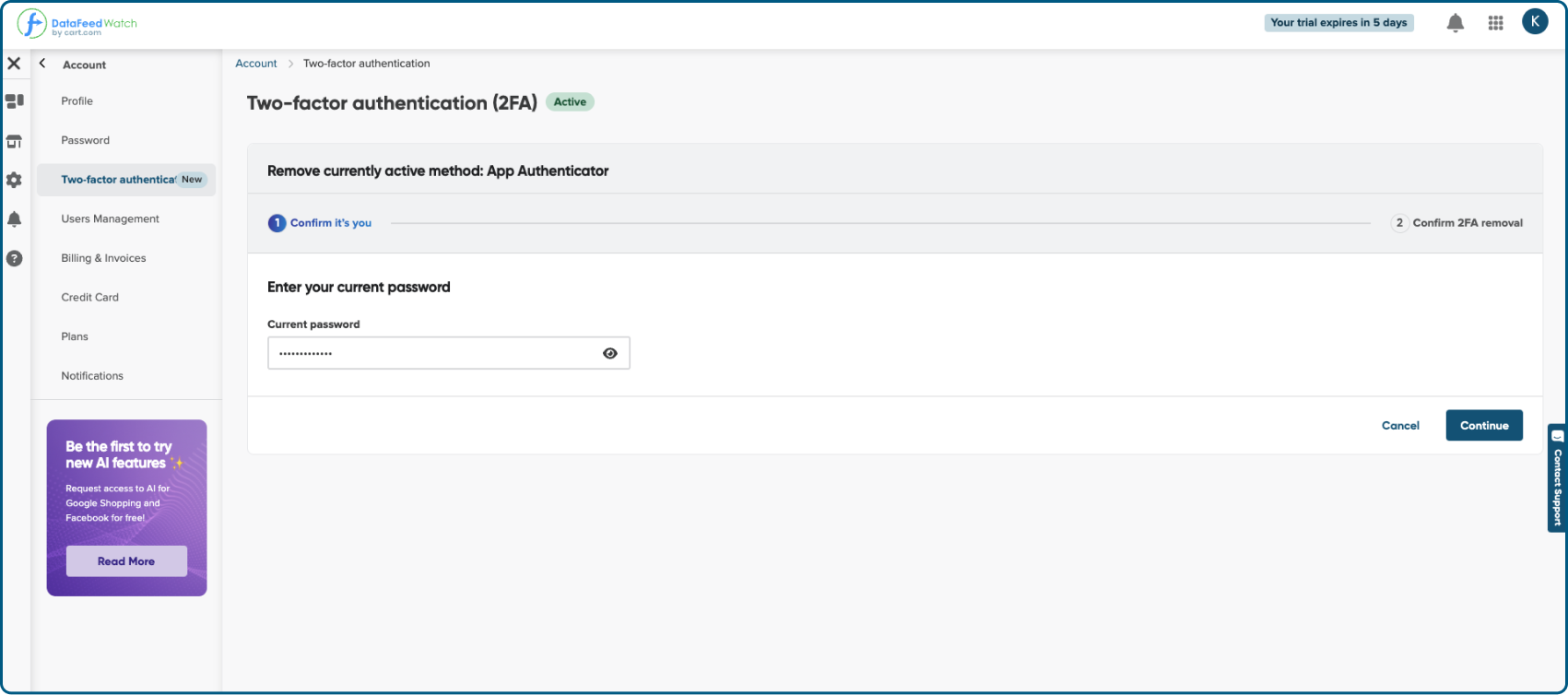
6. Enter your password for the DataFeedWatch app.
7. Click Continue.
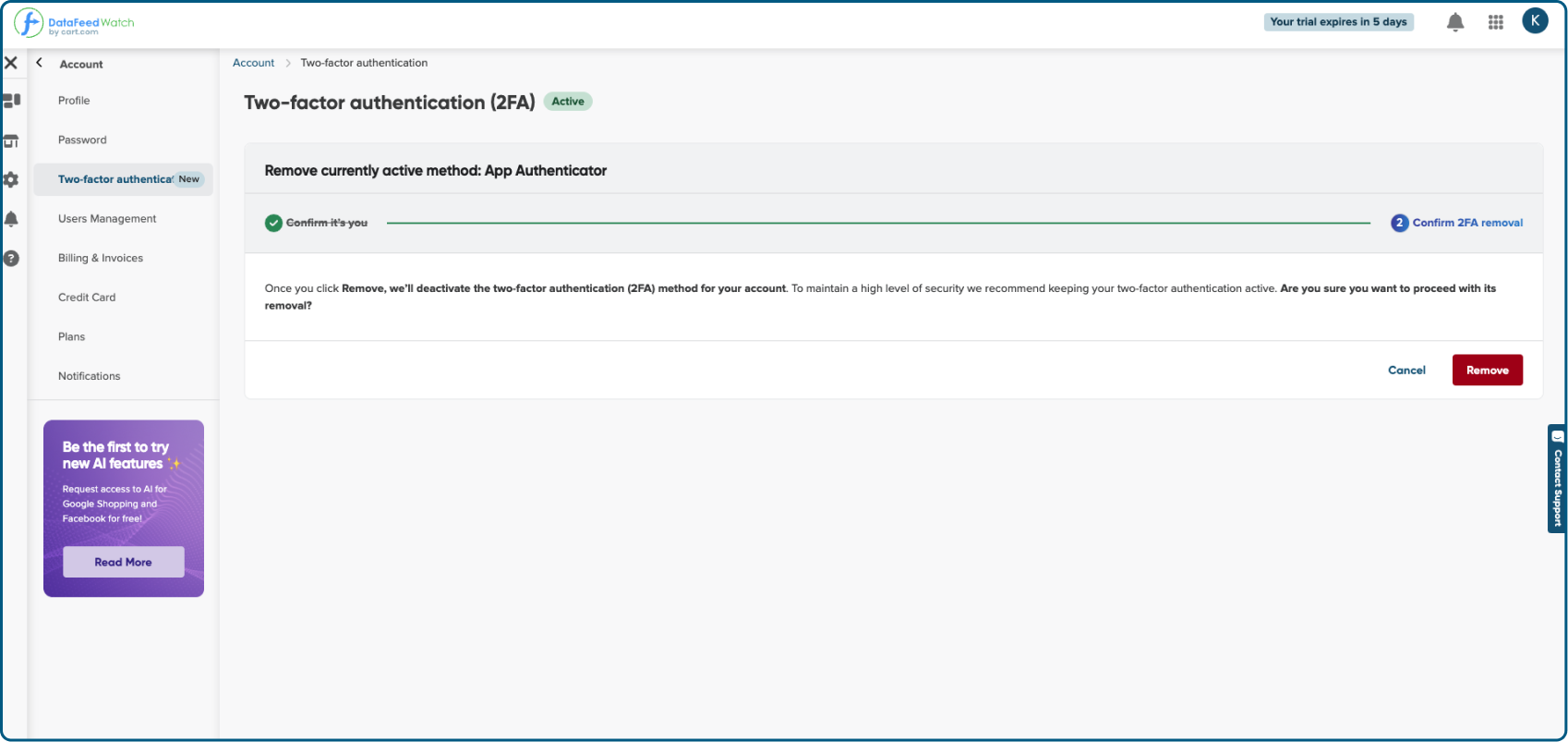
8. Confirm that you want to remove currently active method.
9. If you're sure click Remove.
10. The authentication method has now been canceled.
11. We also recommend removing this connection in your mobile authenticator app to avoid future account duplication when you want to enable two-factor authentication in DataFeedWatch again.