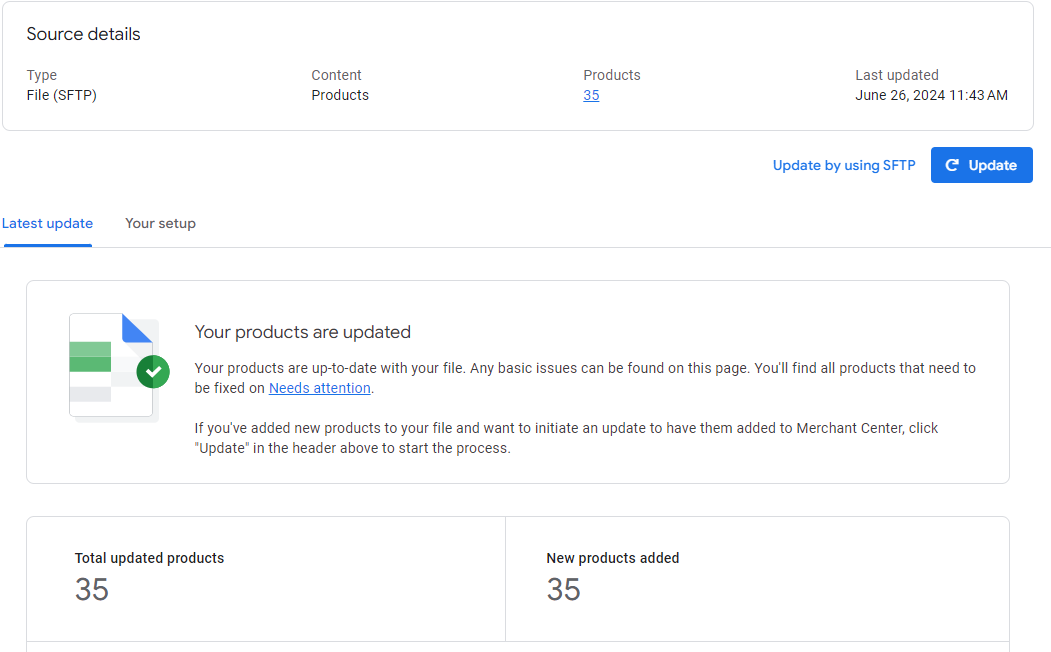
This procedure applies to Google Merchant Center Next.
- Go to your Google Merchant Center.
-
Navigate to Products on the left and click Add Products.
-
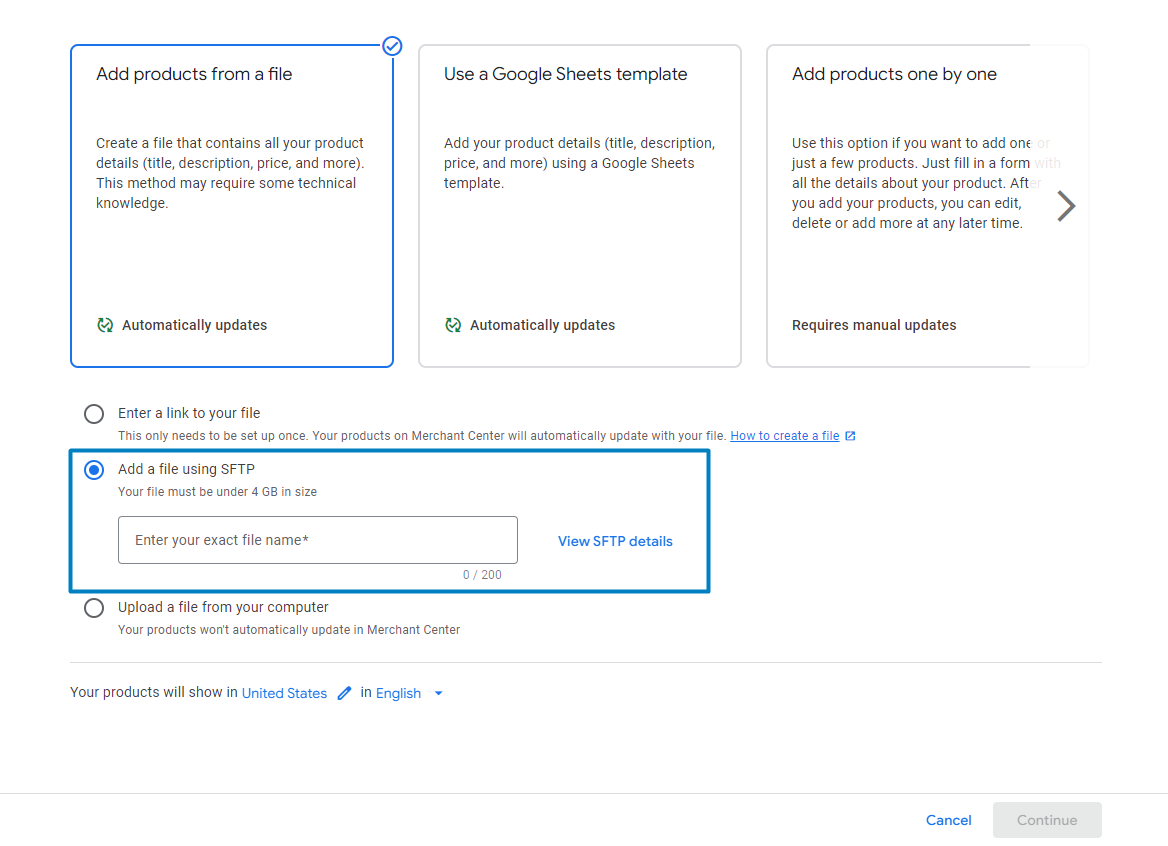
Select Add a file using SFTP, then click View SFTP details.
4. Click Create Password; a password will be generated automatically.
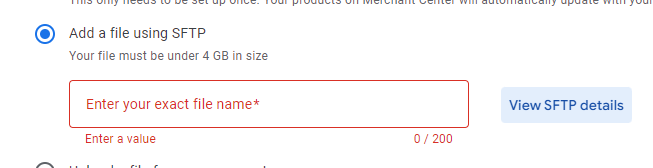
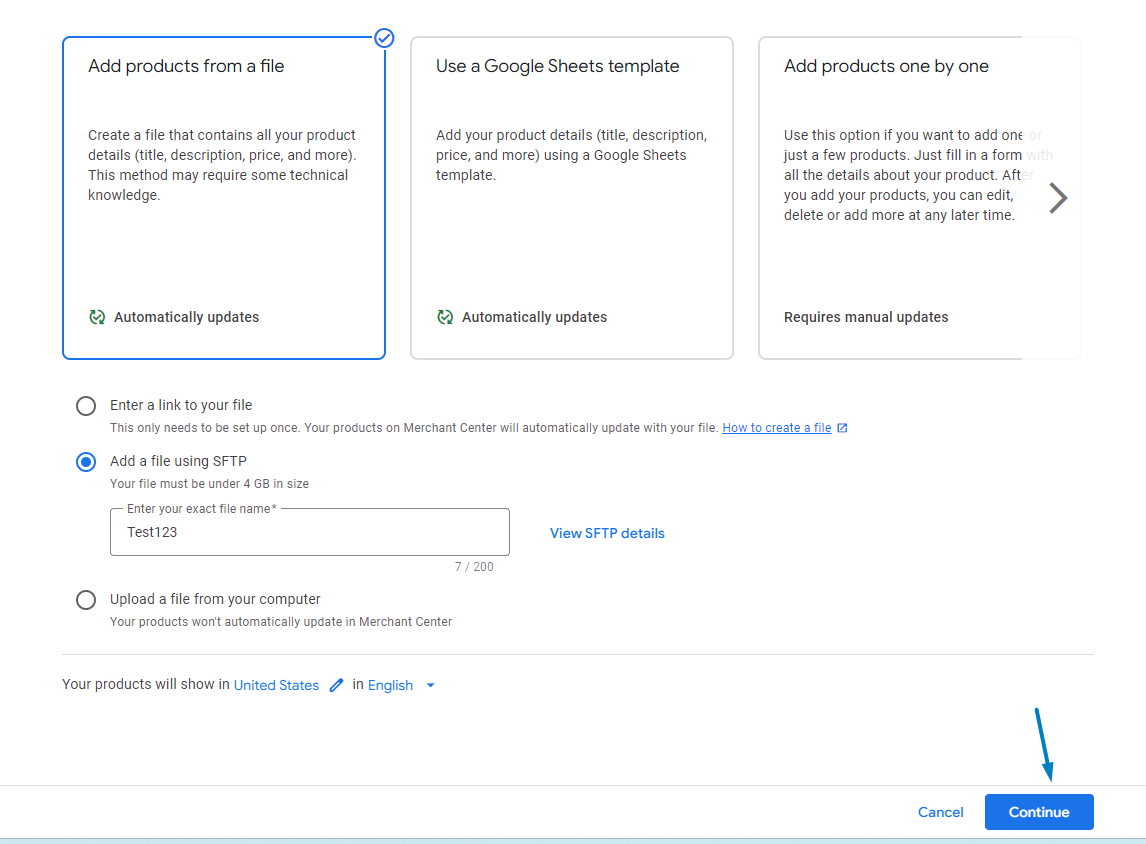
5. Enter the name of your file and click Create Feed.
The name must exactly match the file you will submit in the next steps.
6. Open DataFeedWatch.
7. Go to the Channel.
8. When the mapping screen appears, select Channel Settings from the side navigation.
9. In the Edit Channel panel, click on the FTP Connection drop-down.

10. From the drop-down field, select sftp://.
11. Copy the following host address and SFTP server port: partnerupload.google.com:19321.
12. Paste it into the Server field.
13. In the following field, introduce the Username.
To find your username, click View SFTP details in Google Merchant Center.
14. Introduce the same password that you created in Google Merchant Center.
15. Provide the file name. It must match the one from Step 5.
16. Click the Update Channel button to save the changes.
If any data is incorrect, don’t worry—we’ll notify you before saving the changes.
17. Click FTP upload in DataFeedWatch
When the status is ok, your products should appear in your Google Merchant Center within a few minutes. If you still see "No products added there" you can try to refresh your page.