
DataFeedWatch lets you create multiple channels for one shop using only one source feed. The only thing you need to do is map the channel-required fields.
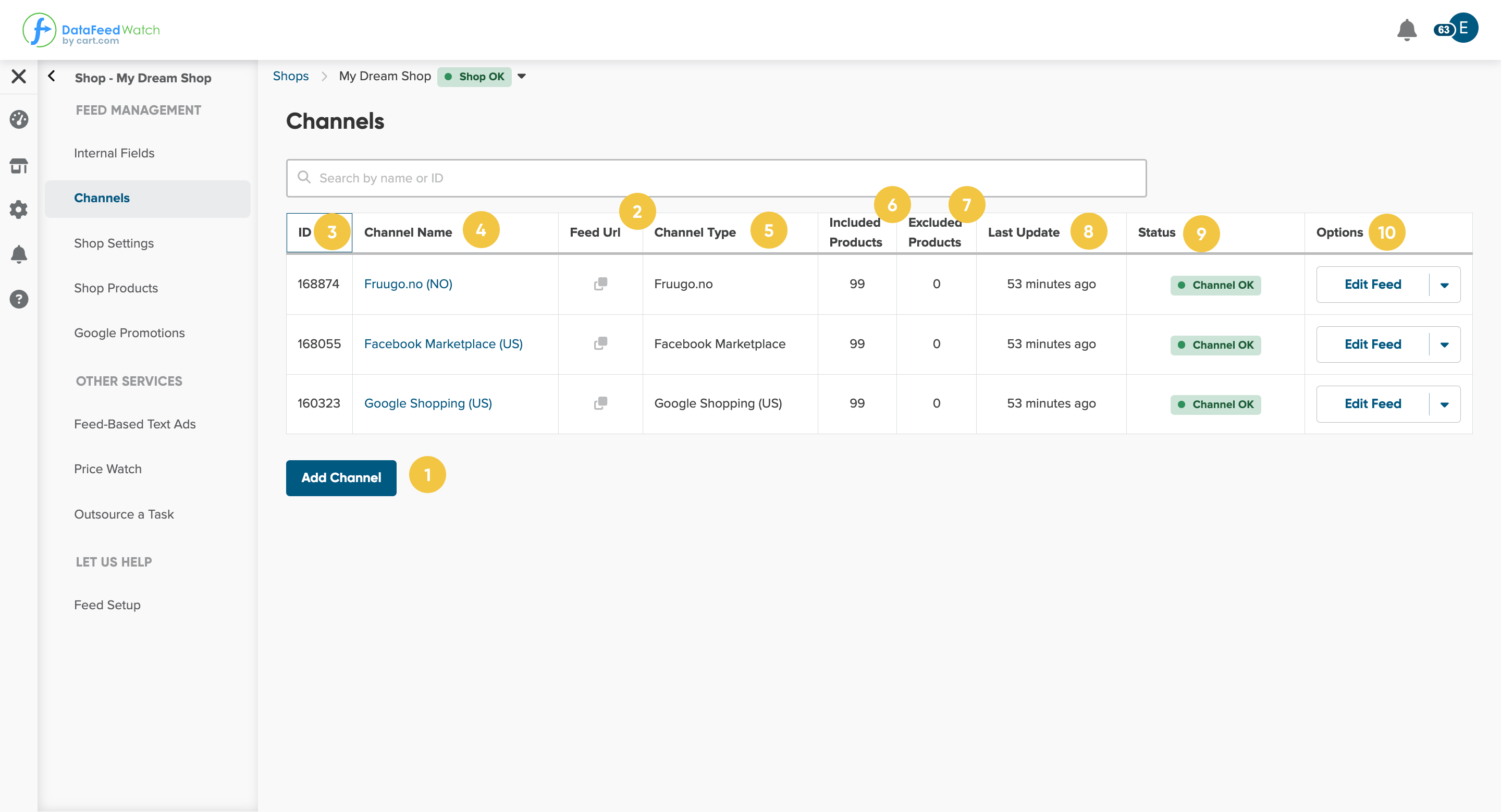
The Channel page lets you:
1. Add a new Channel
Click Add Channel, select the country you want to sell, and find your channel on the list below. If your channel is not there, you can create a custom channel.
👉 Go to related read: How to add a channel
2. Copy the URL link for channels
Just click the icon to copy the link of your output feed for the relevant channel.
3. Find the ID number of the channel
Channel ID is a unique number of your channel in DataFeedWatch. You may find it very helpful when you want to indicate the channel rapidly to our support if any problem occurs.
4. Go to the channel mapping
Click on the channel name to redirect you to the channel mapping.
5. Check the channel type.
6. See how many products are included in the output feed.
Check if all the products you want to advertise are included in your feed.
7. See how many products were excluded according to the Exclude/Include setup in your channel mapping.
8. Take a look at when the last update took place.
9. Check if everything is all right with the channel.
Here, you can see what's happened and what may provoke anomalies in your output feed, so fix them before you place your URL link in the channel.
10. You can also take a few other actions with your channel feed (output feed)
- Edit Feed - redirects you to channel mapping, where you can introduce changes and fix the errors.
When you open a drop-down:
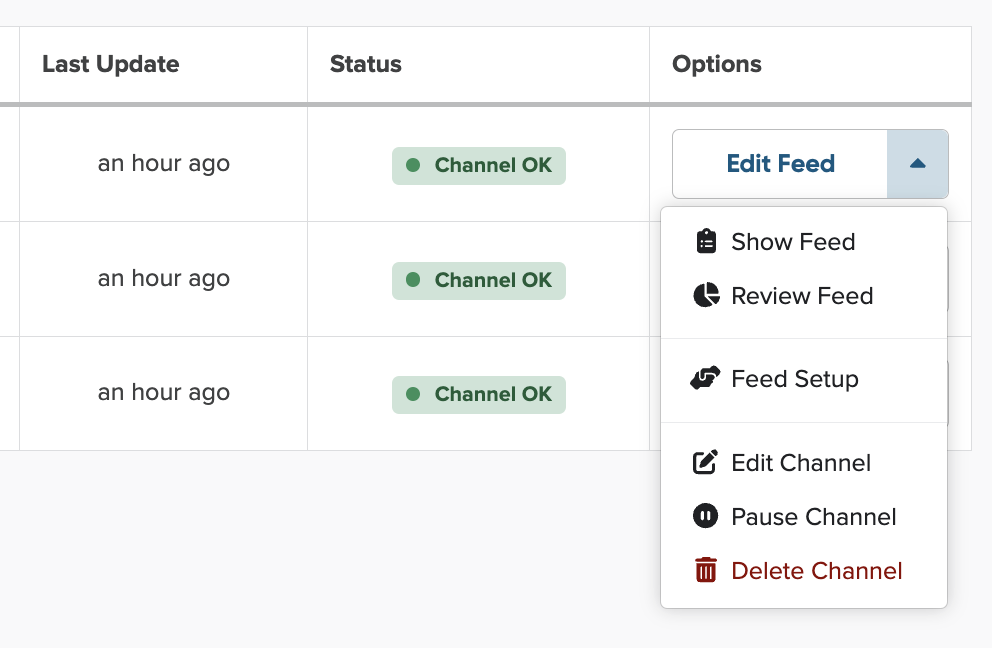
- Show Feed- lets you see the list of the products advertised on the channel.
- Review Feed- lets you see the in-depth report on the channel mapping results, where you can find the possible errors in the feed, what information is missing for the products, etc.
- Feed Setup - you can request the feed setup, the premium service where we create the advanced rules for channel mapping to optimize it.
- Edit Channel - you can change the data about your channel.
- Pause Channel - lets you pause your channel. During this time, we won't be updating your feed. This option is very helpful when you need time to fix the issues or adjust more changes. You can unpause the channel anytime you're ready to go.
- Delate Channel - With just one click, you can remove the channel. No worries if you click it by accident. We'll ask you beforehand if you're sure of your decision.
Most commonly used advertising channels: