
On October 28th, 2024 we launched the new users’ access management system for your DataFeedWatch account.
You can now assign specific roles to users, each with its own set of permissions. This approach saves your time and gives you more control and flexibility.
Contents
How to add a new user?
To add a new user:
-
Log into DataFeedWatch by Cart.com.
-
Head to Account Settings.
-
Open Users Management.
.gif?width=655&height=379&name=head_to_users_Management%20(1).gif)
-
Click on the +Add New User button.
-
Set User Profile:
-
Insert the user’s name.
-
Optionally you can also insert their last name.
-
Enter the user’s email address.
.gif?width=688&height=341&name=inserting_users_data%20(1).gif)
-
.gif?hsLang=en)
.gif?hsLang=en)
You cannot add a user with the same email address if they already have access to your account.
Similarly, you cannot add users with the same email if they previously had access, even if they no longer do.
To re-add a user, you'll need to use an email different from the one used before.
For more information, please contact support via chat.
6. Set user role:
-
-
From the first drop-down, select the role that best matches the level of access you want to grant the user.
-
If you've selected a Shop Admin or Shop Member role, select the shop where you want to grant access from the next drop-down.
.gif?width=688&height=341&name=setting_a_role%20(1).gif)
-
.gif?hsLang=en)
💡 Learn more about the roles in the article What role should I set?
You can also use the Role's Permission Scope Guide! -1.gif?hsLang=en)
7. Set add-on permissions:
a. To grant full access select Full Access.

b. To deny access to add-ons select No Access.

8. Click on the Add User button.
Done! The user has been granted the access you specified and will now appear in the list.
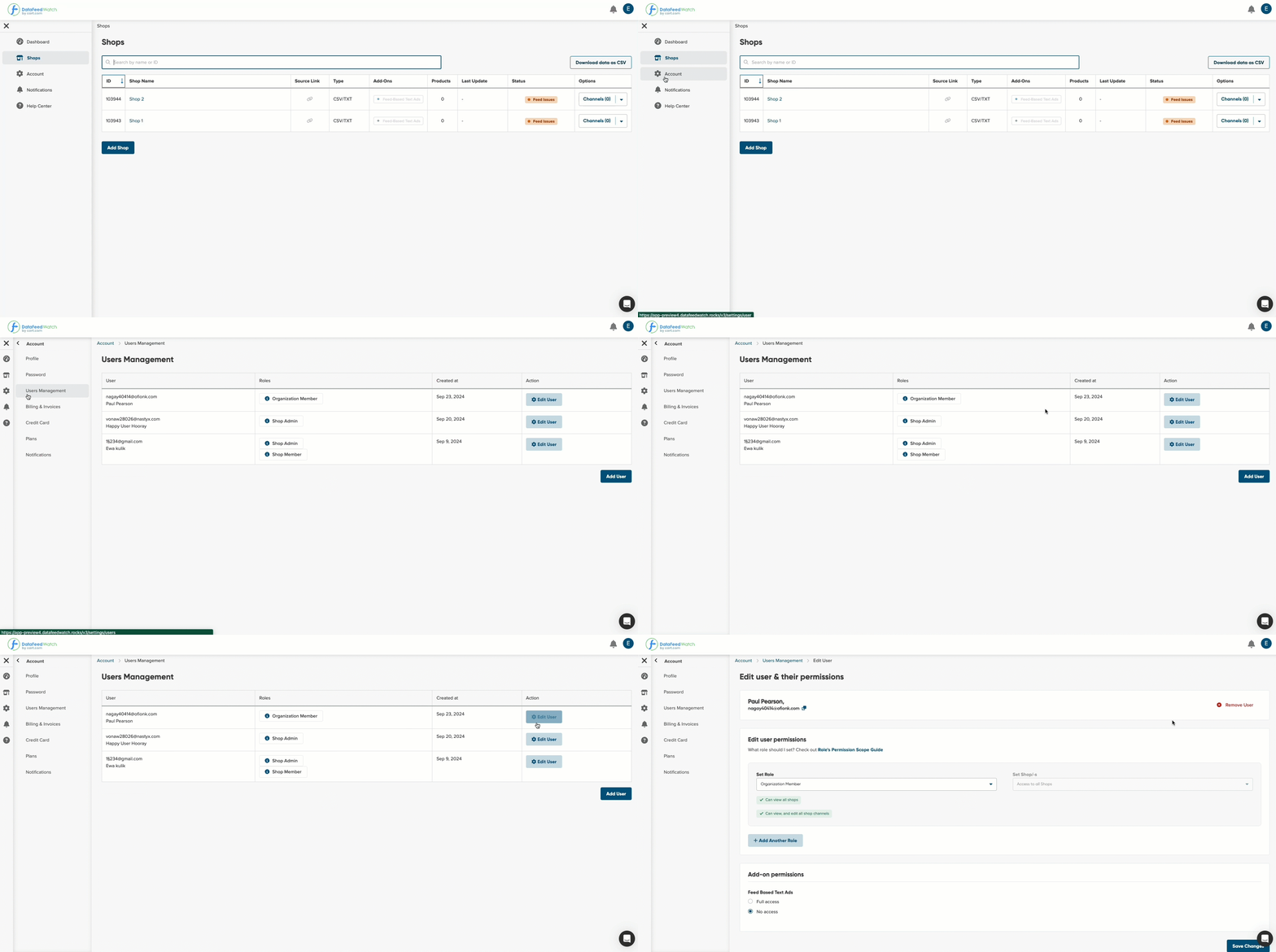
How to edit a user?
- Enter Account Settings from the side navigation.
- Select Users Management.
- From the list of the users, find the one you want to edit.
- Click on the Edit User button.
How to remove a user?
-
Enter Account Settings from the side navigation
-
Select Users Management.
-
From the list of the users, find the one you want to edit.
-
Click on the Edit User button.
-
When you open the user page, you’ll find the Remove User button in the upper right corner.
-1.gif?width=688&height=343&name=removing_user%20(1)-1.gif)
-1.gif?hsLang=en)